Lightcommander Lightcommander
Lightcommander Lightcommander
Lightcommander
11
11
1
2/22/2
2/22/2
2/2
eMail: info@malighting.de
.
Tel.: +49 931 497940
.
User's Manual Lightcommander 12/2
1111
1111
11
Dipless Crossfade (Insert Mode)
Memory X-Fade by using Flash buttons:
• Switch off Channel Flash, to release the flash buttons.
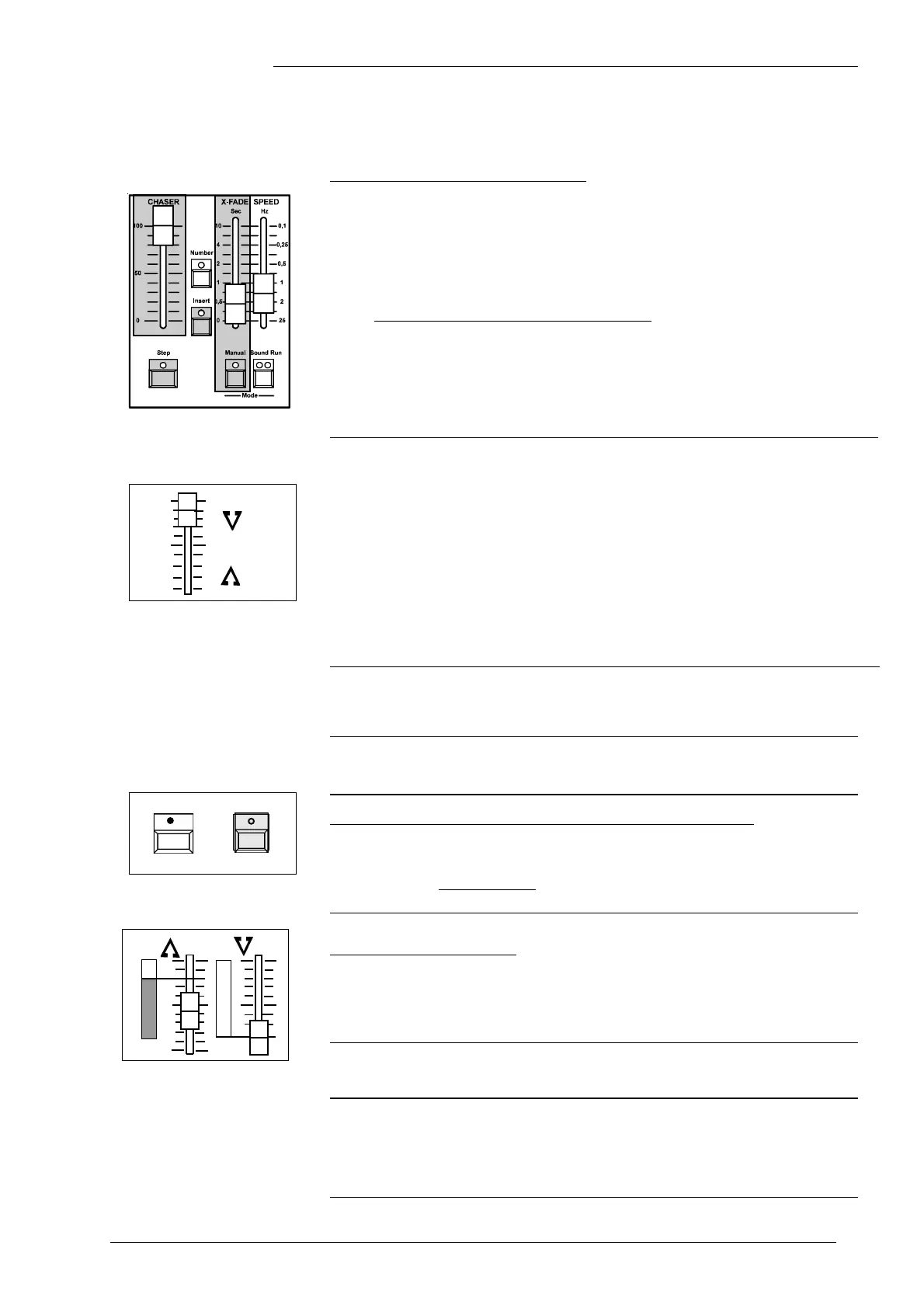
• Set up Chaser Master and select Insert within the Chaser section.
(If a Chaser is running, it stops at the actual step))
• Use the X-Fader to set the required Fade time.
Press a Memory flash button.
Î The memory fades in at the set time.
Each other selected Memory will initiate a Crossfade from one into
the next Memory, in order of selection.
Î Use the Step button, to achieve a fade between the actual
and the previous Memory.
Î Switching Insert OFF, causes the Chaser to continue.
Note: Chaser Master sets maximum output level of Insert Steps.
Manual Memory Crossfade:
• Turn on Insert and Manual.
• Move the X-Fader from end to end. After fading in a memory
(i.e. fader full up or full down), select the next to be faded.
• If you don't select a Memory, the previous one is faded in and you
can change between both. The Chaser Master controls brightness.
Fading out Memories:
• Turn Insert off and press the Step button, or use the X-Fader
to fade down.
(This depends on the kind of Insert mode, you have selected).
• Note: If a Chaser was preselected, a Step will be faded in.
Inserting Preset A
Î Use the Master-A- Flash button to insert the actual scene from
Preset-A-.
Previewing and Editing a Memory
Previewing a Memory store before setting up the cue
• Turn Preview on and select a Memory with the Flash buttons.
Î The Memory store is indicated on the LED´s.
Preview automatically turns Live mode off (if selected).
The consoles output will not be affected.
Editing a Memory store
Î While previewing, select Modify out of the displayed menu.
• Use the Channel fader to "grab" the preprogrammed level.
Î Modify as required and save using Quit. Ready!
The output will not be affected by this.
Programming Memories blind
• Turn Live off if it is selected, using the Shift+Live buttons.
• Set Master-A- to zero and program as usual.
Î The setting on Preset A will not affect the output.
NOTE: When the desk is switched to LIVE while editing a Memory
this Memory appears at the output.
Preview
Memory
+


 To Next Page