
 Need help?
Do you have a question about the Mannayan Trikombin and is the answer not in the manual?
Essential safety and operational guidelines for using the Trikombin device.
Critical safety precautions and warnings to prevent injury or device damage.
Procedures for checking accessories and preparing the device after delivery.
Guidelines for storing and moving the device safely to prevent damage.
Specifies appropriate use conditions and environmental limitations for the device.
Instructions for cleaning, checking cables, and understanding fuse specifications.
Details on power requirements and the function of input fuses.
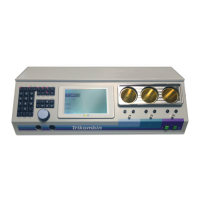
Identifies and describes all controls and displays on the front of the Trikombin.
Details the ports and connectors located on the rear of the Trikombin device.
Steps to prepare the device after transportation, including fuse insertion and foil removal.
Guidance on connecting the antenna, power, and earthing cables correctly.
Instructions for connecting an optional external footswitch accessory.
Information on available output ports and restrictions on series connections.
Specifics on connecting the antenna, including earthing requirements.
How to connect colored cables to hand electrodes and optional accessories.
Guidance on connecting output brass cups and potential impact on antenna efficiency.
Describes how BNC sockets can be used for external devices like loudspeakers.
Advice on charging, storing, and maintaining the device's rechargeable batteries.
Step-by-step instructions for turning the Trikombin unit on and off.
Details on how to charge the Trikombin and interpret charging status indicators.
Procedures for removing, inserting, and handling the brass cups for optimal contact.
Introduces the three main software modes: Start, Testing, and Application.
Explains how to operate the device using the touchscreen, rotary encoder, and keypad.
Details how to set values and scroll using the rotary encoder.
Describes the layout and functions of the Start Mode screen, including presets and quick start buttons.
How to use the built-in cable tester to check connections.
Options for language, screen brightness, date/time, and speaker volume.
Setting up user profiles and installing firmware, licenses, and libraries.
Overview of the interface elements within the Testing Mode screen.
Details the purpose and operation of the dedicated function keys on the keypad.
Explains Phase, Cascade, Wobble, and other waveform modification functions.
Describes Wobble direction, Modulation, and Database access functions.
How to navigate frequency programs using the navigation bar.
Various methods for directly loading specific frequency programs.
How to adjust and save changes to loaded frequency programs.
Steps to tune frequency programs by adjusting the pitch.
Procedure to add configured programs from Testing to the Application list.
How to reprocess and modify programs already in the Application list.
Steps to save current program settings as a user-defined program.
How to use the Terminator feature for automatic program transfer.
Connecting and using the optional three-pedal foot switch.
Introduction to the Application Mode and its list management features.
Describes the key elements and controls within the Application Mode screen.
Details the data displayed for each program in the application list.
How to add programs to the application list from the Testing Mode or by number.
Methods for selecting programs within the application list for execution.
How to start, stop, and manage the execution of programs in the application list.
Explains when acoustic signals are used during program execution.
How to reorder programs within the application list.
How to connect and use the pulse meter for synchronization.
Instructions for connecting the pulse meter ear clip or finger cap.
How to activate and initiate the pulse/wobble synchronization feature.
Configuring settings for testing and transferring programs with pulse synchronization.
Introduction to using chip cards for storing and transferring frequency programs.
Information on software versions required for chip card compatibility.
Steps to access the chip card editing dialogue.
How to view the sequences and programs stored on a chip card.
Procedure to import sequences or programs from a chip card to the application list.
How to reorder sequences stored on a chip card.
Steps to save programs from the application list onto a chip card.
Information on installing and using compatible software libraries.
Information on installing and using compatible software libraries.
How to search for frequency programs within installed libraries using search terms.
How to select and utilize chains of frequency programs found in libraries.
Referencing the method for directly loading a chain using its number.
Procedures for removing single or all chains from the Testing Mode.
Details on the device's construction, battery, and physical components.
Lists all available physical connection sockets on the Trikombin.
Technical parameters of the output signals, including frequency range and voltage.
Lists applicable directives and standards for electromagnetic compatibility.
Details about the manufacturer, product name, and optional accessories.
Lists applicable directives and standards for electromagnetic compatibility.
A comprehensive list of available accessories with their product numbers and brief descriptions.
 General
| Brand | Mannayan |
|---|---|
| Model | Trikombin |
| Category | Medical Equipment |
| Language | English |

 To Next Page
