26 Chapter 2: Hardware installation
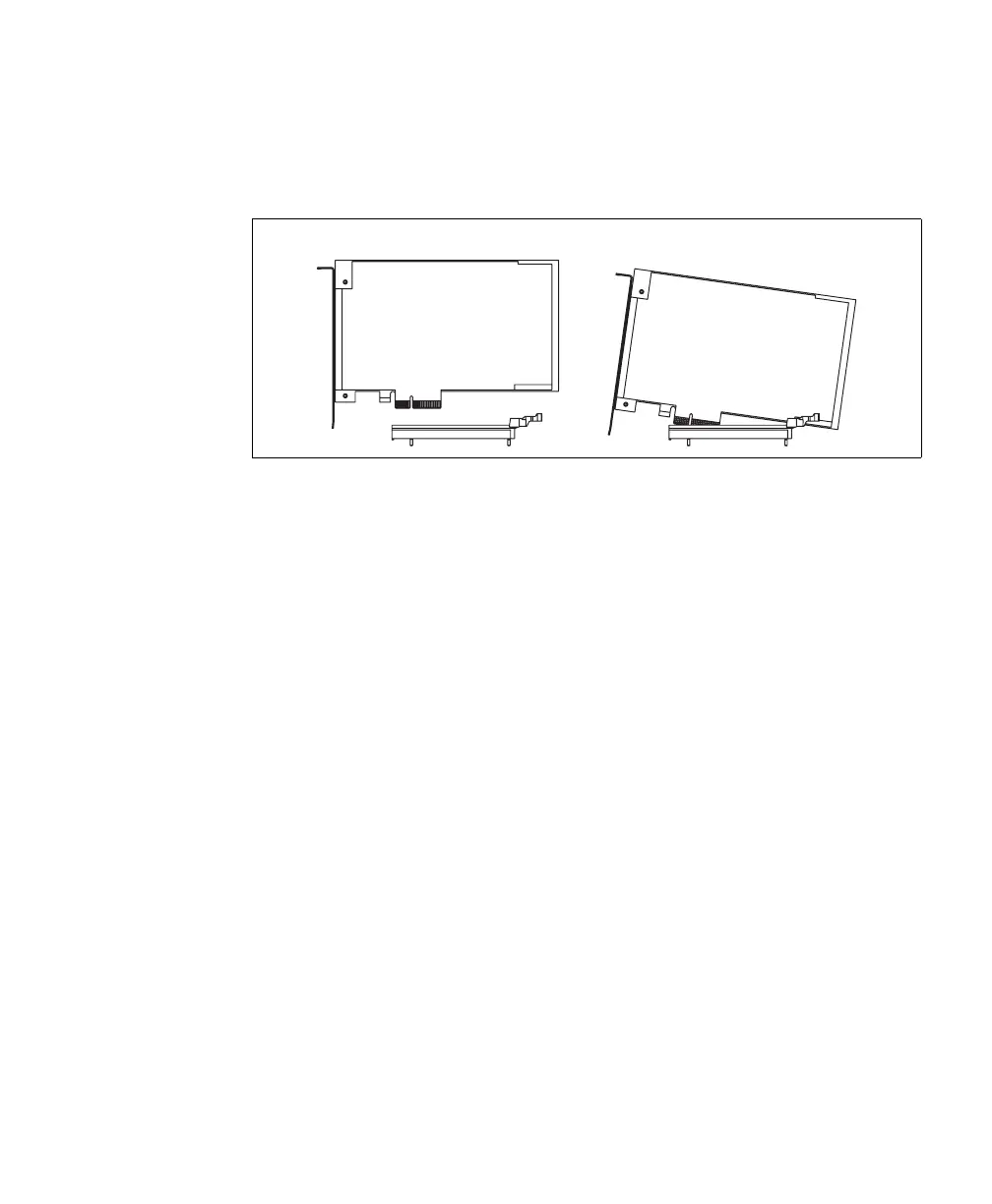
board backwards or rotate it when installing it; otherwise the board can touch the
latch and get damaged. Note that the same is true when removing the board.
Alternatively, you can remove the latch from the retainer.
5. Anchor the board using the screw that you removed in step 3.
6. If required, install the cable adapter bracket of your Matrox Solios eV-CL board,
as described in the section Installing the cable adapter bracket, later in this chapter.
7. Attach your video sources, as described in the section Connecting video sources,
later in this chapter.
8. Turn on your computer.
❖ When you boot your computer under Windows, Windows’ Plug-and-Play system
will detect a new Multimedia Video Device and you will be asked to assign it a
driver. At this point, you should click on Cancel. Under Windows and Linux, the
driver will be installed during the installation of Matrox Solios eV-CL software.
9. Disable active state power management (ASPM) for PCIe devices, to maximize
the performance of Matrox Solios eV-CL. In the BIOS, disable all ASPM (or
equivalent) settings (typically accessible from the Power management submenu
of the Advanced Configurations menu). In addition, if the operating system has
an ASPM for PCIe devices option, disable this option as well. For example, in
Microsoft Windows 7, open the Power Options dialog box from the Windows
Control Panel. For the currently selected power plan, click on Change Plan
Settings and then click on Change Advanced Power Settings. In the presented
dialog, expand PCI Express, and then expand Link State Power Management
and set it to Off.
Incorrect
Correct



 To Next Page