4.2.3 Device
HDD
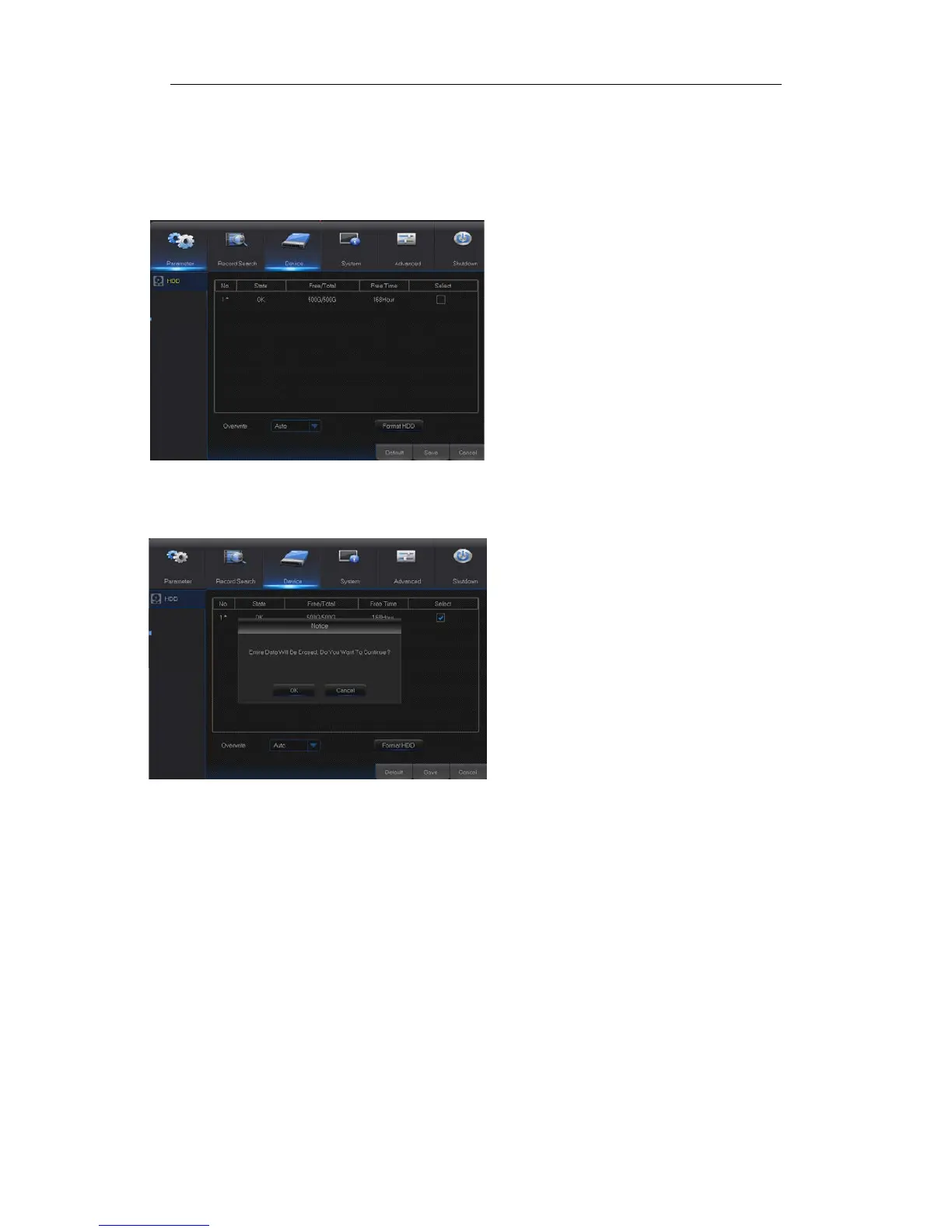
Go to “Main Menu” → “Device” → “HDD” to enter into the interface shown as Picture 4-28.
Picture 4-28
Picture 4-29
Note: Recording can only be performed when HDD is in “Normal” state.
When NVR is connected to a HDD, the system
will automatically detect if HDD is normal or not;
If HDD need to be formatted, status will be
shown as “Not formatted”. Select the HDD and
format the HDD. If the system detects HDD is
normal state, the HDD status will be shown as
“Normal”. See Picture 4-29
No.: Number of HDD connected to system.
Status: It shows the current status of
HDD. It will be available only when HDD is
“Normal”.
Remaining time for HDD
recording according to currently set
“Resolution”, “Encoding Rate” and “Frame
Rate” of image.
Auto-overwrite: When set to ENABLE,
the NVR will overwrite the oldest files on
the hard drive if hard drive space is full.
When set to DISABLE, the NVR will stop
recording if hard drive space is full.
Overwrite time: 1 day, 3 days, 7 days, 14
days, 30 days and 90 days. It means the
longest storage time of records in HDD. If
the time is over, the records will be deleted.
For example, if the time is set as 3 hours
and the data in HDD include 12, 13, 14, 15,
16, 17, 18, 19 and 20 o’clock, then data 18,
19 and 20 will be saved and data 12, 13,
14, 15, 16 and 17 will be deleted.
Format HDD: Format HDD for the first use.


 To Next Page