4.2.5 Advanced
4.2.5.1 Maintain
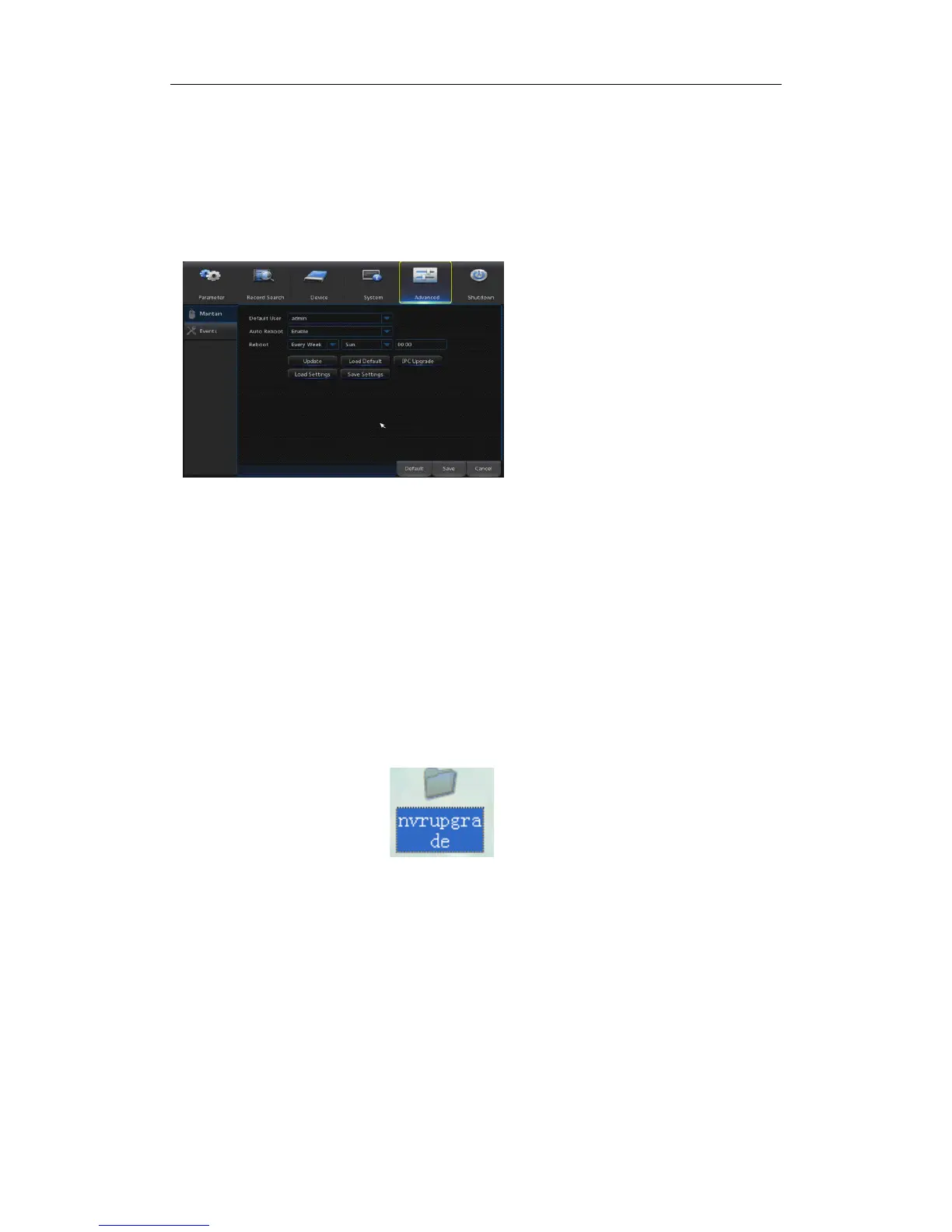
Go to “Main Menu” → “Advanced” → “Maintain” to enter into the interface shown as Picture
4-39.
Load Default: If [Load Default] is selected, you can initialize the system to the ex-
factory default. Click “Load Default” and select items to be restored
Load Settings: Load parameters in the removable storage device to NVR.
Save Settings: Save the set parameters of user’s NVR to the removable storage
device.
IPC Upgrade
: IPC can be upgraded by the connected NVR. Decompress IPC
upgrading file and copy *.sw file to nvrupgrade directory and copy to the root directory
of U flash disk, as shown in Picture 4-40—>Insert the U flash disk into USB port of
NVR—>Select the IPC you want to upgrade—>Click Upgrade to start upgrading IPC.
Note:Do not take out the USB memory or cut off the power during upgrading. When
the update is done, system will be automatically restarted. After about 5 minutes, the
upgrading will be finished. It is recommended to load ex-factory default after upgrading.
The auto maintain function can be effective only when NVR returns back to Preview mode
with no any operation within the set auto maintain time.
Auto Reboot: Enable the auto
maintenance function to reboot
system regularly at every
Reboot is enabled, NVR should be
in the main interface and no user
operation.
Upgrade: Decompress update file
package and copy the upgrade file
folder named “nvrupgrade” (see
Picture 4-40, the upgrade program
is inside) to root directory of U flash
disk; Insert the U flash disk into USB


 To Next Page