Chapter 5 Web Application Manager
5.1 ActiveX control download and installation
Open your web browser and input the IP address of NVR, such as: http://192.168.1.168 .
If your computer is connected to internet, it will download and install “ActiveX” plug-in
automatically. If your computer system is Windows Vista or Windows 7, you may need to
setup the user authority for remote control, or you may be unable to backup or record.
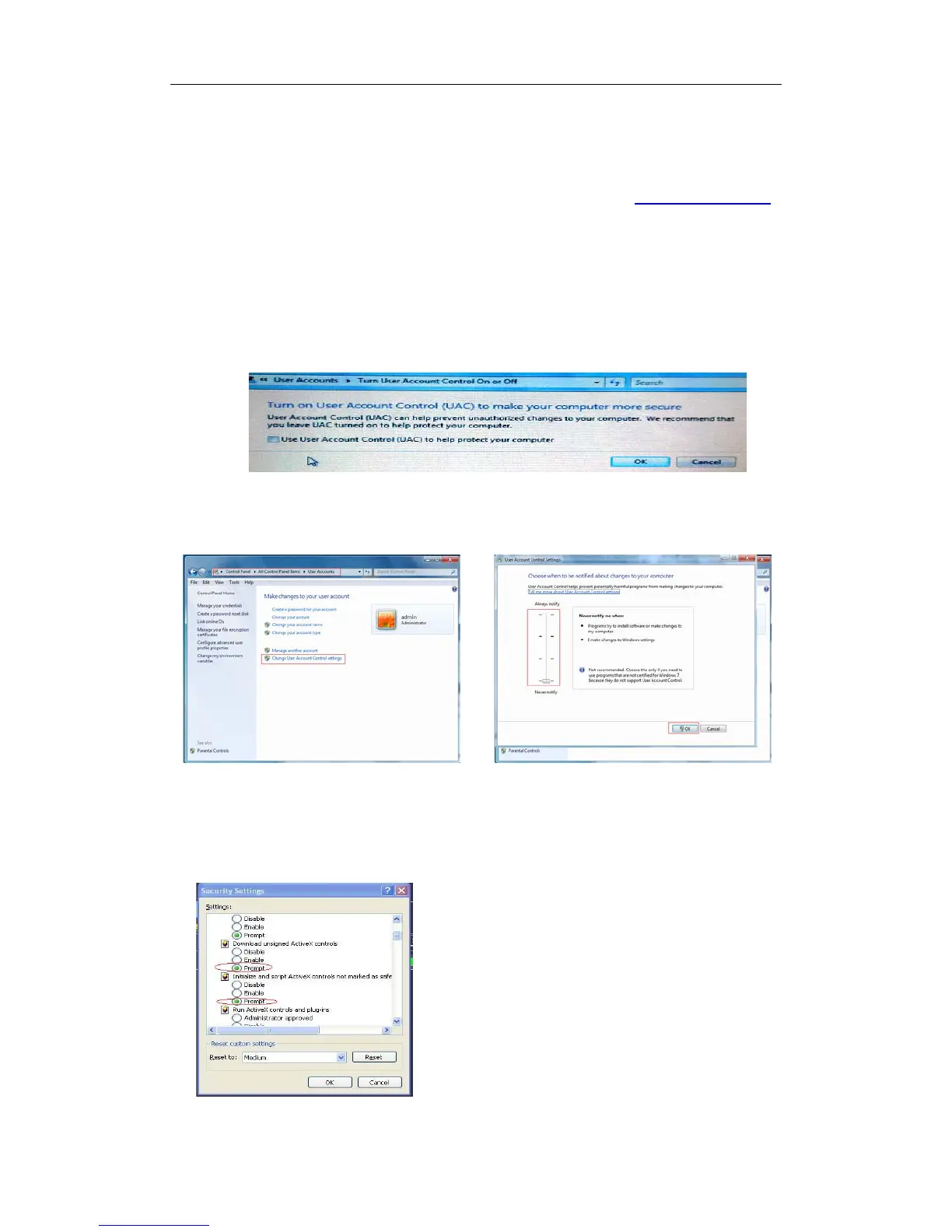
Vista System: Start→ Setup→ Control Panel. Set user authority in control panel (as shown
in picture below). Remove the Tick “√” in front of the option “Use UAC to help protect your
computer” and confirm OK.
Vista
WIN7:
Picture 5-1
Note: If the ActiveX control is not downloaded successfully, please check if your browser’s safety
level or firewall setting is set too high. Please open IE browser→ [Menu Bar] Tools→ Internet
options→ Security → Internet →Custom level→ Enable the options (Refer to the Picture 5-1).
If the web application runs for the first time, please wait
for about one minute to finish downloading.
If you want to use the undated ActiveX control at a
computer which you have already logged in before, please
delete the original control and click [StartRun] and then
input the command characters: “regsvr32/u
HiNVROcx.ocx”. Press OK. When you log in at the next
time, new ActiveX control will be automatically downloaded.


 To Next Page