page 13
The display shows OUT BAND and IN BAND. This menu
selects which values are to be considered.
OUT BAND - Any value falling outside the set limits
LIMIT 1 and LIMIT 2
IN BAND - Any value falling between the set limits LIMIT 1
and LIMIT 2
Use UP and DOWN to move the cursor and press ENTER to
select the desired feature.
The display shows PASS, FAIL and PULSE. This menu sets the
OUT BAND and IN BAND mode.
PASS - Values, which fall either OUT BAND (or IN BAND,
if selected), are a PASS and will cause an audible
beep
FAIL - Values, which fall either OUT BAND (or IN BAND,
if selected), are a FAIL and will cause an audible
beep
Use UP and DOWN to move the cursor and press ENTER to
select the desired feature.
Display is showing sub-menu 1 again (= ALARM ON and
SET). Press ESC to return to main-menu and again to return to
main display. The main display will now show an alarm
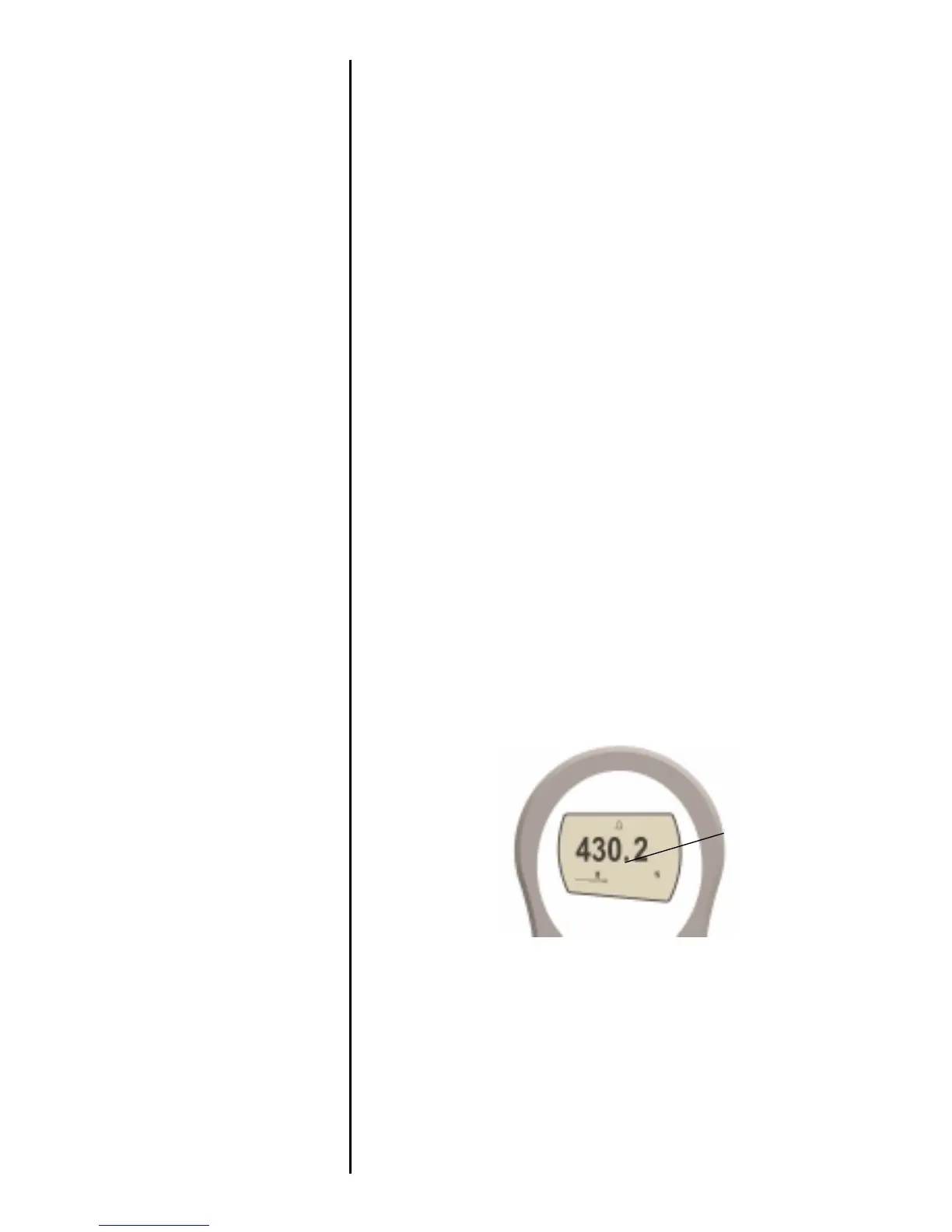
‘bell’ symbol indicating the alarm is turned on. See Figure 8.
This feature is only activated when the % DROP feature is
used in conjunction with the ALARM function. The AFG looks
for a percentage (of full-scale) drop from peak load value, set
in the % DROP menu (see page 19). The alarm can be used
to indicate if the break point falls inside or outside the limits
LIMIT 1 and LIMIT 2 set in the alarm menu (see Examples 1 to
5 overleaf).
ALARM sub-menu 4
ALARM sub-menu 5
ALARM on break
Fig. 8
alarm symbol



 To Next Page