UK/ N. IRELAND HELPLINE 0871 37 61 020
REP. IRELAND HELPLINE 1-800-992508
(calls are charged at 7p per min from a standard landline, calls from mobiles could be higher)
-63-
Safety Handling
Components
Aid Appendix
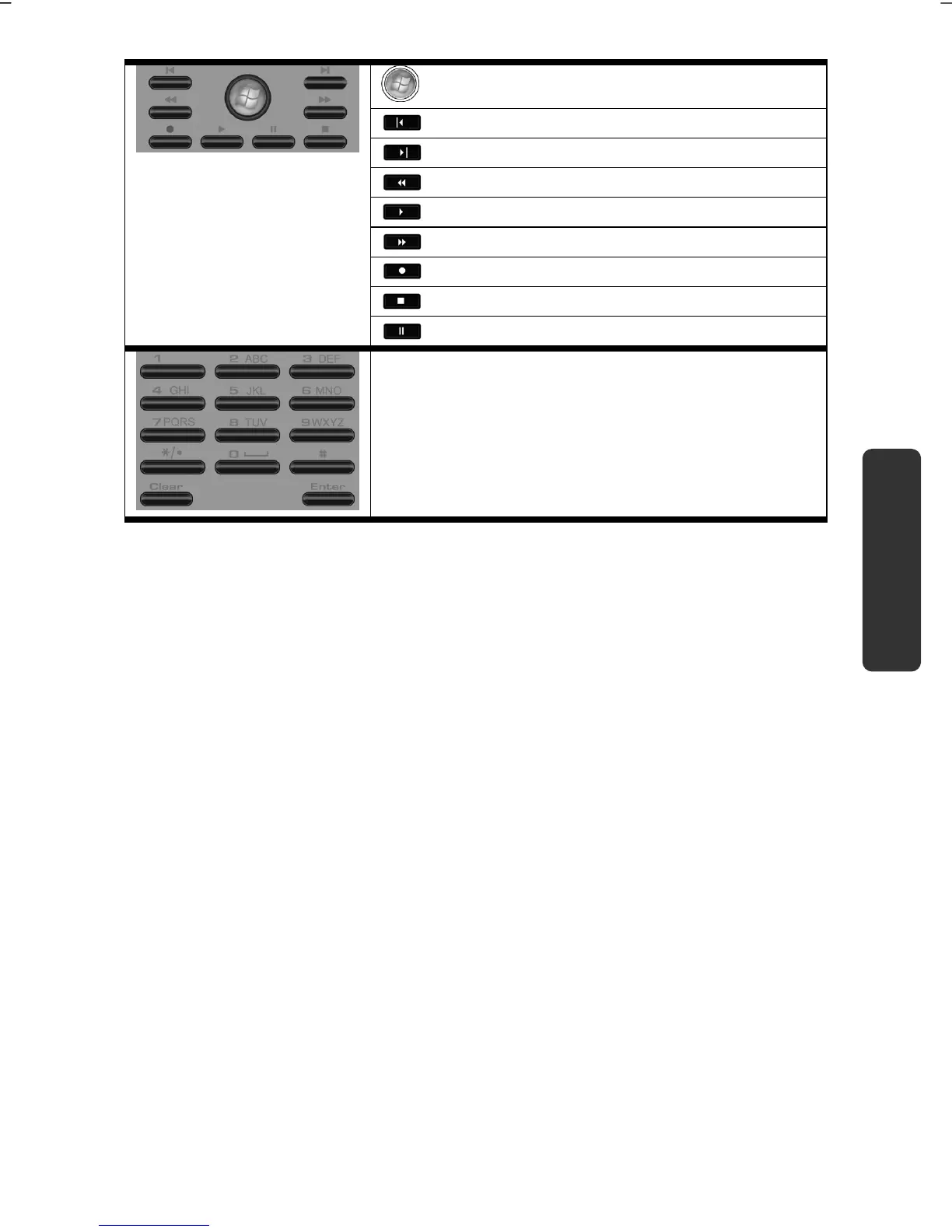
Starts Media Center.
Previous title/images/chapter
Next title/images/chapter
Rewind
Starts playback
Fast forward
Start recording
Ends the playback/recording
Pauses the playback at the selected point
Direct selection of the TV channels by means of
numbers. Number entry in the case of some
functions (video text, etc.).
Changing the Transmission/Reception Channels
If several computers with remote controls are set up in close proximity of each
other (approx. 10 metres), this can lead to disturbance. This can be remedied by
choosing different channels. Only reset the remote control in case of
disturbances. Proceed as follows:
1. Start the Control Panel.
2. Choose the menu item Wireless Remote Settings.
3. Check the option “Use Wireless Remote Settings with the remote set to
this channel”.
4. Select the new channel (a number between 1 and 16) and confirm your
setting with the Apply button.
5. Press and hold the Clear button on the remote.
6. Now enter the channel already set in the software by means of the numeric
key pad on your remote, without releasing the Clear button.
7. Press the OK button. Do not release the Clear button until then.
8. Press any button on your remote to see the current code.
9. Confirm your settings by using the OK button on the Wireless Remote
Settings window.



 To Next Page