www.megger.com
Megger Baker ADX User Guide
53
Assets
Browse and Search Mode Tools
Before you can select an asset, you need to find the particular asset you want to test from among the many assets
stored in your system.
The right half of the screen provides SEARCH MODE and BROWSE MODE tools to help you find an asset.
The main list on the left displays the results of the search criteria specified. The list can include assets or other dynamic
directories that contain assets meeting the specified criteria.
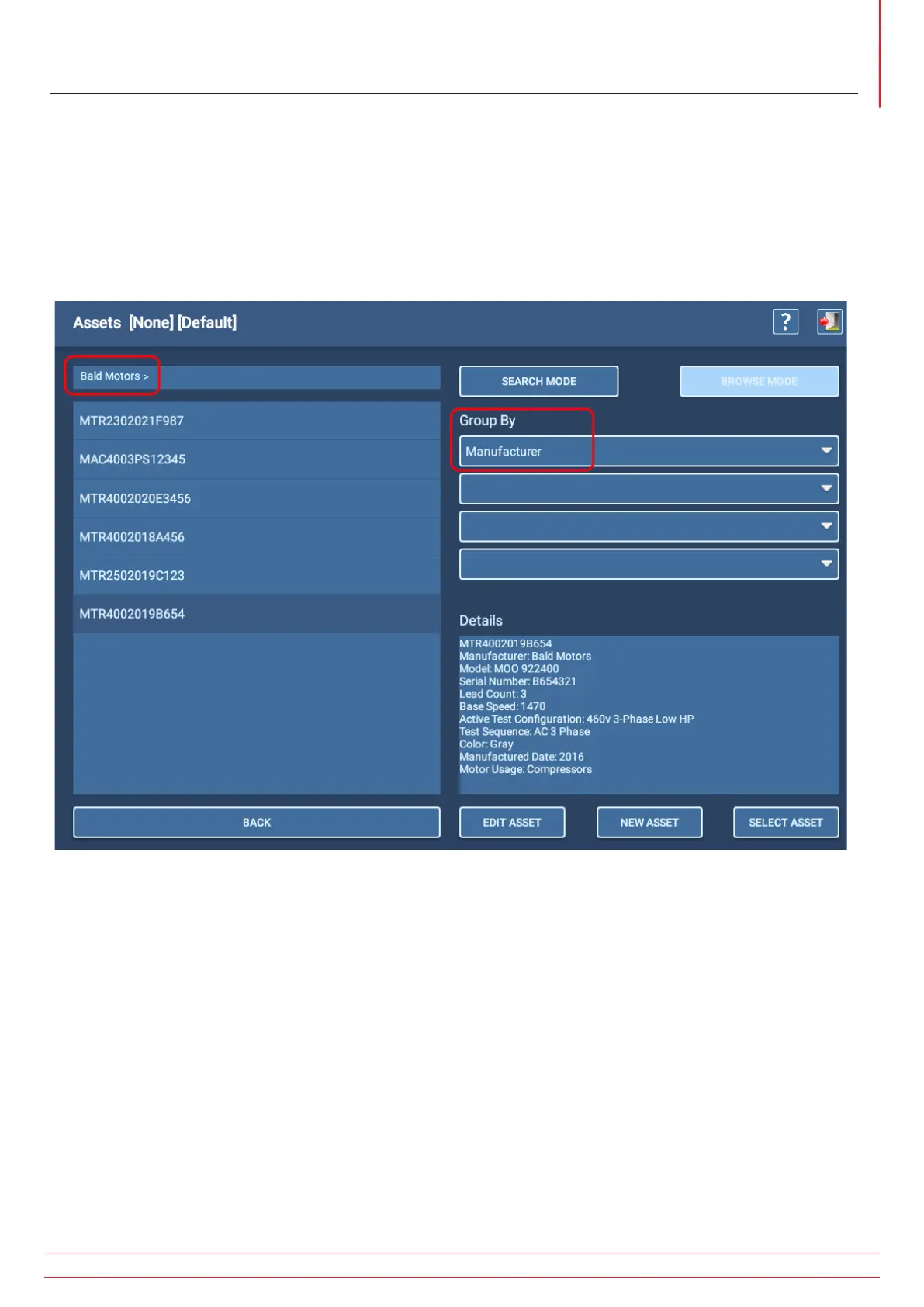
Fig 49: Selecting an Asset; Browse mode.
Browse Mode helps you refine your database search by creating smaller inclusive groupings based on the user-defined
criteria presented in the Group By drop-down lists. Criteria can include characteristics such as manufacturer, model,
output power, and more.
The Group By lists come from common nameplate fields defined during the asset creation process, along with
attributes created during that process.
As each criterion is entered, the characteristics are combined to refine the search and the list to the left updates
accordingly. Depending on the criteria used in filtering, the top-left field can display a path that the software
dynamically builds as you use the Browse tool to locate the asset you want to test.
In the example above, Manufacturer was selected in the Group By list, which produced a list of manufacturers. Bald
Motors was selected (shown in path line) then the asset list updated as shown above.
As the Assets list builds, use the BACK button below the list to step back one level at a time within the path presented.
You can then change the grouping as needed to refine or redirect your asset search.


 To Next Page