www.megger.com
Megger Baker ADX User Guide
64
Assets
Editing an Existing Asset
1. Click on the ASSET icon in any main menu.
2. In the Asset Selection screen, locate and select the asset you want to edit.
3. Press or click on the EDIT ASSET button.
4. In the Asset Editor screen, revise the asset as needed.
5. Press the SAVE icon at the top of the screen to commit your changes.
6. Press the EXIT icon to leave the Asset Editor.
Copying an Asset
1. Click on the ASSET icon in any main menu.
2. In the Asset Selection screen, locate and select the asset you want to edit.
3. Press or click on the EDIT ASSET button.
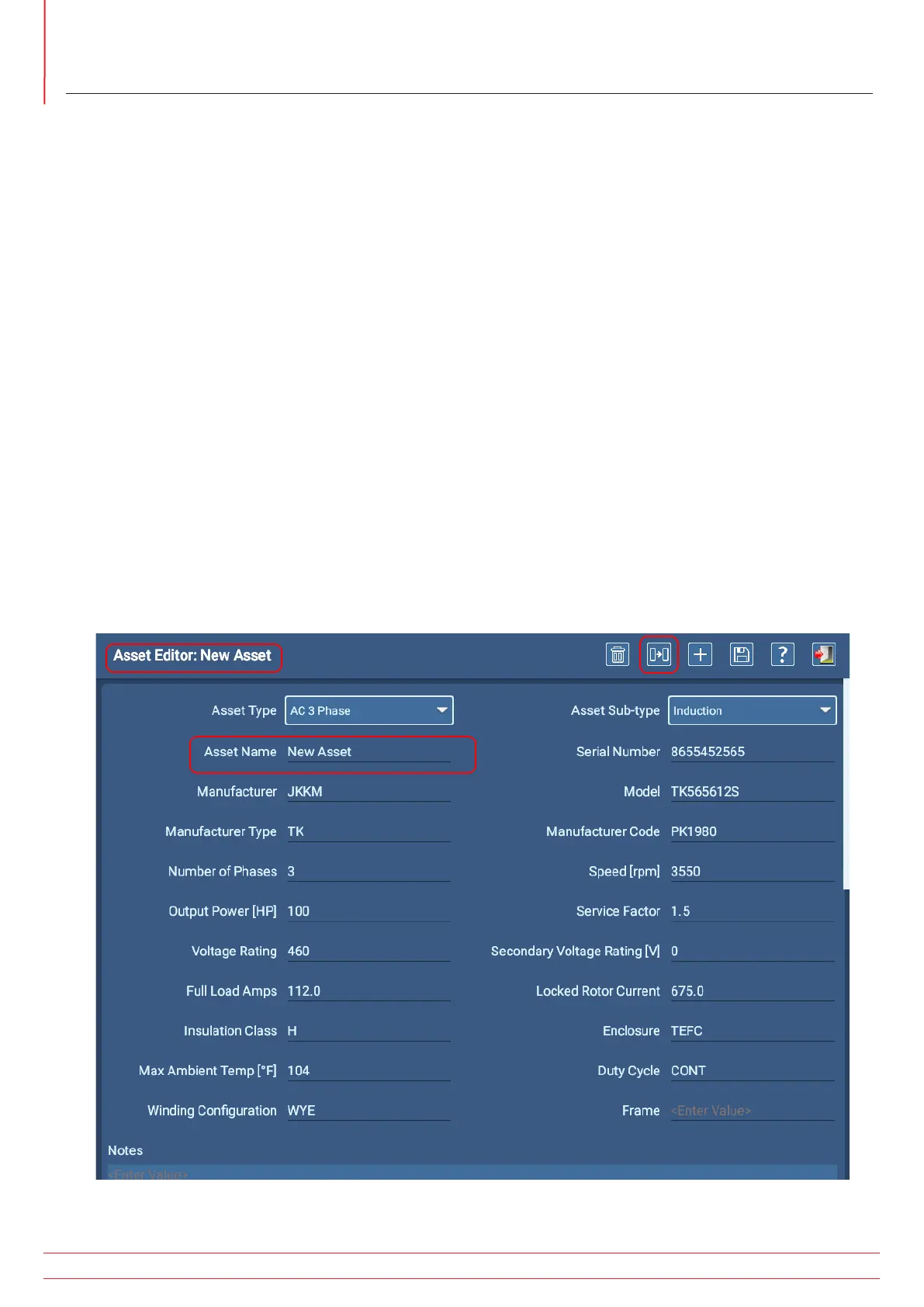
4. Press the COPY icon at the top of the screen. The software will clear the Asset Name field/replace the name of
the selected Asset with “New Asset” in the Asset Name field, but it will retain all other elements of the originally
selected asset including sequence and test configuration assignments.
5. Enter a name for the new asset in the Asset Name field.
6. Make other changes to the asset as needed then press or click on the SAVE icon to save the new asset to the
database.
Fig 61: Asset Editor: copying an existing asset.


 To Next Page