7 Frequently Asked Questions (FAQ)
35
How to format a CF card on the computer correctly?
The CF card should be only formatted on the device. Formatting on the computer is permissible only under
exceptional circumstances. The CF card to be used may have a max. memory capacity of 4GB and must
be formatted with the file system FAT16 or FAT32. CF cards from which a software update is to be per-
formed may only be formatted in a FAT16 file system.
The device can only file or read data on CF cards formatted in this way. CF cards supplied by MELAG fulfil
these requirements and have already been formatted.
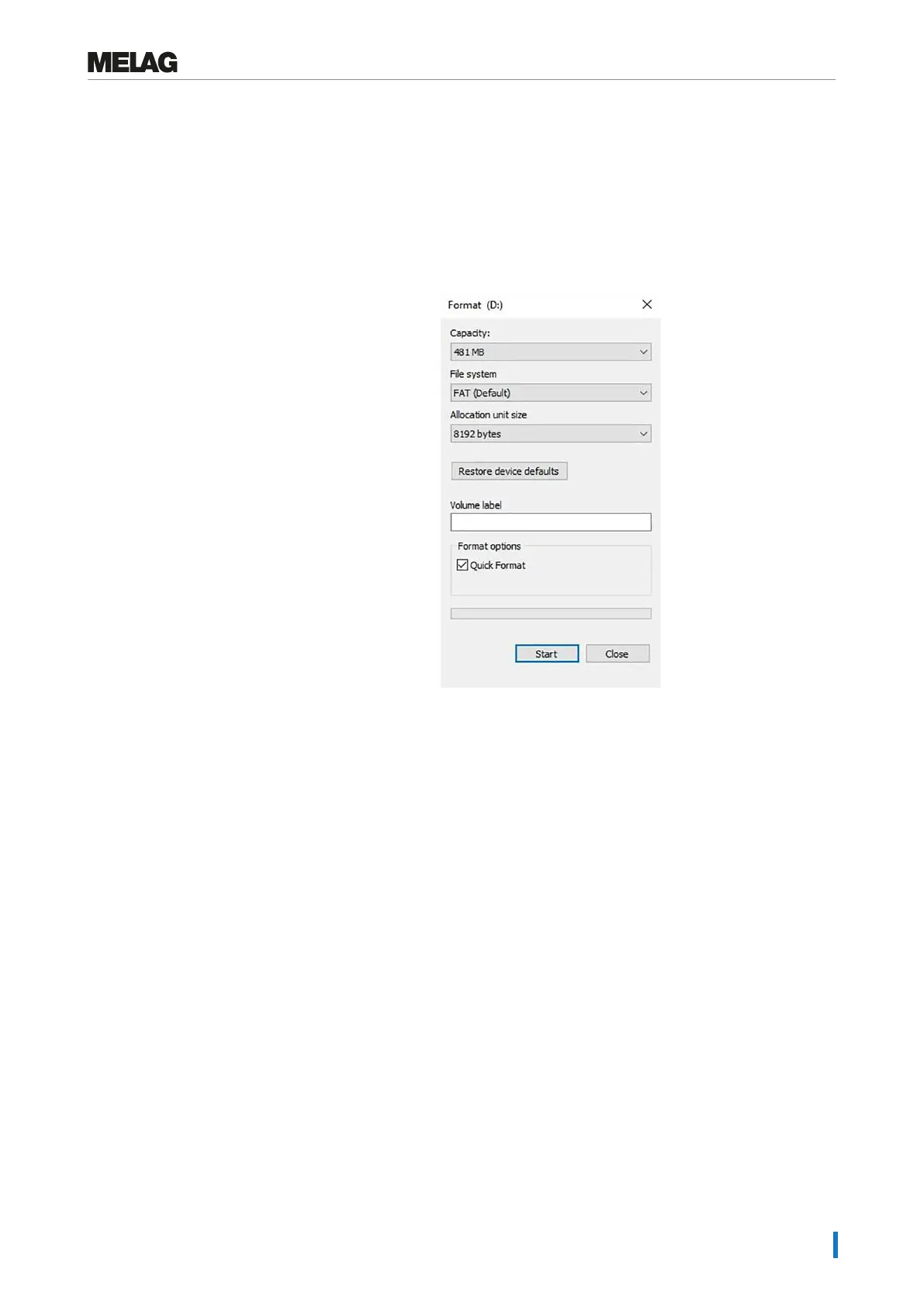
Formatting on a computer is described in Windows 10:
1. Insert the CF card in the MELAflash card reader
installed and connected to the computer.
2. Working in Windows Explorer, This PC >
Devices and drives select the corresponding
drive and open the menu window by right-click.
3. Working in the menu window, select Format....
The adjacent dialogue window opens.
4. Working under the file system, select format FAT
(Default).
5. Working under Allocation unit size,
Windows automatically selects the appropriate
allocation unit for the size of the CF card. The
allocation unit is dependent of the size of the CF
card.
6. Click on Start.
How to integrate the device in a (practice) network?
Arrange for the IT company that services your network to integrate your device in the network.
The following requirements must be fulfilled:
u The computer is fitted with a network card with RJ45 bushing (LAN).
u Log archive via FTP: an FTP server*
)
or an FTP service is installed on the computer that permits the
creation of users with write permission independent of the operating system.
u Log output via TCP: a suitable program, e.g. MELAview/MELAtrace, is installed.
*
)
We recommend using the MELAG FTP server to integrate network-compatible MELAG devices in a
(practice) network.
1. Ask the IT administrator for the IP address of the computer or find out yourself. The logs of the
completed programs are saved on this computer later. When choosing the computer, be aware that it
would be advantageous to integrate the saved logs in the automatic data saving system of the
practice.
2. Connect the Ethernet cable to any Ethernet data connection on the device, preferably on the rear
panel of the device and connect it with the (practice) network. Should you wish to connect the device
to a computer directly, use a 1:1 cable.
3. Enter the specified IP addresses for the device and the connected media (see Setting the IP address
[}page29]). The selected computer must always have a fixed IP address, regardless of whether it is
in an automatically or manually configured network. The device and computer must belong to a
subnetwork (e.g.: MELAtherm IP: 192.168.41.10 and computer IP: 192.168.40.140).
4. Check whether an FTP server is installed on the computer or install one.


 To Next Page