41
SETUPMENU(CONTINUED)
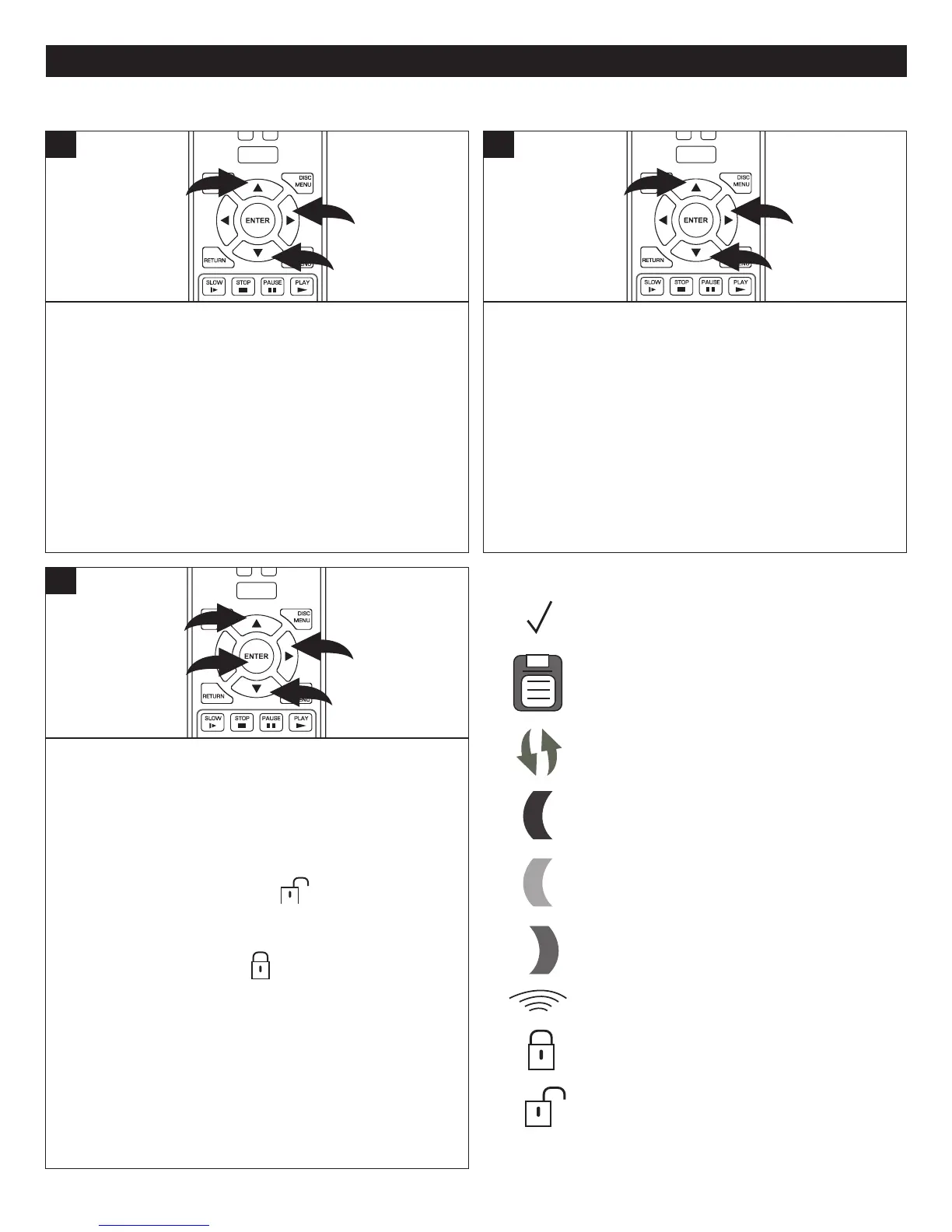
ToentertheNetworkSetupmenu,whilenodiscisinserted
ordiscisintheStopmode,ifnotalreadyattheSetupscreen
press the HOME/SETUP button, select Settings using the
Navigation(π,†) buttons 1andthenpresstheNavigation
(®) button 2.SelectNetworkusingtheNavigation(π,†)
buttons 1andthenpresstheNavigation(®) button 2.
NOTE: The Wireless Setup procedure only has to be
performed once. After that, the unit will automatically
connect when it is turned on. If unplugged, the connection
may need to be reset.
POWER
CLEAR
SUBTITLE
AUDIO
STEP
RANDOM
SLOW STO P
PAUSE
PLAY
DISC
MENU
RETU RN
POP- UP
MENU
HOME/SETUP
DISPLAY
1
2
1
1
WIRELESSCONNECTION–STANDARDNETWORK
NOTE:Ifnotconnectedtotheinternetwhentheunitisplugged
in,youwillgetanerrormessagepromptingyoutopressthe
RedColorbuttontobringuptheWired/Wirelessoption.
Ifusingawiredinternetconnection,seepage39.
Ifusingawirelessinternetconnection:SelectWirelessusing
theNavigation(π,†) buttons 1,thenpresstheNavigation
(®) button 2 toenter.Inmostcases,youcanperformstep
3belowtoconnecttoanexistingnetwork.
However, in some cases, you will have to connect to a
wireless Network using Wi-Fi protected Setup (WPS) or a
wirelessNetworkusingManualIPConfiguration.Theseare
describedonthenextpage.
POWER
CLEAR
SUBTITLE
AUDIO
STEP
RANDOM
SLOW STO P
PAUSE
PLAY
DISC
MENU
RETU RN
POP- UP
MENU
HOME/SETUP
DISPLAY
1
2
1
2
Select Network List using the Navigation (π,†) buttons
1, then press the Navigation (®) button 2 to enter; a list
ofavailablenetworkswillappearwithsymbolsasshownto
theright.SelectthedesirednetworkusingtheNavigation
(π,†) buttons 1, then press the ENTER button 3. If the
Wi-Finetworknameistoolongtodisplay,youcanusethe
Navigation(®) button 2toview.
IftheNetworkisnotencrypted(
),andtheconnection
is OK, a checkmark will appear
andyouwillbeconnectedtotheinternet.
IftheNetworkisencrypted(
),andyouselectit,youwill
have to enter a password.
When the screen appears, press the ENTER button 3 to
bring up the keyboard. Enter the password using the
Navigation(π,†) buttons 1,thenpresstheENTERbutton
3toentertheletter.Pressthex(arrowupxx)keytoactas
a Shift in order to make capital letters, as passwords are
case-sensitive.Afterenteringthepassword,clickdoneand
thenclick CONNECTto connect; acheckmark will appear
andyouwillbeconnectedtotheinternetifthepasswordwas
correct.
POWER
CLEAR
SUBTITLE
AUDIO
STEP
RANDOM
SLOW STO P
PAUSE
PLAY
DISC
MENU
RETU RN
POP- UP
MENU
HOME/SETUP
DISPLAY
1
3
2
1
3
b
n
g
NETWORKICONS
Theunitiscurrentlyconnectedtothis
network.
Thewirelessnetworkproperties(ifany)
havebeensavedintheunit’smemoryfor
future use.
ThewirelessnetworksupportsWPS.
Thewirelessnetworksupports802.11b.
Thewirelessnetworksupports802.11g.
Thewirelessnetworksupports802.11n
(supportedat2.4GHzonly).Notallrouters
arecompatiblewiththisunit.
SignalStrength.
Thewirelessdataisencrypted.
Thewirelessdataisnotencrypted.


 To Next Page