24
Chapter 4 Congure the Router in Wireless Router Mode
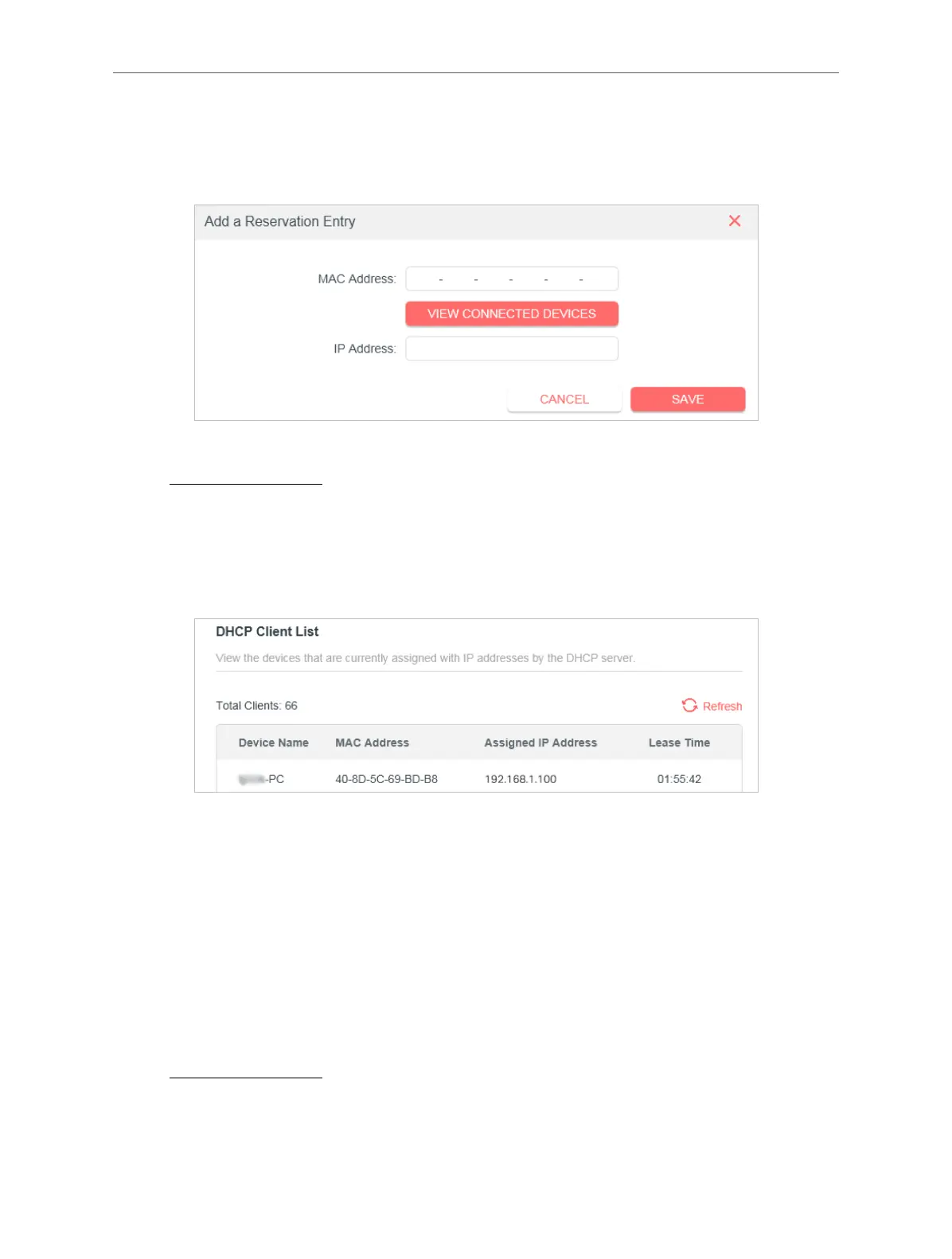
4. Click VIEW CONNECTED DEVICES and select the you device you want to reserve an IP
for. Then the MAC and IP Address will be automatically filled in. You can also enter the
MAC and IP address of the client device.
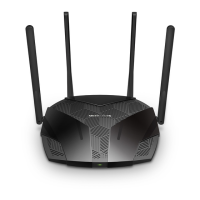
• To check the DHCP client list:
1. Visit http://mwlogin.net, and log in with your Mercusys ID or the password you set for the
router.
2. Go to Advanced > Network > DHCP Server and locate the DHCP Client List section. You
can see the device information of the list.
3. Click Refresh to see the current attached devices.
4. 3. 9. Dynamic DNS
The router offers the DDNS (Dynamic Domain Name System) feature, which allows the
hosting of a website, FTP server, or e-mail server with a fixed domain name (named by
yourself) and a dynamic IP address. Thus your friends can connect to your server by
entering your domain name no matter what your IP address is.
Before using this feature, you need to sign up for DDNS service providers such as www.
comexe.cn, www.dyndns.org, or www.noip.com. The Dynamic DNS client service provider
will give you a password or key.
1. Visit http://mwlogin.net, and log in with your Mercusys ID or the password you set for the
router.
2. Go to Advanced > Network > Dynamic DNS.
3. Select the DDNS Service Provider: Mercusys, NO-IP or DynDNS.



 To Next Page