83
Chapter 4 Congure the Router in Wireless Router Mode
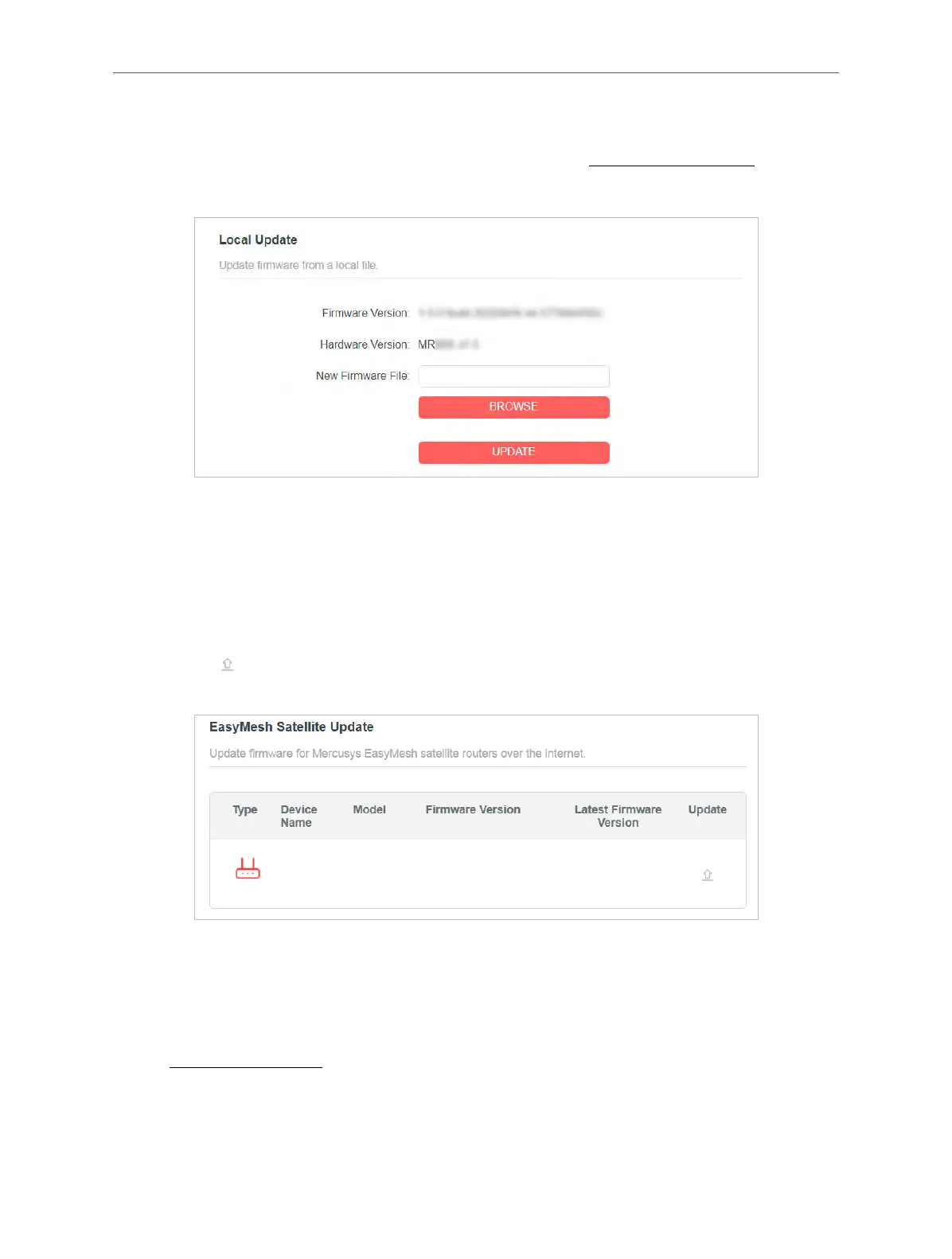
• Local Update
1 ) Download the latest firmware file for the router from www.mercusys.com.
2 ) Click BROWSE to locate the downloaded firmware file, and click UPDATE.
• EasyMesh Satellite Update
EasyMesh Satellite Update allows you to remotely check and update the firmware of the
satellite devices connected to this router via EasyMesh.
1 ) Locate the EasyMesh Satellite Update section.
2 ) The router’s satellite devices will appear on the table. Click CHECK FOR UPDATES to
see whether the latest firmware is released. If you want to update a satellite device,
click
on the right of the corresponding device.
Note: The update will take a few minutes and the satellite device will reboot.
4. 13. 2. Backup & Restore
The configuration settings are stored as a configuration file in the router. You can backup
the configuration file in your computer for future use and restore the router to the previous
settings from the backup file when needed.
1. Visit http://mwlogin.net, and log in with your Mercusys ID or the password you set for the
router.
2. Go to Advanced > System > Backup & Restore.
To backup configuration settings:



 To Next Page