MCS-BMS-GATEWAY Startup Guide REVISION 4.5
44
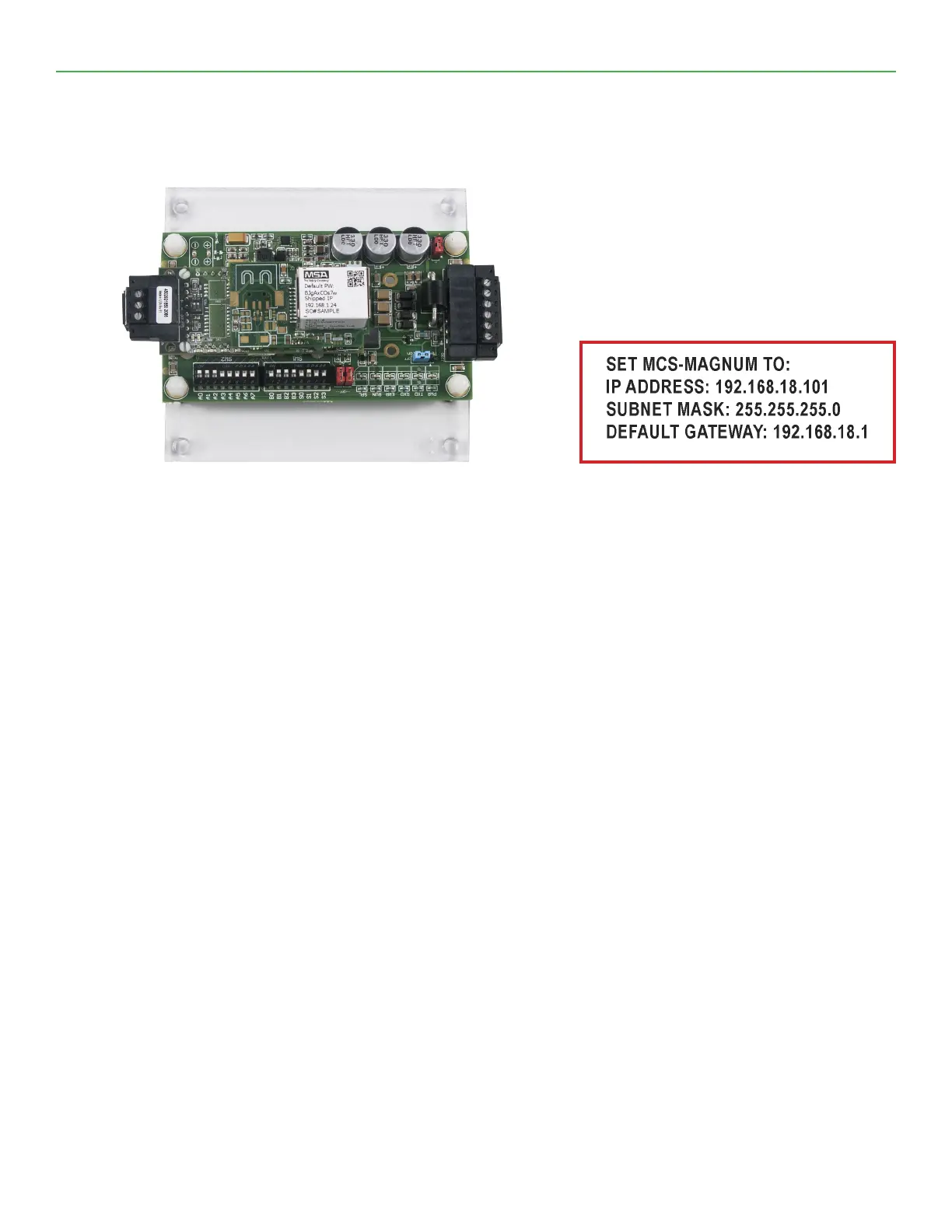
The MCS-MAGNUM IP must be set to the address specied on the MCS-BMS-GATEWAY-NL’s label
(Example - 192.168.18.101). Range of default settings: 101-150
The MCS-MAGNUM IP address can be veried and changed (with the proper authorization code) from the
MCS-Magnum’s Keypad/LCD of a live unit.
The following steps will display the IP Address settings:
(to change the address you rst must be authorized)
1. Press the MENU key and then Using ↑, ↓, , or position curser to Serv Tools then press the EN-
TER key.
2. Then Using, , or position curser to Serv Tools then press Enter.
3. Then Using,, , or position curser to Ethernet Network then press Enter.
4. Then Using↑, , , or position curser to IP address then press Enter.
5. Using , to increase and decrease the rst set of values then use the to select the next set of num-
bers and use , to increase and decrease the second value and repeat the previous steps for rest
of the ip address.
6. Once you have set the desired address press the Enter key.
7. Reset or cycle power to the magnum for the change to take effect.
The MCS-MAGNUM IP address can be veried and changed (with the proper authorization code) from
MCS-CONNECT of a live unit.
The following steps will display the IP Address settings:
(to change the address you rst must be authorized)
1. Connect to your MCS-Controller thru MCS-CONNECT
2. Click on the ‘SERVICE’ tab
3. Click on the ‘ETHERNET’ tab
4. Make changes to the IP address and any other changes as shown on the MCS-BMS-GATEWAY-NL label.
5. Save your changes


 To Next Page