6
CUSTOM PROCESSES
65
6
Custom processes
Custom processes can be defined, for example when plates with other than the default settings are used. Refer
to Target cell fraction and waste container on page57.
Up to 10 custom processes can be save to the process list. If exceeding this process number when creating a
new process, an obsolete process has to be replaced.
6.1 Creating a process
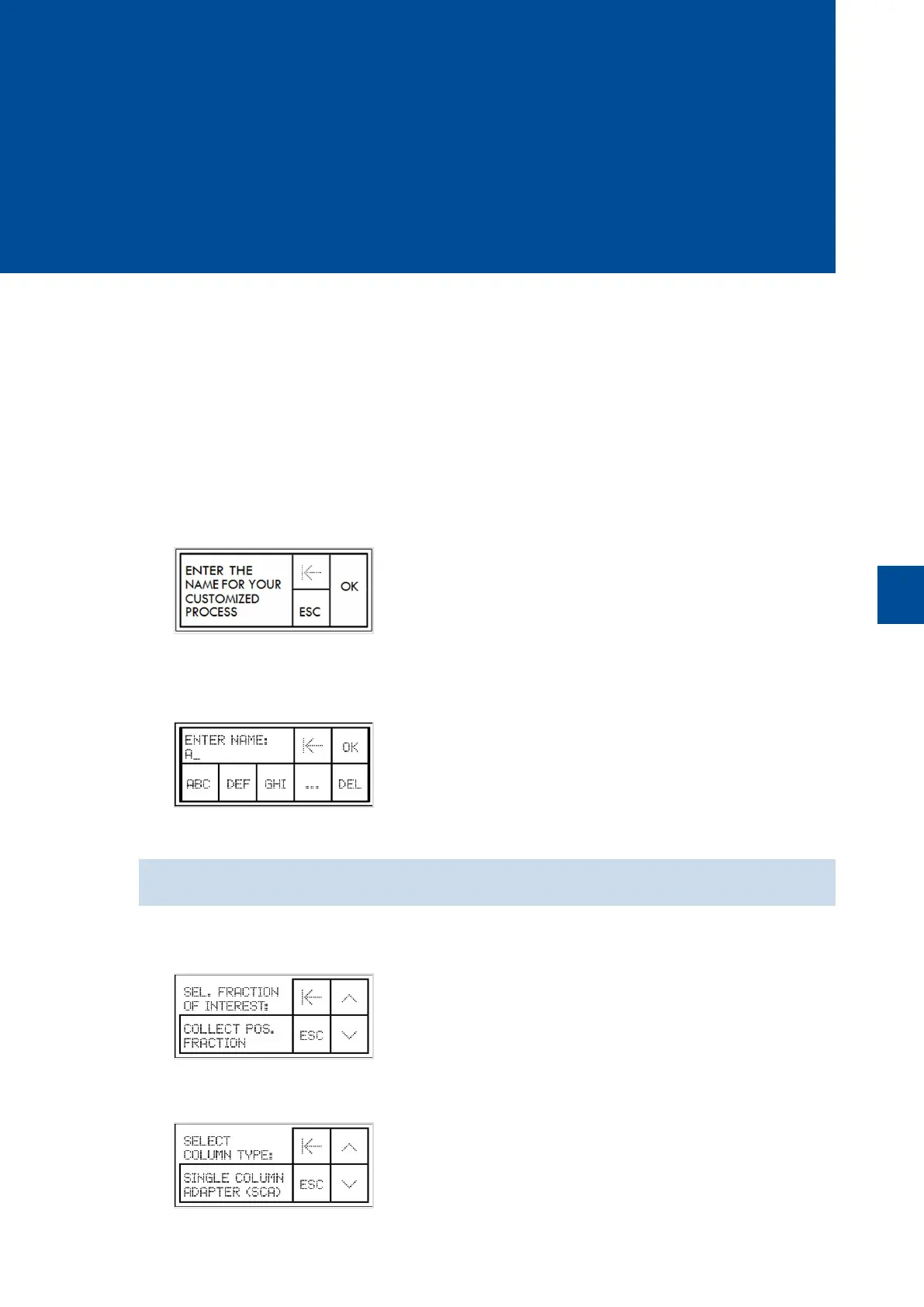
1 Go to the Start menu and tap NEW.
2 Wait for a few seconds or tap OK.
3 Enter a name for the new process. Up to 13 characters can be used. The letters are arranged in triplets. Tap
one, two, or three times to select a letter. Tap … for further letters, symbols, and numerals. Tap DEL to
delete letters.
4 Tap OK to confirm the entered name.
If the process name already exists, the instrument prompts you to enter an alternative name.
5 Tap COLLECT POS. FRACTION, COLLECT NEG. FRACTION or COLLECT BOTH FRACTIONS to select
the target fraction. Scroll down for all options.
6 Select a column type. Tap SINGLE COLUMN ADAPTER (SCA) for the use of up to 12 MACS Columns or
MULTI-24 COLUMN (MUC) for up to 24 cell separations. Scroll down for all options.


 To Next Page