6-4 Display & Cine Review
If you roll the trackball to the left, the review sequence is reversed to the image-storing
sequence, thus the images are displayed in descending order. Whereas, if you roll the
trackball to the right, the review sequence is the same as the image-storing sequence,
thus the images are displayed in ascending order. When you review images until the first
or the last frame, further rolling the trackball will display the last or first frame.
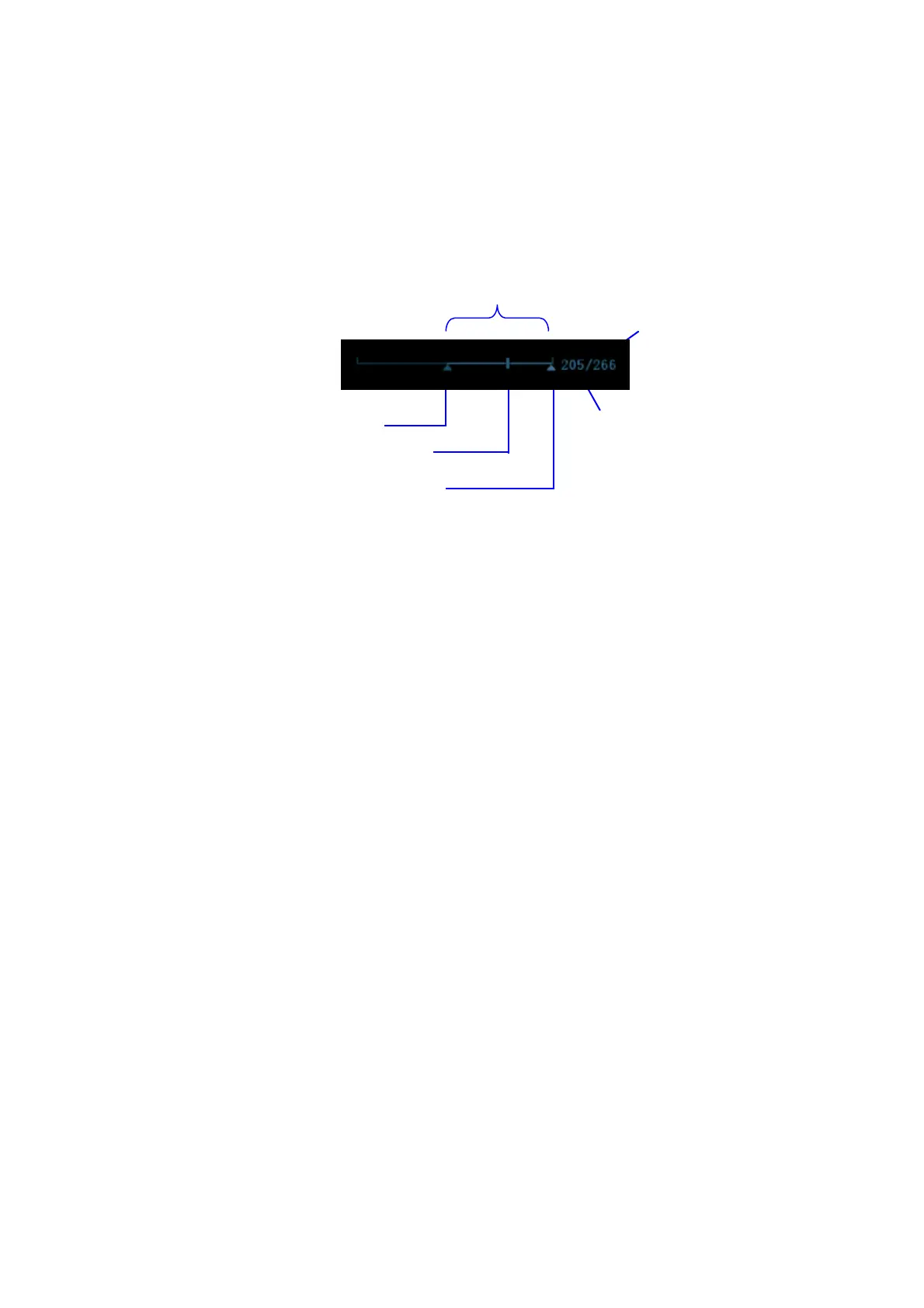
The cine progress bar at the bottom of the screen (as shown in the figure below):
Auto Review
Reviewing all
a) In the manual cine review status, click [Auto Play] on the image menu to activate
auto cine review.
b) Reviewing speed: In the auto cine review status, use [Auto Play] item in the
image menu to adjust the review speed.
c) In auto play status, set [Auto Play] item to Stop to exit auto play.
Setting Region of Auto Review
a) Set start frame: move the playback mark to the desired frame, and click [Set First
Frame] in the image menu to set the frame as start point.
b) Set end frame: move the playback mark to the desired frame, and click [Set End
Frame] in the image menu to set the frame as end point.
c) Click [Auto Play] in the image menu; the system plays the auto review region
automatically.
d) Rotate the knob on the left of the control panel to increase/decrease the auto
play speed.
e) In the auto cine review, setting [Auto Play] to Stop or rolling the trackball will stop
the auto cine review and enter the manual cine review.
f) Click [Skip to First]/ [Skip to Last] to review the first or last frame.
Tips: you can perform cine review on each image window in the dual/ quad splitting
mode, and set auto review region for each window.
Region
Current
frame



 To Next Page