85
C
ONFIGURING SOFTKEYS BUSY LAMP FIELD (BLF) KEY
Softkeys
2. Select from Key 1 through Key 20 on the Top keys. or Select from Key 1 through Key 18 on the
Bottom keys.
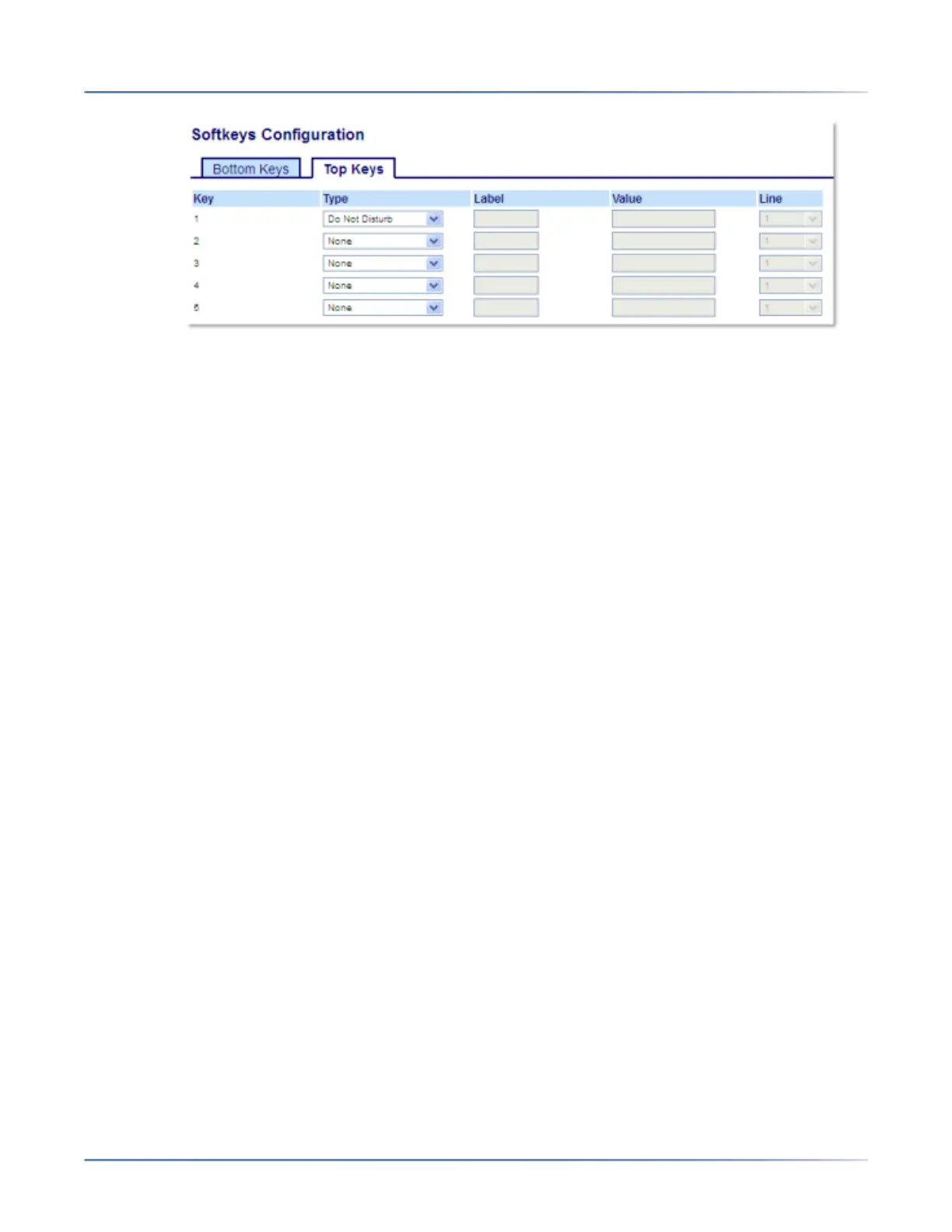
3. In the Type field, select Do Not Disturb to apply to the key.
4. In the state fields, check (enable) or uncheck (disable) the states you want to apply to this softkey.
Expansion Module Keys
5. Select from Key 1 through Key 84(M695).
6. In the Type field, select Do Not Disturbto apply to the key.
7. Click Save Settings.
Busy Lamp Field (BLF) Key
NOTE:
1. BLF functionality can only be programmed on the left softkeys but BLF indicators can be viewed
through the Directory, Received Callers, and Outgoing Redial Lists.
2. BLF feature availability is dependent on your call manager. Contact your System Administrator for
more information.
The BLF feature on the IP phones allows a specific extension to be monitored for state changes. BLF
monitors the status (busy or idle) of extensions on the IP phone.
For example, a Supervisor configures BLFs on his phone for monitoring the status of a co-worker’s phone
use (busy or idle). If the co-worker’s phone is in an idle state, the BLF softkey on the Supervisor’s phone
is green. If the co-worker’s phone is ringing, the BLF softkey on the Supervisor’s phone is yellow. If the
co-worker is on a call or when the co-worker picks up his phone to make a call, the BLF softkey on the
Supervisor’s phone turns red, indicating that the worker’s phone is in use and busy. Lastly, if the
co-worker’s call is on hold, the BLF softkey on the Supervisor’s phone displays the BLF hold icon. Addi-
tionally, the corresponding softkey LED illuminates to match the monitored user’s state, either off (idle),
solid (busy), or fast flashing/slow flashing (ringing/on hold).
NOTE: You can also use a BLF-configured key to automatically dial the BLF-monitored extension. Contact
your System Administrator for more information.
The following table provides the BLF states on the phone and the corresponding LED and icon behavior:


 To Next Page