HTP-1 Installation and User Guide Release 1.8.1
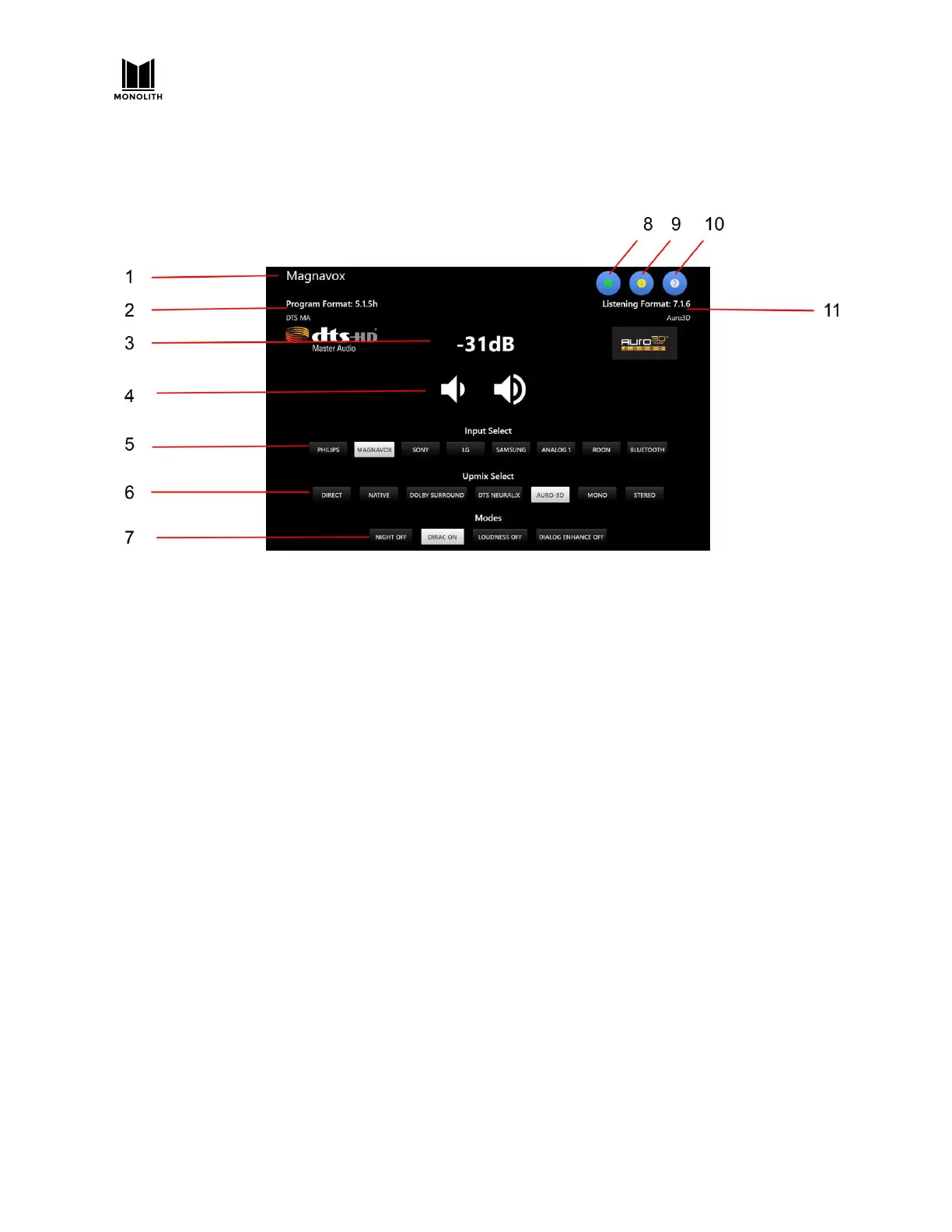
Web GUI Home Page
1. Active Input: The current Active Input is displayed in the upper left corner. The sample
screenshot above shows Magnavox as the Active Input. The specific text used for each input is
configured on the INPUTS tab of the System Configuration screen.
2. Program Format: The Program Format displays the audio format of the selected input. The
sample screenshot above shows 5.1.5h DTS MA as the Program Format. See the About Speaker
Configurations
section for details of the number displayed.
3. Volume: The Volume level is displayed in the center of the screen. The sample screenshot above
shows -31dB as the Volume. The decibel (dB) value is relative to the input sensitivity, which can
be configured on the CALIBRATION tab on the System Configuration screen. When the audio is
muted, the display changes from white to red. Mute can be toggled on or off by touching the
Volume display on the Front Panel LCD Display, using the IR remote control, or by clicking the
Volume display on the Web GUI Home Page.
4. Volume Buttons: Click the volume up and down icons to change the volume level. The Volume
Buttons can be replaced by a Volume Slider using a control on the SYSTEM tab on the System
Configuration screen.
5. Input Select: Click one of the buttons to select one of up to nine inputs. Which inputs are
displayed and how they are named can be configured on the INPUTS tab on the System
Configuration screen.
6. Upmix Select: Click one of the buttons to select one of up to nine upmix/surround modes. The
selected mode is only the desired/requested upmix mode. The system will perform the
requested upmix mode only if it is supported. The Listening Format (see 11 below) shows the
actual upmix mode algorithm being used, which may not match the requested mode. See the
Using Surround Modes
section for details.
HTP-1 User Manual Page 18 V1.8.1


 To Next Page