HTP-1 Installation and User Guide Release 1.8.1
Initial WiFi Setup
The HTP-1 serves a web page via its Ethernet connection and this is used for all setup. You must connect
to a network. If you wish to use a WiFi connection exclusively, begin by booting up the HTP-1 with a
wired connection. This is the easiest way to make a WiFi connection. You can setup the WiFi connection
and then move the HTP-1 to its final location.
The section “Using WiFi”, gives further information on WiF in the context of the CONNECTIVITY page.
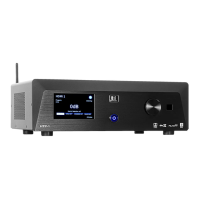
1. Connect the included Bluetooth®/Wi-Fi® Antenna to the antenna jack on the rear panel.
2. Connect an Ethernet cable to the HTP-1 so that your router can assign an IP address.
3. Following steps 9-13 above, boot up the HTP-1 and connect to its web interface.
4. Click on the gear icon in the upper right of the web GUI home page as illustrated above to bring
up the configuration dialog.
5. Choose the Connectivity pane, second from the right. There will be a short delay as the network
system is prepared. You should see your wired Ethernet connection described as illustrated on
the screen shot of the front panel LCD display.
6. Scroll down to the WiFi section. Ensure that WiFi is enabled and that DHCP is enabled. You
should see your local WiFi connections listed in the left hand pane.
7. Choose a connection (an SSID). Enter the password. You can check to show the password. Click
on “connect”. After a brief delay you should see this connection in the right hand pane and the
connection should be described. The front panel of the HTP-1 should display the WiFi address in
the lower right hand corner of the front panel display.
8. You can now remove the wired Ethernet connection. If necessary you can move the HTP-1 to its
final location and continue with the audio and video connections.
Update the Firmware
After you have completed the basic setup is a good time to check for firmware updates. Available
firmware updates are advertised on the info page accessed via the “i” icon in the upper right of the
home page. The update process is described in more detail later in this user guide.
HTP-1 User Manual Page 22 V1.8.1


 To Next Page