PAGE 17 SYNCHRONIZING YOUR PHONE HIGHLIGHT FEATURES
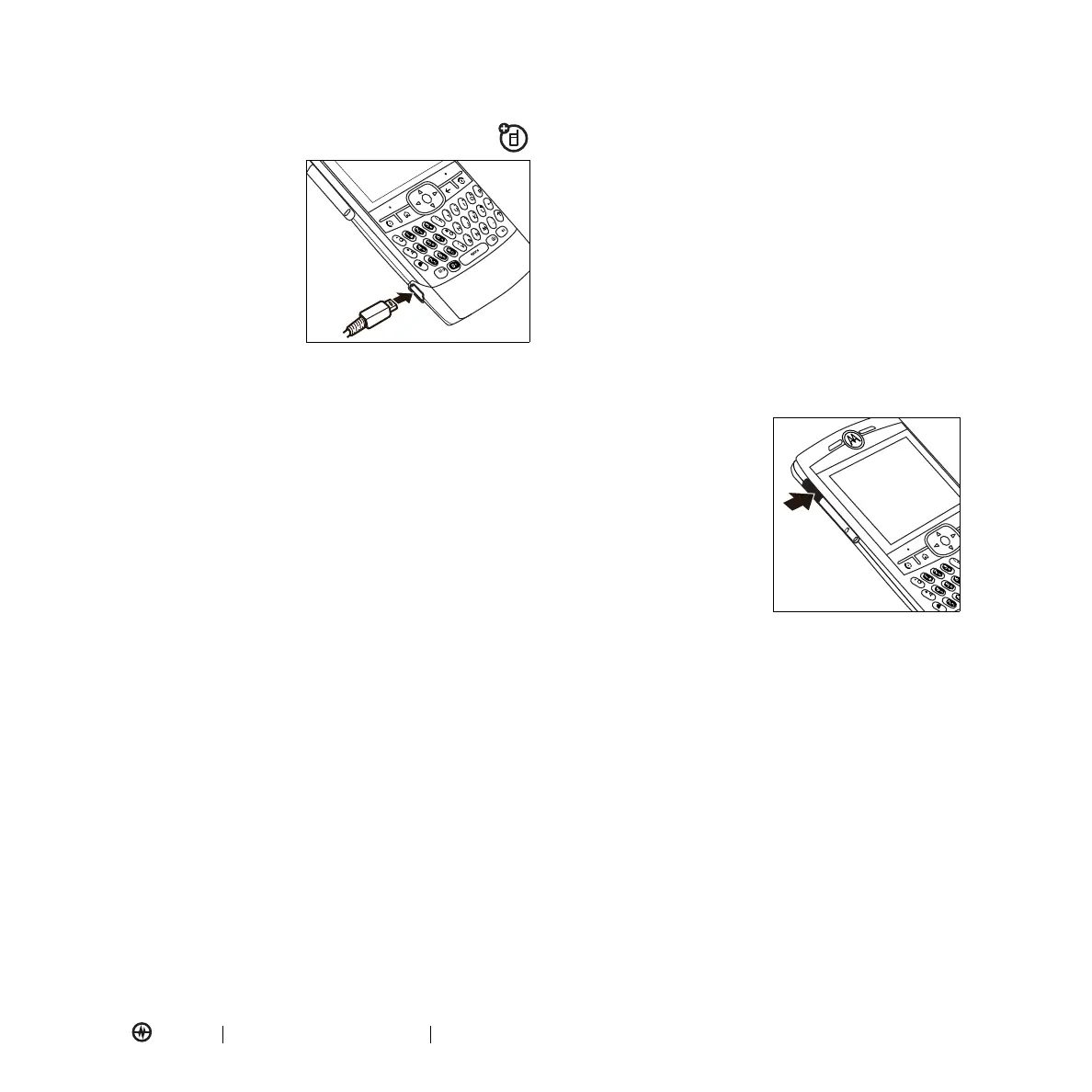
Synchronizing Via a Cable Connection
After you install
ActiveSync on your
computer, you can
connect your phone
and sync.
1. Turn on the phone.
2. Connect your phone to your computer using a
USB
cable.
Note:
For more information, see the ActiveSync Help
on your computer, the Microsoft Web Site for
ActiveSync or the MOTO Q Support web site at
http://www.motorola.com/support/Q.
Synchronizing Via Bluetooth
After you install ActiveSync on your computer, you can
connect your phone and sync via Bluetooth.
Note:
To use this feature, your computer must be
equipped with Bluetooth or a Bluetooth computer
adaptor accessory.
1. On your computer, use the ActiveSync online help to
configure Bluetooth to support ActiveSync.
2. Turn on your phone.
3. On your phone, verify that Bluetooth is turned on
(Press
Start > Bluetooth > Bluetooth Manager >
Settings
. Toggle
Status
to
Bluetooth On
).
4. Press
Start > ActiveSync
.
5. Select
Menu > Connect via Bluetooth
. Ensure that
the phone and computer are within close range.
6. If this is the first time you have connected to this
computer via Bluetooth, you must complete the
Bluetooth wizard on the phone and set up a
Bluetooth partnership with the computer before
synchronizing.
7. Select
Sync
.
8. When finished, select
Menu >
Disconnect
Bluetooth
.
Tip:
To preserve battery power on your phone, turn off
Bluetooth (see page
28).
Synchronizing Via Infrared
After you install ActiveSync
on your computer, you can
connect your phone and
sync via infrared (IR).
Note:
To use this feature,
your computer must have
IR
capability.
1. On your computer, use
the ActiveSync online
help to set up your computer to receive IR signals.
2. Turn on your phone.
3. On your phone, verify that IR is turned on (Press
Start > Settings > Connections > Beam and
select Receive incoming beams
).
4. Line up the IR port on your phone and computer so
that they are unobstructed and within close range.
5. Press
Start > ActiveSync
.
6. Select
Menu > Connect via IR
.
7. Select
Sync
.



 To Next Page