PAGE 37 ADJUSTING THE VOLUME LEARNING TO USE YOUR PHONE
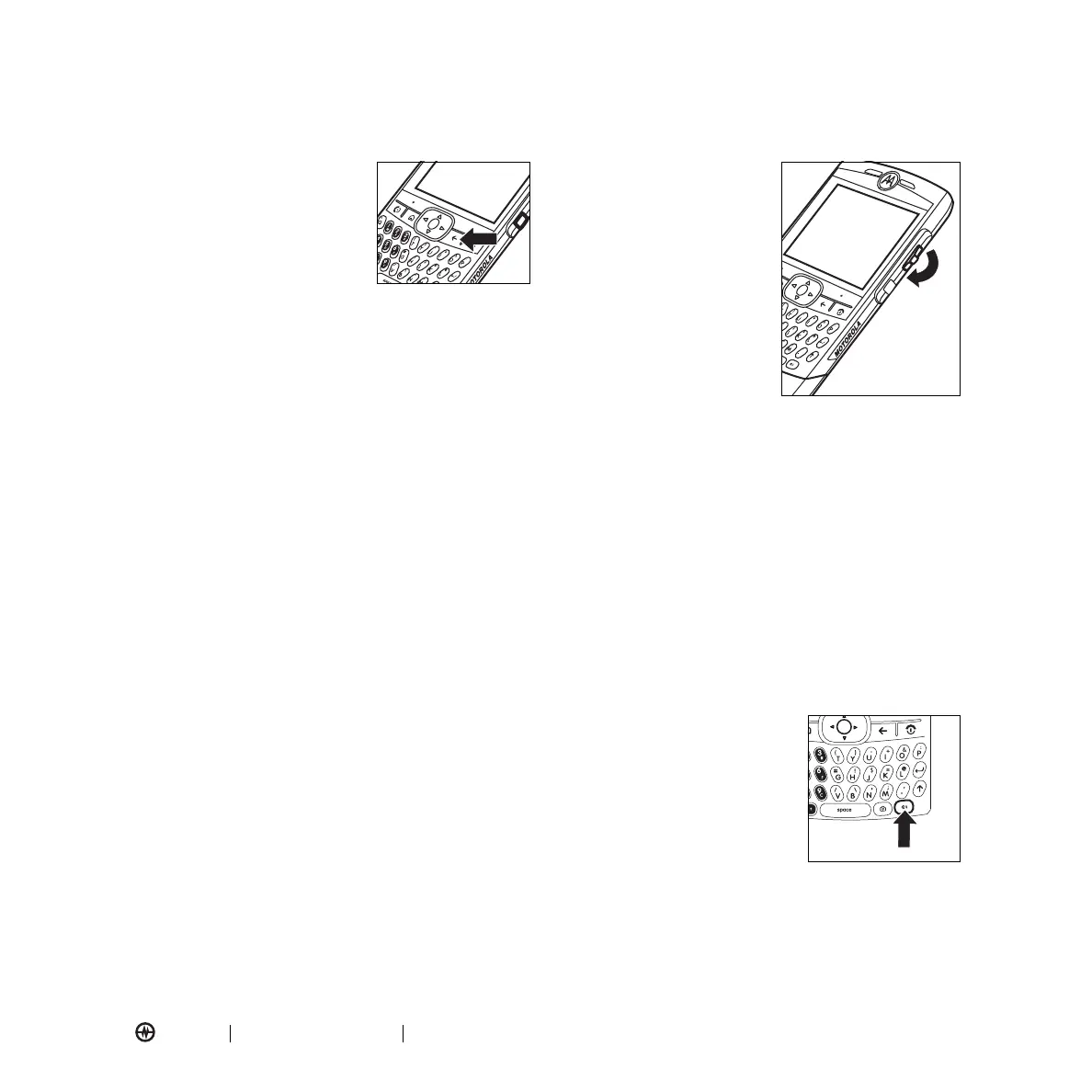
Using the Undo/Back Key
To return to the previous screen
or menu, press the
Undo/Back
key (see graphic) or press
À
on
the keypad.
To backspace and delete a single
character in any input mode,
press the
Back
key (
À
).
To backspace and delete an entire text or numeric field
in any input mode, press and hold the
Back
key (
À
).
Using iTAP
®
iTAP lets you enter words using one keypress per letter.
The iTAP software combines your key presses into
common words, and predicts each word as you enter it.
This feature is integrated into your phone’s software and
is automatically set. If you want to turn off this setting
press
Start
>
Settings
>
Text Input Settings
and
uncheck
Text Prediction
.
If you want a different word (such as
Progress
),
continue pressing keypad keys to enter the
remaining characters.
Using Numeric Mode
To enter numbers, press the
Alt
key (
=
), to switch to
ALT
or number mode.
If a field permits a numeric entry only, like a phone
number, the input mode automatically defaults to
secondary key entry mode.
Using Symbol Mode
To enter a symbol, press the
ALT
key (
=
) and then the
Caps
key (
Â
). The Symbol page appears. Press the center
select key (
s
) or thumb wheel to select a symbol.
Adjusting the Volume
Press and hold the thumb
wheel to adjust earphone,
speaker, or headset volume.
•
Need to change profiles
on the fly? On the home
screen, scroll to and
select
Profile
. Choose
from
Normal
,
Silent
,
Meeting
and others.
•
Want to turn off a
sound? Press
Start
>
Settings
>
Sounds
. Highlight the desired item and
select the sound you want to associate with
that
item.
Tip:
You can eliminate the ringer volume instantly
when a call comes in—just use the thumb wheel to turn
the ringer off.
Using the Handsfree Speaker
Note:
Using wireless phones while driving may cause
distraction. Discontinue a call if you can’t concentrate on
driving. Additionally, the use of wireless devices and
their accessories may be prohibited or restricted in
certain areas. Always obey the laws and regulations.
You can use your phone’s
handsfree speaker on calls
without holding the phone to
your ear.
During a call, press the
Voice
key
or press
Menu
>
Speakerphone
On
. Your phone displays
Spkrphone On
until you turn it
off or end the call.
Note:
The handsfree speaker won’t work when your
phone is connected to a car kit or headset.



 To Next Page