PAGE 36 USING THE TASK MANAGER LEARNING TO USE YOUR PHONE
Using the Task Manager
Want to see what programs are running (active) on your
phone? Use the Task Manager to see the programs, or
stop a specific program from running.
Press
Start
>
System Tools
>
Task Manager
.
Tip:
Need to stop running program? In
Task Manager
,
select the program and press
Menu
>
Kill
.
If you want to remove a program from your phone
entirely, from the home screen, press
Start
>
Settings
>
Remove Programs
.
Entering Text
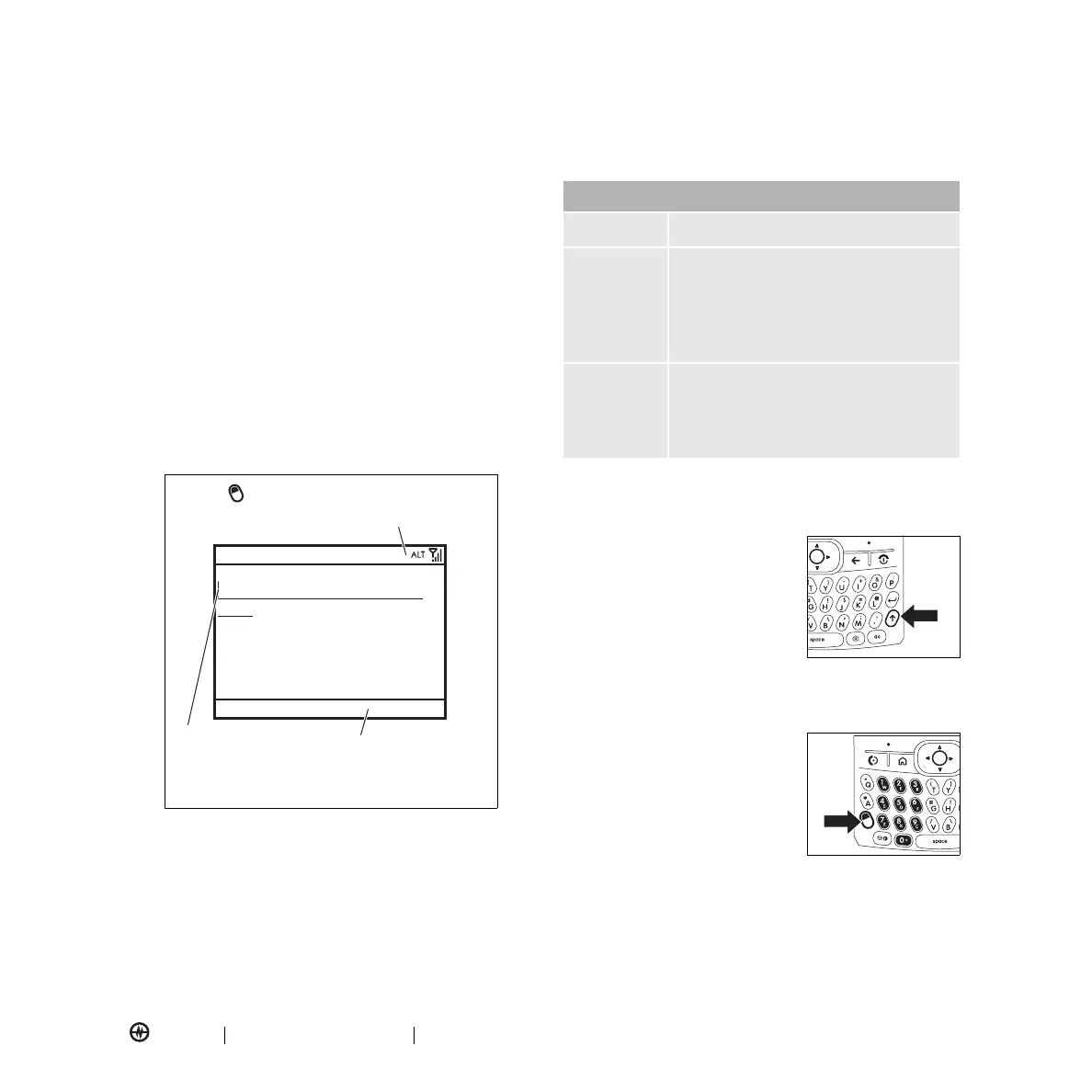
Use the keypad to enter text and numbers. The status
indicator at the top right of the display screen shows the
your current entry mode.
Press the
ALT
key (
=
) in a text entry screen to select an
input mode:
Changing to Uppercase, Lowercase, or
Caps
Lock
Your phone has a QWERTY
keypad like a computer
keyboard. You can use it to type
e-mail and text messages and
enter contact information. Press
Â
to change to uppercase,
lowercase, or caps lock.
Entering Text & Numbers
Enter text and numbers by using
the keypad. When you select a
field that requires text or
numbers, the phone
automatically selects the correct
input mode. To switch modes,
press the
ALT
key (
=
). An
indicator at the top of the screen shows you which
mode you are using. To start a new line,
press
Enter
(
Á
).
Press
Menu
to open the
sub-menu.
Flashing cursor
indicates insertion
point.
Press to switch entry modes. For indicator
descriptions, see the following section.
Send
Text Messages
To :
0/160
Menu
Input Modes
i
primary key entry
Ã
Secondary key entry. In this mode the
next key pressed will be the secondary
character. After next key is pressed, the
device will return to primary key entry
mode.
Ä
Secondary key lock. In this mode all
subsequent key presses will be
secondary keys until the
ALT
key (
=
) is
pressed again.



 To Next Page