PAGE 35 OPENING A PROGRAM LEARNING TO USE YOUR PHONE
The following menu icons may be available in the
main menu.
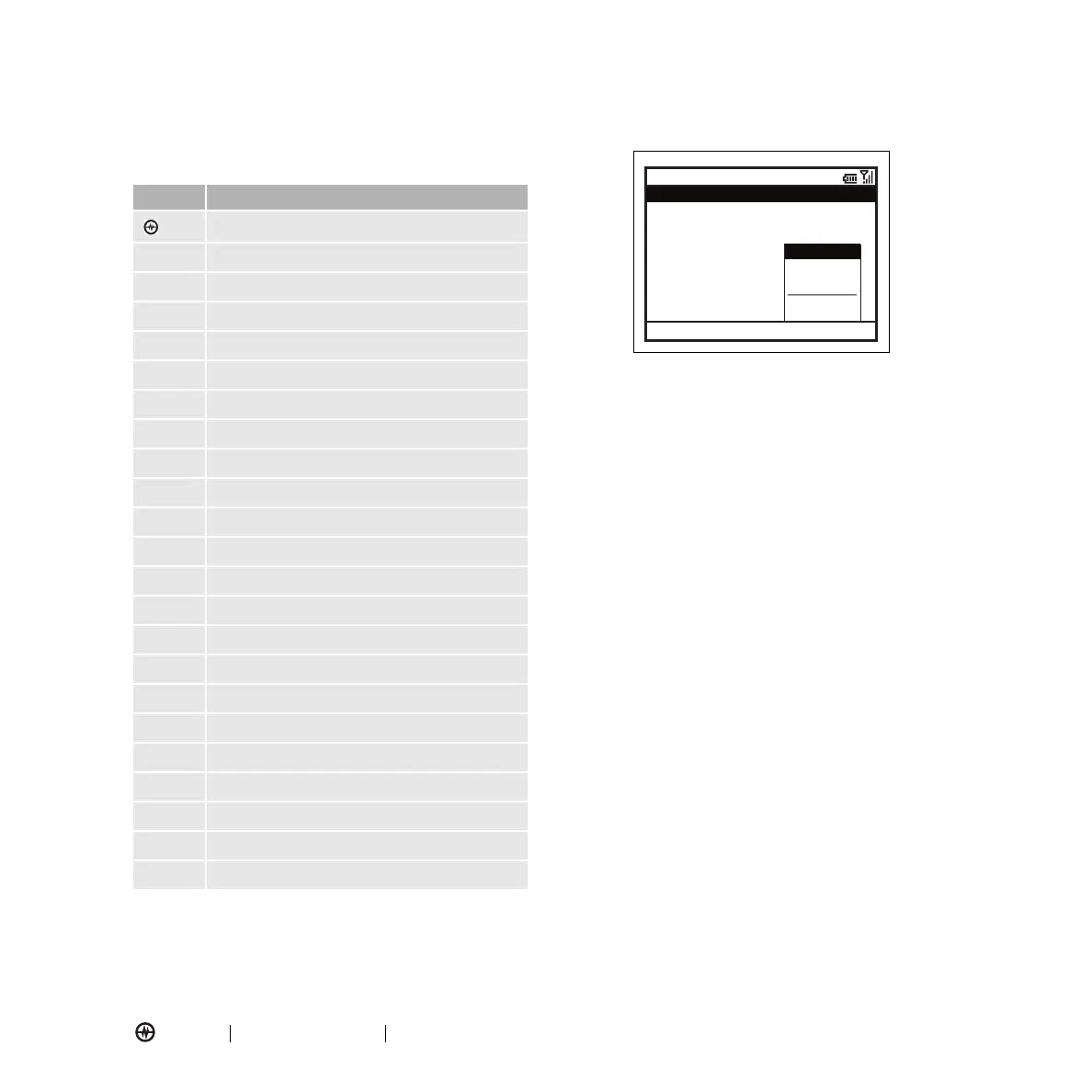
Some features require you to select an option from a list:
•
Scroll up or down to highlight the option you want.
•
In a numbered list, press a number key to highlight
an option.
•
In an alphabetized list, use the keyboard and press
the first letter of the desired item and the phone
will highlight the closest matching list option.
•
When an option has a list of possible settings,
noted by an arrow displayed next to the option,
scroll left or right to select the setting.
•
When an option has a list of possible numeric
values, press a number key to set the value.
•
Press
Menu
for additional items for option.
Opening a Program
From the home screen, press
Start
to access the list of
programs. Use the thumb wheel or navigation key (
S
)
to scroll to a program. Press the thumb wheel or center
select key (
s
) to open the program.
Using the File Manager
You can use File Manager to sort, view, copy, and move
files on your phone. Files you might want to use in file
manager include text, pictures, music, and video files.
Press
Start
>
File Manager
.
Icon Description
Amp’d Live
D
My Stuff
g
Internet Explorer
c
Windows Media
U
Messaging
A
ActiveSync
M
Settings
Y
Voice Notes
S
Accessories
1
Help and QuickStart
e
Pocket MSN
t
Voice Recognition
S
System Tools
m
Tasks
G
Calendar
K
Contacts
I
Call History
O
Games
a
Pictures & Videos
s
File Manager
r
Media Center
i
Speed Dial
0
Bluetooth
A Normal 9
Edit
Done Menu
Profiles
B Silent
C Meeting
D Outdoor
E Automatic
F Headset
G More...
Select
Cancel
Reset to default



 To Next Page