PAGE 26 COPYING MEDIA FILES HIGHLIGHT FEATURES
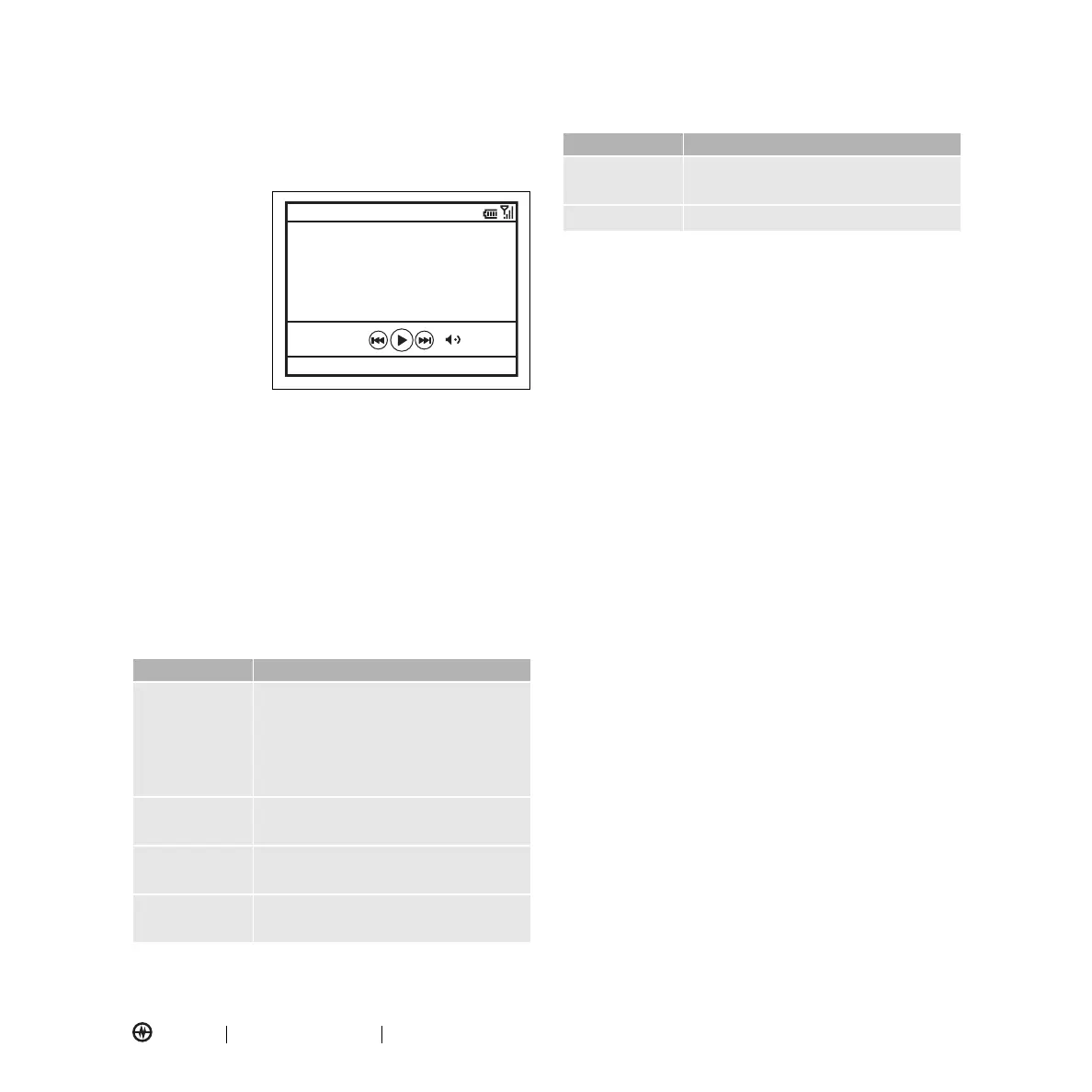
Playing a Video Clip
Press
Start
>
Pictures & Videos
>
video clip >
Play
.
The video clip
displays in the
Windows Media
screen.
Tip:
To play
video in full
screen, press
Menu
>
Full
Screen
. Not all
videos play in full
screen mode. Only those videos that were captures in
the correct
resolution.
If a call comes in while watching a video, the video
pauses and a call alert appears. You can choose to
answer the call or ignore it. To continue watching the
movie, select the
Play
button.
Setting Video Playback Options
In the video playback window press
Menu
>
Options
to
open the
Video Playback Menu
. This menu can
include the following options:
Copying Media Files
You can copy media files from your computer to
your phone.
Note:
You must have installed ActiveSync on your
computer, as described on page
16.
1. Connect the phone to your computer.
2. In ActiveSync on your computer, click
Explore
and
double-click
My Windows Mobile
device.
3. On your computer, find the files you would like to
copy to your device and paste the files into the
My
Windows Mobile
folder.
4. Resync your phone and computer and then view the
picture or video on your phone from
Start
>
Pictures & Videos
.
Option Description
Playback
Determines how the time counter is
displayed, whether to pause playback
while using another program, and
whether to resume playback after a
phone call.
Video
Options for displaying in full screen
and when to scale to fit window.
Network
Selects default network settings for
streaming media.
Library
Determines if the player starts on the
Library screen.
00:00 70%
Now Playing
Windows Media
Menu
Skins
Determine Windows Media Player
skin theme.
Buttons
Set playback button mapping.
Option Description



 To Next Page