PAGE 27 USING THE MEDIA PLAYER HIGHLIGHT FEATURES
Using the Media Player
Windows Media Player Mobile version 10.2 or later for
Smartphone is available on your to phone to play digital
audio and video files that are stored on your phone or
on the Web.
By default, Windows Media Player Mobile can play the
following types of files: Windows Media Audio (WMA),
Windows Media Video (WMV), and Motion Picture
Experts Group-2 Audio Layer-3 (MP3).
Press
Start
>
Windows Media
.
Tip:
Do you want to play a song or video on the
Internet or network? Use the Open URL command. From
the Library screen press
Menu
>
Open URL
(if you need
to get to the Library screen, in Windows Media, press
Menu
>
Library
). For more information about
downloading or copying video files, see page
26.
Setting Video Controls
You can set up keys on your phone to control the
media player.
1. From the media player screen, press the
Menu
Right Soft Key
and select
Options
.
2. Select
Buttons
.
3. Scroll to the media player action you want to assign
a button or key press.
4. Press the
Menu Right Soft Key
and choose,
Assign
,
Reset
, or
None
.
5. After you have assigned key presses to the medial
player controls, press
OK
and
Done
to complete
the
setup.
Adjusting Audio
Your phone allows you to adjust surround sound, bass,
and clarity levels for the phone speakers as well as
your headset.
From the home screen, press
Start
>
Accessories
>
Audio Enhancement
.
Note:
When you adjust the headset audio, make sure
you wear your headset while adjusting the level. You
can also set the speaker size for your particular headset.
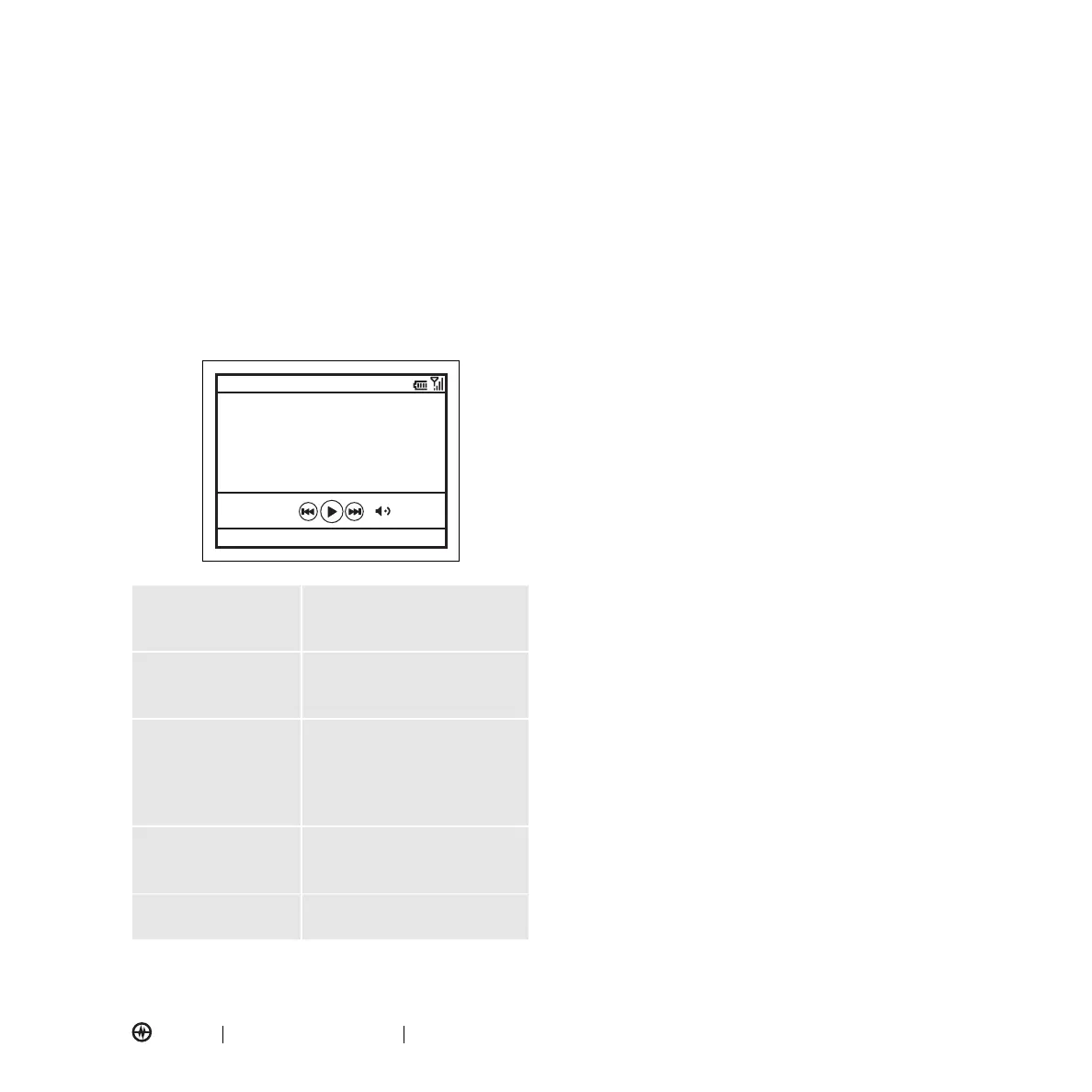
Play or pause
a music or
video file.
Press
Enter
(
Á
).
Skip to the
previous
or next file.
Press the navigation key (
S
)
left or right.
Increase or
decrease the
volume.
Press the navigation key (
S
)
up or down.
If you need to turn the sound
off, press #.
Switch to full
screen video
playback.
Press
0
.
Fast forward
or rewind.
Press and hold the navigation
key (
S
) left or right.
00:00 70%
Now Playing
Windows Media
Menu



 To Next Page