PAGE 25 RECORDING & PLAYING VIDEO CLIPS HIGHLIGHT FEATURES
Setting Picture Options
In the picture viewfinder press
Menu
>
Options
to
open the
Picture Options Menu
. This menu can
include the following options:
Recording & Playing Video Clips
Recording a Video Clip
Press
Camera
(
e
)
>
Menu
>
Video.
Tip:
To adjust video settings (
still
,
brightness
,
quality
,
and
white balance
) in the video viewfinder,
press
Menu
.
1. Point the camera lens at the photo subject.
2. Press the
Camera
key (
e
) or the center select key
(
s
) to begin recording a video. The video displays in
the viewfinder.
3. Press
Stop
to end recording the video altogether, or
press
Pause
to pause recording and
Resume
to
continue recording.
Videos are automatically stored in your phone. To
view them: Press
Start
>
Pictures & Videos
. Select
the video to view and press
Play
or the center
select
key (
s
).
Tip
: To view videos in a folder other than the default
video folder, including on a storage card, press
Start
>
Pictures & Videos
>
Menu
>
Folder
, and then select
the folder that contains the stored videos.
Setting Video Options
In the video viewfinder press
Menu
>
Options
to open
the Options Menu. This menu can include the
following options:
Note: General
and
Slideshow
options are also
available in this menu, however these settings are
specific to picture files only.
Option Description
General
Determine default picture sizes for e-
mail and rotating picture settings.
Slide Show
Select default slide show settings.
Camera
Select default locations to store
pictures, filename prefixes, and image
compression.
Video
Determine audio settings and time
limits for video files.
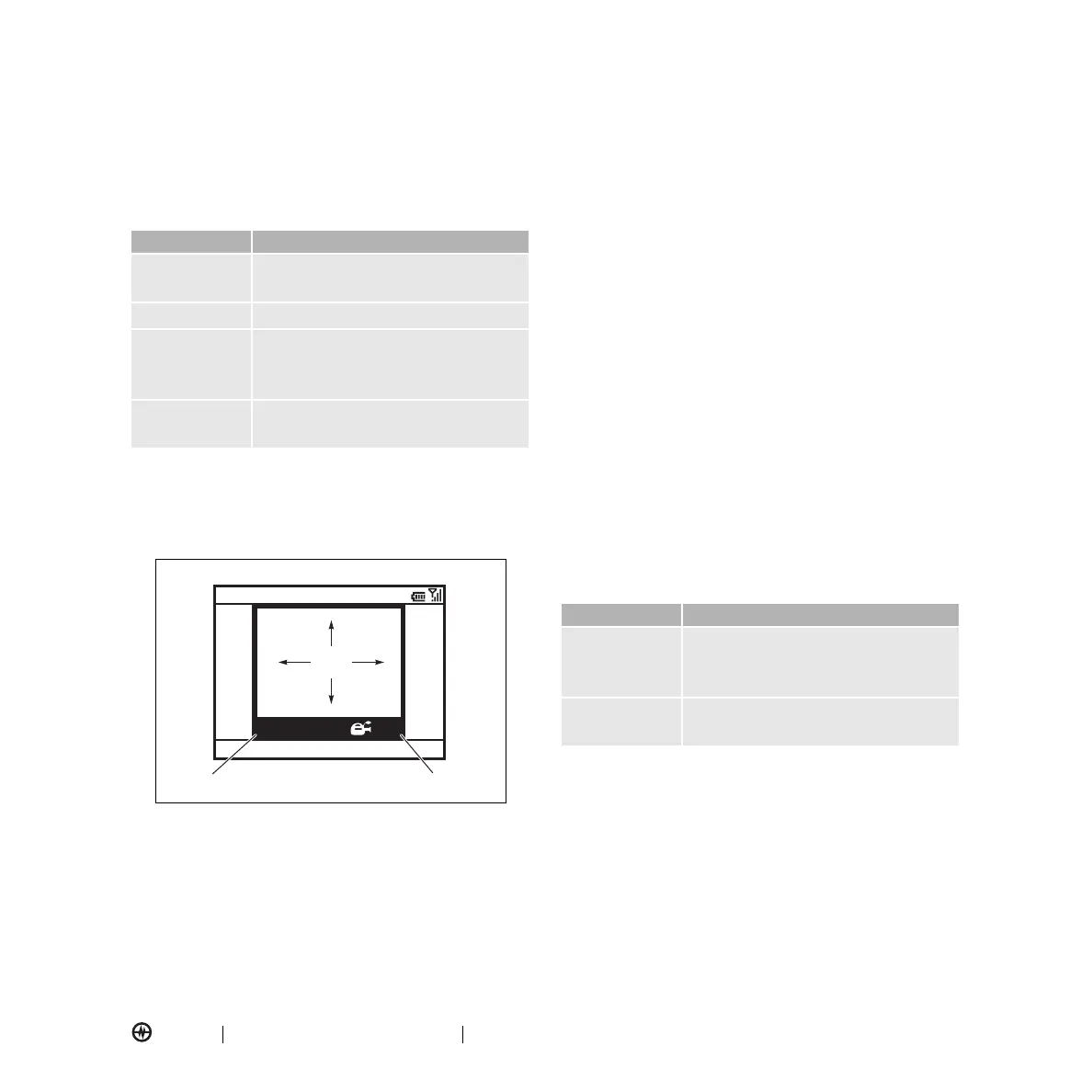
00:05 43:20
Stop
Pictures & Videos
Pause
VIDEO
AREA
Remaining recording time Current recording length
Option Description
Camera
Select default save locations, video
filename prefixes, and
image compression.
Video
Determine audio and time limit
settings for video files.



 To Next Page