PAGE 24 TAKING & SENDING A PHOTO HIGHLIGHT FEATURES
Taking & Sending a Photo
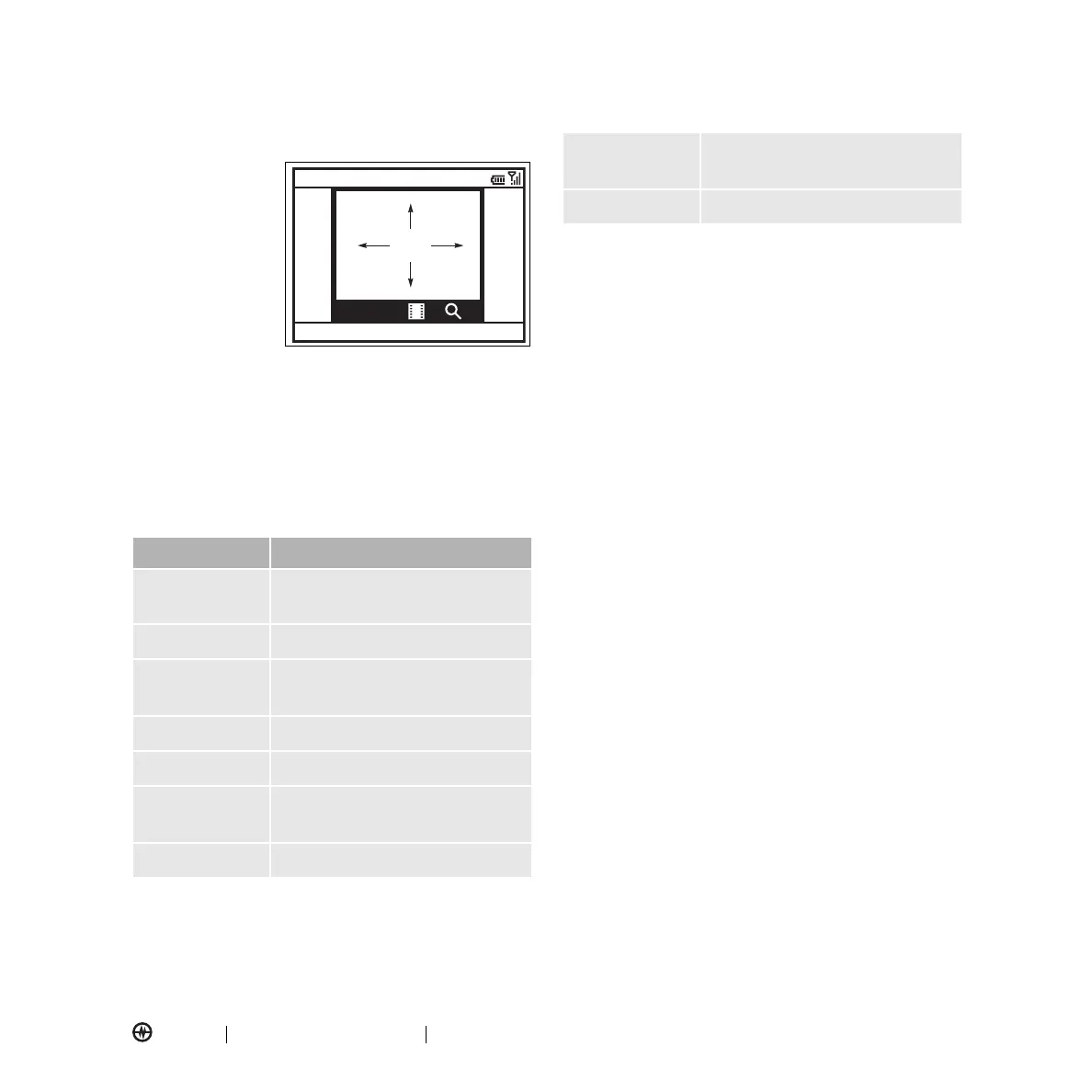
Press and hold the
Camera
key (
e
)
for two seconds to
see the camera
viewfinder:
To adjust picture
settings (
mode
,
brightness
,
resolution
,
zoom
,
white balance
,
and
flash
) in the camera viewfinder press
Menu
.
1. Point the camera lens at the photo subject.
2. Press the
Camera
key (
e
) again or the center select
key (
s
) to take a photo. The picture is automatically
saved and displays in the view finder.
3. Press
Menu
to see the camera options.
Note:
Pictures are automatically stored in your phone.
To view them: Press
Start
>
Pictures & Videos
. Select
the picture to view and press
View
.
Tip:
To view pictures in a folder other than the default
pictures folder, including on a storage card, press
Start
>
Pictures & Videos
>
Menu
>
Folders
, and select the
folder that contains stored pictures.
Taking a Self Portrait
1. Press and hold the
Camera
key (
e
) to activate
the
camera.
2. Press
Menu
>
Mode > Timer
.
3. Press the
Camera
key (
e
) to start the five
second
delay.
4. Aim the camera lens at yourself.
The phone makes a shutter sound and takes
the
picture.
Option Description
Delete
delete the photo and return to the
active viewfinder,
Send
send the photo
Outlook
E-mail
your send option
Bluetooth
send via Bluetooth
Beam
send the picture via infrared port
Use as Home
Screen
use the picture as the home screen
Edit
edit the picture
Thumbnails
Pictures & Videos
Menu
877
1.0x
IMAGE
AREA
Properties
view image properties, such as the
file name
Options
view picture options



 To Next Page