PAGE 40 USING PROFILES SETTING UP YOUR PHONE
5 SETTING UP YOUR PHONE
Using Profiles
Each profile uses a different set of sounds, ring styles,
earpiece volume settings, or vibrations for incoming calls
and other events. For example, the Outdoor profile
volume is much louder than the Normal profile.
Here are the profiles you can choose:
To choose your profile:
On the home screen, scroll and select
Profile:
>
profile
style name
The ring style profile’s indicator displays at the top of
your home screen.
Note:
The ring style profile indicators do not display in
all home screen settings and will not display if the home
screen is set to Windows simple or Large Font.
Changing Ring Tones in a Profile
You can change the ring tones for incoming calls and
other events. Your changes are saved in the current ring
style profile.
Press
Start
>
Settings
>
Sounds
.
Note:
Changes made to the alert settings will have no
effect when using the
Silent
profile.
1. Scroll and highlight the sound you want to change,
then press the navigation key (
S
) right or left to
change it.
2. Press the
Done
key to save the sound setting.
Note:
If you download a sound file for a ring tone, it
does not automatically save in the Sounds location. To
move your sound file, press
Start
>
File Manager
>
My
Documents
. Highlight the sound file you want to copy
to the Sound location, press
Menu
>
File
>
Copy to
and select
Application Data
>
Sounds
. If the sound file
is not located in the My Documents folder, go to the
folder where the sound file is stored and copy it to the
Sounds folder.
Setting Time & Date
Your service provider usually sets the time and date on
your phone. But, if you decide to change it manually:
Press
Start
>
Settings
>
Clock & Alarm
>
Date
and Time
.
1. In
Time Zone
, use the navigation key (
S
) to select
your time zone.
2. In
Date
, edit the month, day,
or year.
To change the month, day,
and year, press the
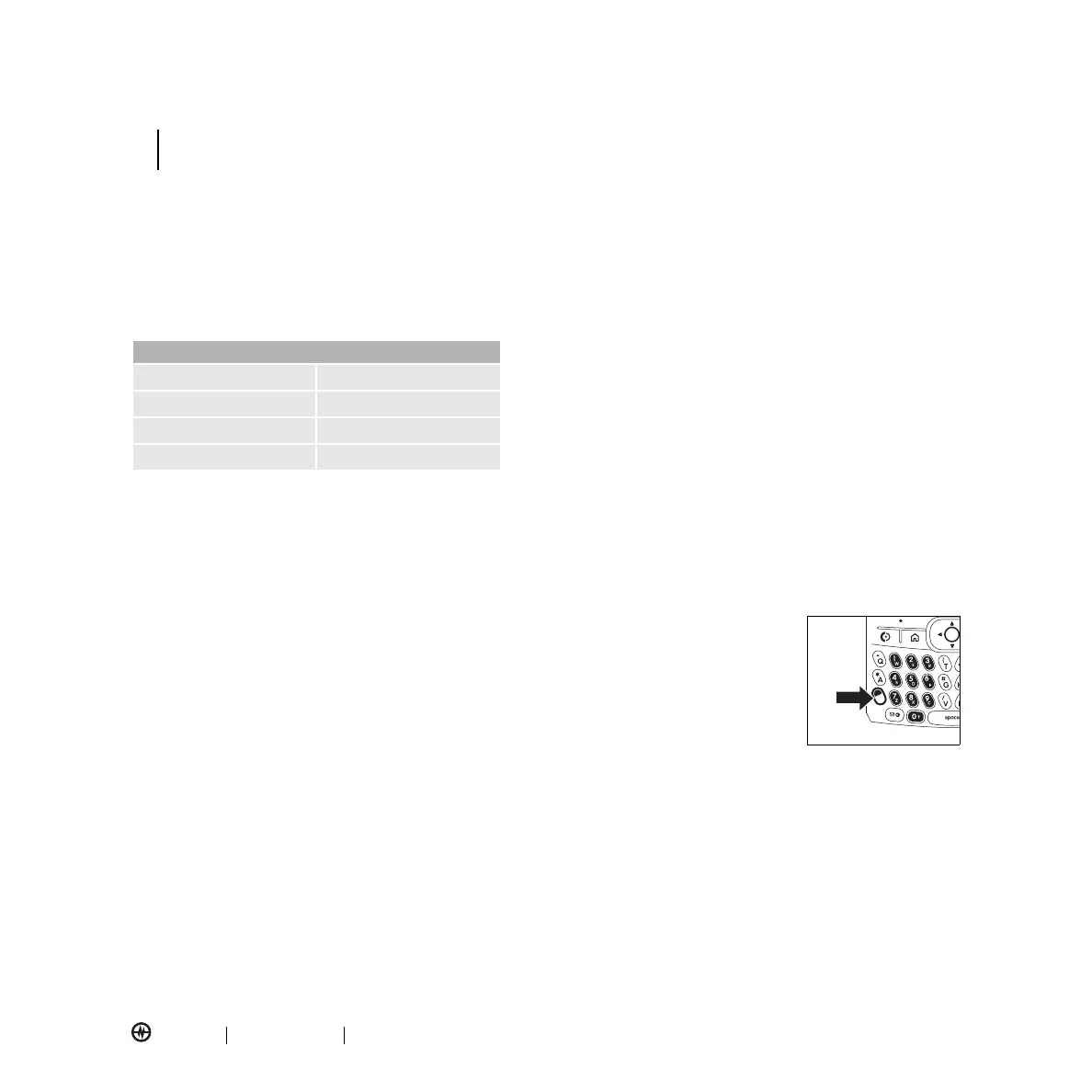
Alt
key
(
=
) to enter numeric
entry mode.
3. In
Time
, edit the hour, minute, and second.
The change the hour, minute, and second press the
Alt
key (
=
) to enter numeric entry mode.
4. Press
Done
to save the clock and date settings.
You can specify the date and time style by changing the
regional settings. Press
Start
>
Settings
>
More...
>
Regional Settings
.
Profiles
Normal Silent
Meeting Outdoor
Automatic Headset
Car Speakerphone
SETTING UP YOUR PHONE



 To Next Page