PAGE 34 USING THE THUMB WHEEL LEARNING TO USE YOUR PHONE
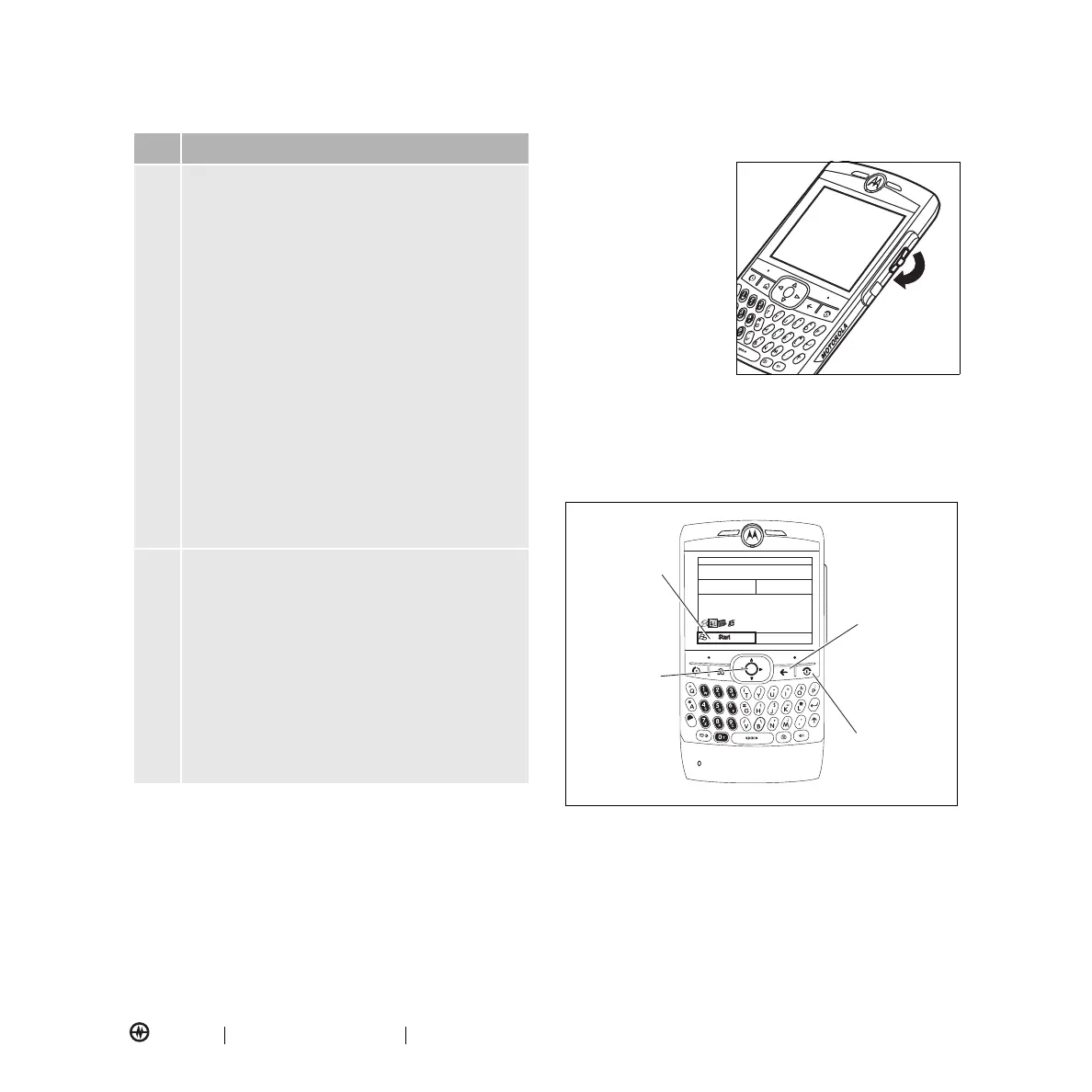
Using the Thumb Wheel
You can use the
thumb wheel to scroll
through menu items
and lists. Press the
thumb wheel to select
the highlighted item in
a list or menu.
Tip:
Use the
Back
button (the button
below the thumb
wheel) to undo the
current action or return to the previous screen.
Using the Menus
From the home screen, press
Start
to open the
main menu.
Use the navigation key
S
up, down, left, or right or
thumb wheel to see more menu items.
Profile Indicator –
Shows the profile (ring
style) setting. When the profile is normal,
outdoor, or automatic no indicator is displayed.
•
<
meeting
•
(no icon)
car
•
Q
silent
•
%
speakerphone
•
(no
icon)
headset
•
(no icon) normal
•
(no icon) outdoor
•
(no icon) automatic
Note:
You cannot change to speakerphone
mode from the Profiles menu.
#
$
=
M
Location/Data Indicator
– Shows when your
phone can send location information
#
or not
$
.
When in a data session (data is currently being
transferred to the phone), the data indicator
(
=
) is displayed. If double arrows (
M
) are
displayed, your phone is ready and capable of a
data transfer session.
Location and Data Indicators do not appear on
the screen simultaneously.
Description
Amp’d Live
Profile: Normal
Contacts
C
#QJ0
a
My Stuff
amp’d mobile
01/27/2007 10:29 AM
Scroll up, down,
left, or right.
Press center to
select
highlighted
menu feature.
Access
the main
menu.
Exit menu without
making changes.
Return to
previous menu.



 To Next Page