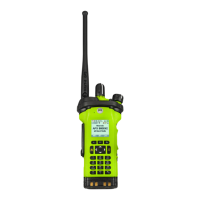
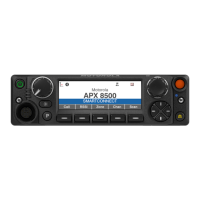
The radio tries to establish connection with the device once paired.
NOTE: If the connection fails within 6 seconds, you hear a decremental-pitched tone to indicate
that the device is unpaired. The display shows <Device Type> unpaired. Repeat this step
to re-initiate the pairing process.
If the connection is successful, you hear an incremental-pitched tone. The display shows <Device
Type> connected and the Bluetooth icon turns from
to .
If the radio has the pairing record of the device and the connection fails, you hear a short, low-pitched
tone. The display shows <Device Type> connect failed.
7.24.2
PIN Authentication in Pairing
This feature allows your radio to verify the correct device to pair with using PIN authentication.
NOTE: The PIN authentication method is only applicable for Bluetooth version 2.1 and above.
7.24.2.1
Pairing the Authentication PIN when Receiving a Pairing Request
Procedure:
1 When the radio display shows <Device Friendly Name> pair request, perform one of
the following actions:
• To accept, press the Menu Select button below Ok.
• To reject, press the Menu Select button below Cncl.
Your radio only supports HSP, DUN, PAN, and SPP Bluetooth profiles.
When the pairing timer expires, the display shows <Device Friendly Name> pair
canceled and return to Home screen.
If you choose to accept the pairing process, the display shows Compare PIN: XXXXXX.
If you choose to reject the pairing process, the display shows Cancel pairing in
progress... followed by <Device Friendly Name> pair canceled and return to Home
screen.
2 Perform one of the following actions when the display shows Compare PIN: XXXXXX.:
• Press the Menu Select button below Ok if the PIN is correct.
• Press the Menu Select button below Cncl to reject if the PIN number is incorrect. The
display shows Cancel pairing in progress... followed by <Device Friendly
Name> pair canceled and return to Home screen.
When the PIN authentication timer expires, the display shows <Device Friendly
Name>pair canceled and return to Home screen.
If successful, the display shows Pairing in progress...., <Device Friendly Name>
paired followed by <Device Friendly Name>connected.
If unsuccessful, one of the following scenarios will occur:
68012003048-GW
Chapter 7 : Advanced Features
102


 To Next Page
 Loading...