Data Capture 3 - 3
Linear Scanning
To read a bar code, a scan-enabled application is required. The MC55 contains the DataWedge application
that allows the user to enable the scanner to decode bar code data and display the bar code content.
1. Ensure that a scan enabled application (DataWedge) is loaded on the MC55. See DataWedge on page
3-6.
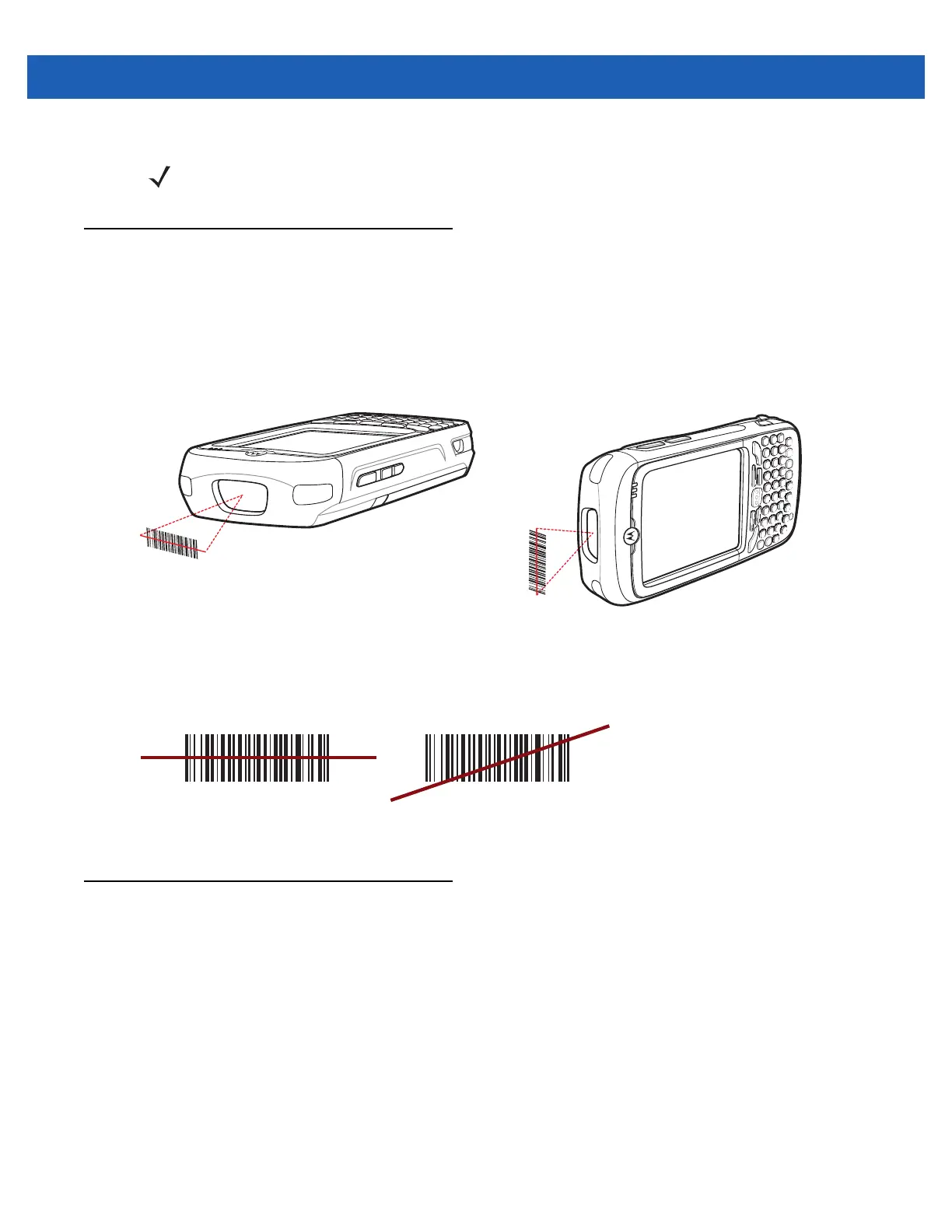
2. Aim the scan window at the bar code.
Figure 3-1
Linear Scanning
3. Press the scan button. Ensure the red scan beam covers the entire bar code. The Scan/Decode LED lights
red to indicate that scanning is in process, then lights green and a beep sounds, by default, to indicate the
bar code was decoded successfully.
Figure 3-2
Linear Scanner Aiming Pattern
Imager Scanning
To read a bar code, a scan-enabled application is required. The MC55 contains the DataWedge application
that allows the user to enable the scanner to decode bar code data and display the bar code content.
1. Ensure that a scan-enabled application (DataWedge) is loaded on the MC55. See DataWedge on page
3-6.
2. Aim the scan window at the bar code.
NOTE Scanning procedures depend on the application and MC55 configuration. An application may use different
scanning procedures from the one listed above.
Correct Incorrect


 To Next Page
 Loading...