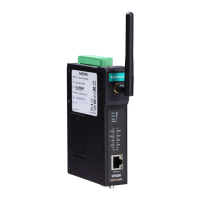
MGate 5105-MB-EIP Series User Manual
2. Quick Configuration Guide
This chapter provides a quick overview of how to configure the MGate 5105-MB-EIP by web console. For
more detailed information on how to configure the MGate 5105-MB-EIP, refer to Chapters 3 and 4.
Cable Connection
The MGate gateway supports Modbus RTU/ASCII, Modbus TCP, and EtherNet/IP protocol. If the MGate
gateway needs to communicate with Modbus RTU/ASCII devices, connect your Modbus device to the MGate
gateway’s Modbus port. Regardless, at least one of your devices should be Modbus TCP or EtherNet/IP
interface. Connect your Modbus TCP or EtherNet/IP device to the MGate gateway’s 10/100M Ethernet port
as well. The MGate gateway will show a valid Ethernet connection in the following ways:
• The Ethernet LED will maintain a solid green color when connected to a 100 Mbps Ethernet network.
• The Ethernet LED will maintain a solid orange color when connected to a 10 Mbps Ethernet network.
• The Ethernet LED will flash when Ethernet packets are being transmitted or received
The gateway can be powered by connecting a power source to the terminal block by following the steps
below:
1. Loosen or remove the screws on the terminal block.
2. Connect the 12–48 VDC power line to the terminal block. Confirm that the power source is off already.
3. Tighten the connections using the screws on the terminal block.
4. Turn on the power source.
NOTE
Note that the gateway does not have an on/off switch. It automatically turns on when it receives power.
The PWR LED on the top panel will glow to indicate that the unit is receiving power.
Log in to the Web Console
If you do not know the MGate gateway’s IP address when setting it up for the first time (default IP is
192.168.127.254), use an Ethernet cable to connect the host PC and MGate gateway directly. If the
gateway and host PC are connected through the same Ethernet switch, make sure that there is no router
between them. Then use MGate Manager to detect the MGate gateways on your network. When the MGate
gateway appears on the MGate Manager device list, right-click on the selected MGate and configure it by
web console.
Except for the Broadcast Search feature, you can also use the Device Search Utility (DSU) to detect MGate
gateways on your network, which can be downloaded from Moxa's website at http://www.moxa.com. This
utility can further support multiple gateways configurations to ease your job.


 To Next Page
 Loading...