VFLG
U)
example SCID Value
blinking blinking
Error Correction: If you input a wrong value, press ZERO to step
back one digit and reenter.
&KQ/
blinking
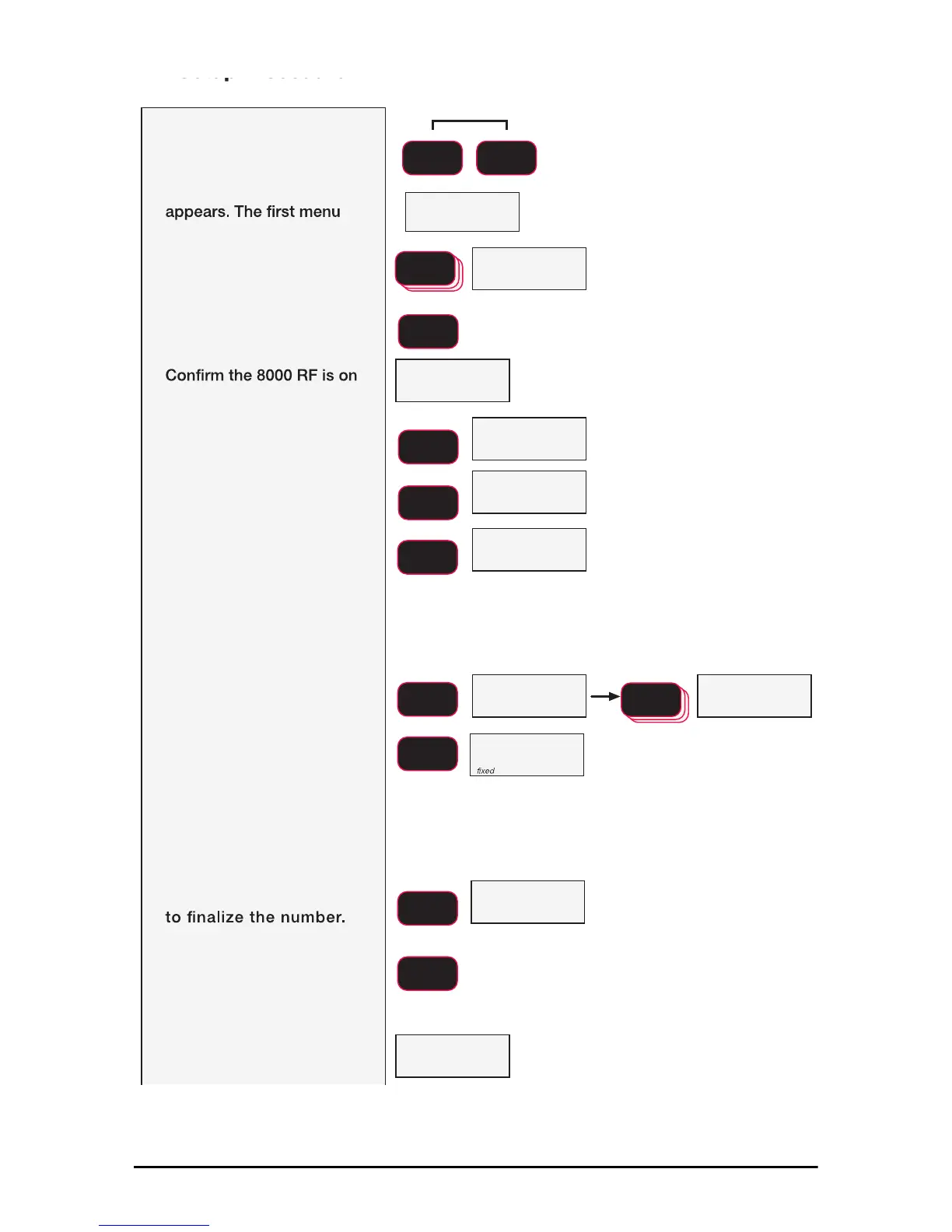
1) With the power on, open the
COMM setup menu by
pressing the F1 and F2 keys
simultaneously.
The COMM setup menu
choice is Print.
2) Press F2 to scroll to the RF
setup menus.
3) Press F1 to enter the RF
setup menu.
4) The display reads OnOff
by pressing F1. If it is off,
use the F2 key to change it
to on. Then push F1.
Off is only used when the 8000 is
hardwired to a Dyna-Link.
5) Press F1. Next the Scid
(ScaleCore ID) screen is
shown
6) Press F1. The current SCID
number is shown.
If the offered SCID value is correct,
push F1 and jump to step 10.
In this example we’ll enter 3 as an SCID
number. Any value from 1-254 is
acceptable. However, MSI
recommends a value from 20 – 30.
7) To input the SCID value,
press F2 to start the number
entry process.
8) Use F2 to change the
number, and F1 to enter
the number. Add the next
digit by pushing F2 and
scrolling as required.
Repeat this sequence
until the entire SCID
number is entered.
9) Once the entire SCID
value is entered, press F1
10) The next RF setup
parameter is “ChnL”
(Channel). Press F1 to start
the number entry process.
11) The current RF channel
number is displayed.
If the offered RF Channel value is
correct, push F1 and jump to step 14.
SCROLL
F2
ENTER/SELECT
F1
ENTER/SELECT
F1
ENTER/SELECT
F1
ENTER/SELECT
F1
F2
F2
SCROLL
F2
ENTER/SELECT
F1
ENTER/SELECT
F1
Press Simultaneously
F1 F2


 To Next Page