8
Search
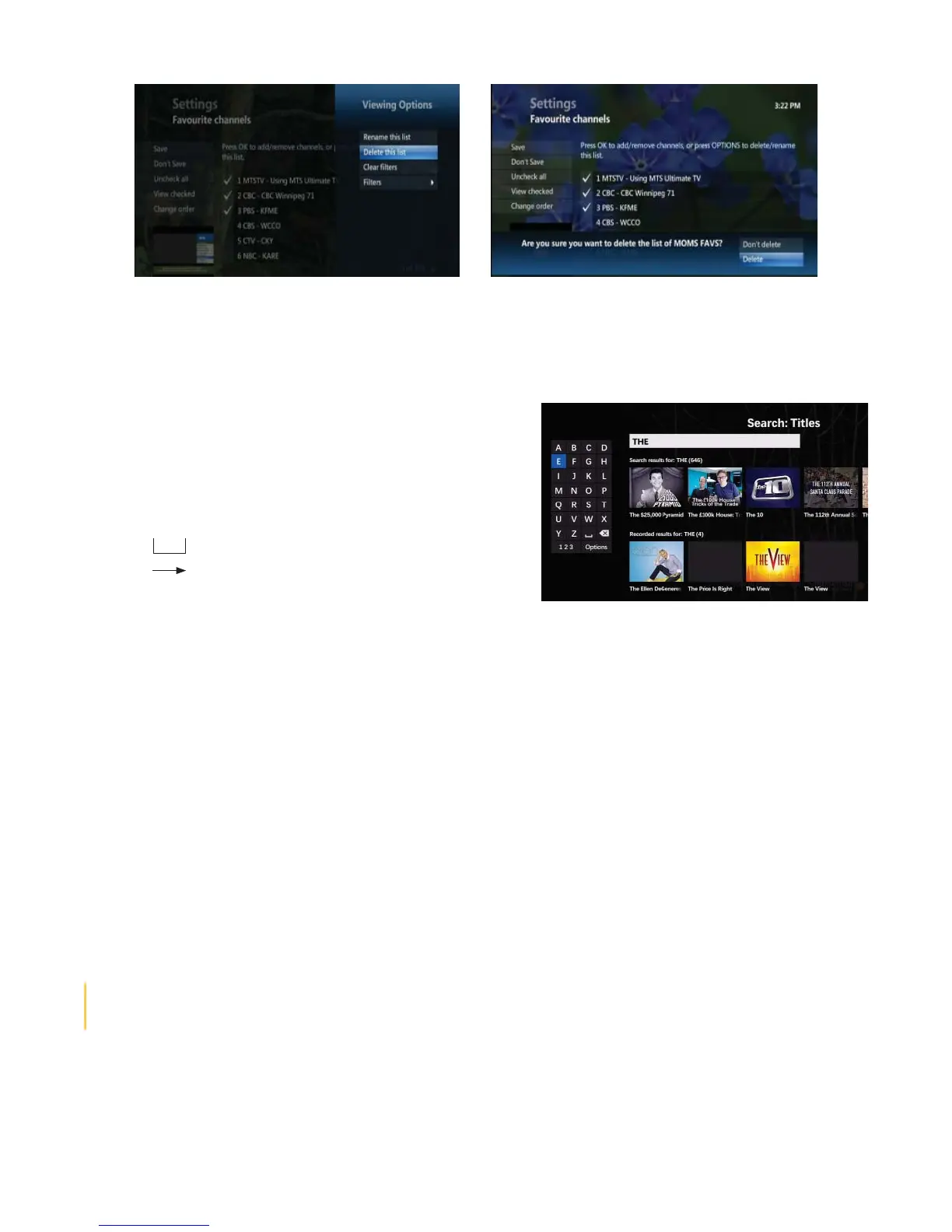
You can search the guide and Video on Demand for your favourite programs from one place. You can also search
by program name or actor.
• Press the A button (Yellow Triangle), or;
• Press MENU, then UP ARROW to SEARCH and press OK
• The Search screen appears with the following:
• Use the ARROW buttons to select letters on the
ALPHABETIC KEYPAD to search for the program or
person, and press OK
• Press to add a space between words
• Press to delete a letter/number
• Press 123 to activate the numeric keypad
• On the right side of the screen, a list of programs or names that contain the letter or number entered appear
• To narrow the search, highlight OPTIONS and press OK. The following fi lters are available:
• ALL RESULTS – Displays people, program titles, and Video on Demand programs
• TITLES – Titles from Live TV and VOD display (“VIDEO” indicates VOD titles)
• VIDEO ON DEMAND – Only VOD programs display
• CAST AND CREW – Only programs with the person appear
• CHANNELS – Only channel names appear
• The fi rst 5 results will display along with posters on the right. If your result is not in the fi rst 5 posters use the
ARROW buttons to highlight the VIEW ALL icon on the far right and press OK.
• Use the ARROW buttons to highlight the title or name from the list on the right, then press OK.
• If the fi lter is set to TITLE, times when the program is playing displays along with program details at the bottom
of the screen. Programs are displayed in sub-categories such as ON DEMAND and LIVE.
• If the fi lter is set to PEOPLE, programs featuring that person appear along with program details at the bottom of
the screen
• If the fi lter is set to VIDEO ON DEMAND, the Program Info Summary screen appears with program detail along
with rental information
• Press EXIT to return to Live TV
User Tip: A quick way to access search options is to press the ENTER/ASPECT button on your remote while the
search menu is open.


 To Next Page