16
When do my programs get deleted
If the system has less than 25 MB of free disk space (which allows only a few minutes of playing time), the oldest
program, based on the recording start date, is automatically deleted.
To ensure important programs are saved, monitor the disk usage and pre-emptively delete old or unwanted
recordings.
How to check PVR capacity
Check the capacity of your PVR by:
• Pressing the MENU button
• Use the DOWN ARROW to highlight RECORDED TV
• Use the RIGHT ARROW to choose PVR SPACE
• Press OK on your remote
View upcoming/scheduled recordings
How to view scheduled recordings
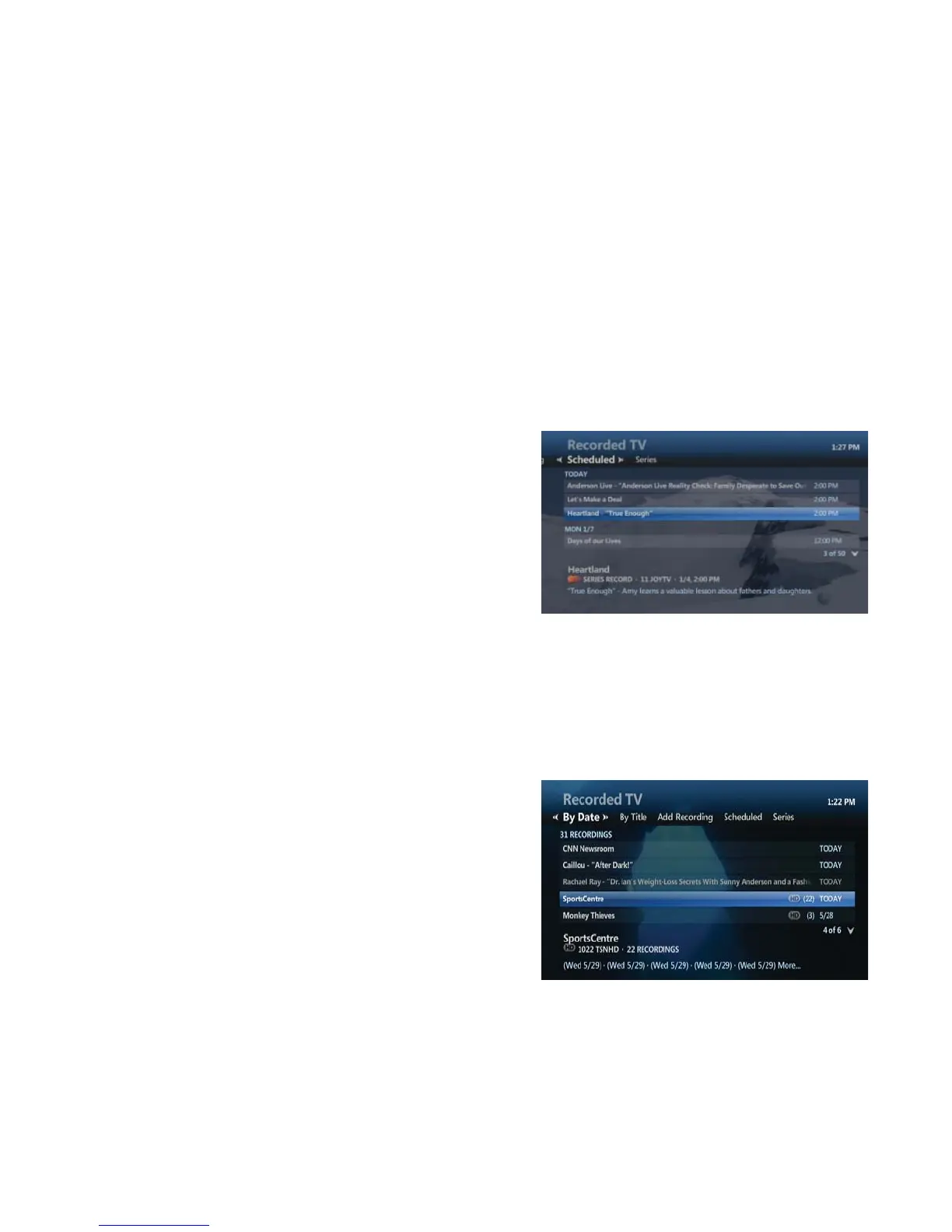
• Press RECORDED TV. The Recorded TV screen appears
• Press the RIGHT ARROW button to highlight SCHEDULED on
the horizontal menu bar. The Recorded TV screen now lists all
upcoming recordings in the order in which they will be recorded
• Use the ARROW buttons or CH|PG to scroll through the list
How to view series recordings
• Press RECORDED TV. The Recorded TV screen appears
• Press the RIGHT ARROW button to highlight SERIES on the horizontal menu bar. The Recorded TV screen lists
the series
scheduled to record
• Use the ARROW buttons or CH|PG to scroll through the list
Playback recorded programs
• Press RECORDED TV. The Recorded TV screen lists available
recordings by date, from the most recently recorded programs
to the oldest
• Recordings that have not been viewed will be displayed in
white, already viewed programs are displayed in grey
• Use the ARROW buttons or CH|PG to scroll through recorded
programs
• Highlight a recorded show, and press OK
• The Program Info screen appears:
• Highlight PLAY, and press OK to play the recording from the beginning
User Tip: If the recorded program is locked by parental locking, refer to Parental Locks.
• If the recorded program is stopped, to continue watching, highlight RESUME PLAY, and press OK
• If the recorded program is stopped, to start watching the program from the beginning, highlight START OVER
and press OK


 To Next Page