18
Cancel, stop, erase recordings
How to cancel recording from the Guide
The easiest way to cancel a single or series recording is by using the Guide. Individually scheduled recordings are
marked by a red dot, and series recordings are marked by three overlapping dots.
• Press GUIDE
• Use the ARROW buttons or CH|PG to scroll through programming, highlight the program (red dot(s) indicate
recording) to be cancelled
• Press RECORD twice for a single recording or once for a series recording
• A “Recording Cancelled” message appears on the screen
How to stop recording
• While watching a program being recorded, press STOP
• A message appears that lets you stop or continue recording
• Highlight STOP RECORDING, and press OK. The message “Recording Stopped” appears
Or, highlight KEEP RECORDING, and press OK
• If the program is stopped a message appears “Recording Stopped”
How to erase existing recordings
Recorded programs remain until they are erased, or until the receiver erases old recordings to make space for new
recordings (this can be set under CHANGING HOW LONG THE RECORDING WILL BE STORED)
• Press RECORDED TV
• Use the ARROW buttons or CH|PG to scroll through recorded
programs
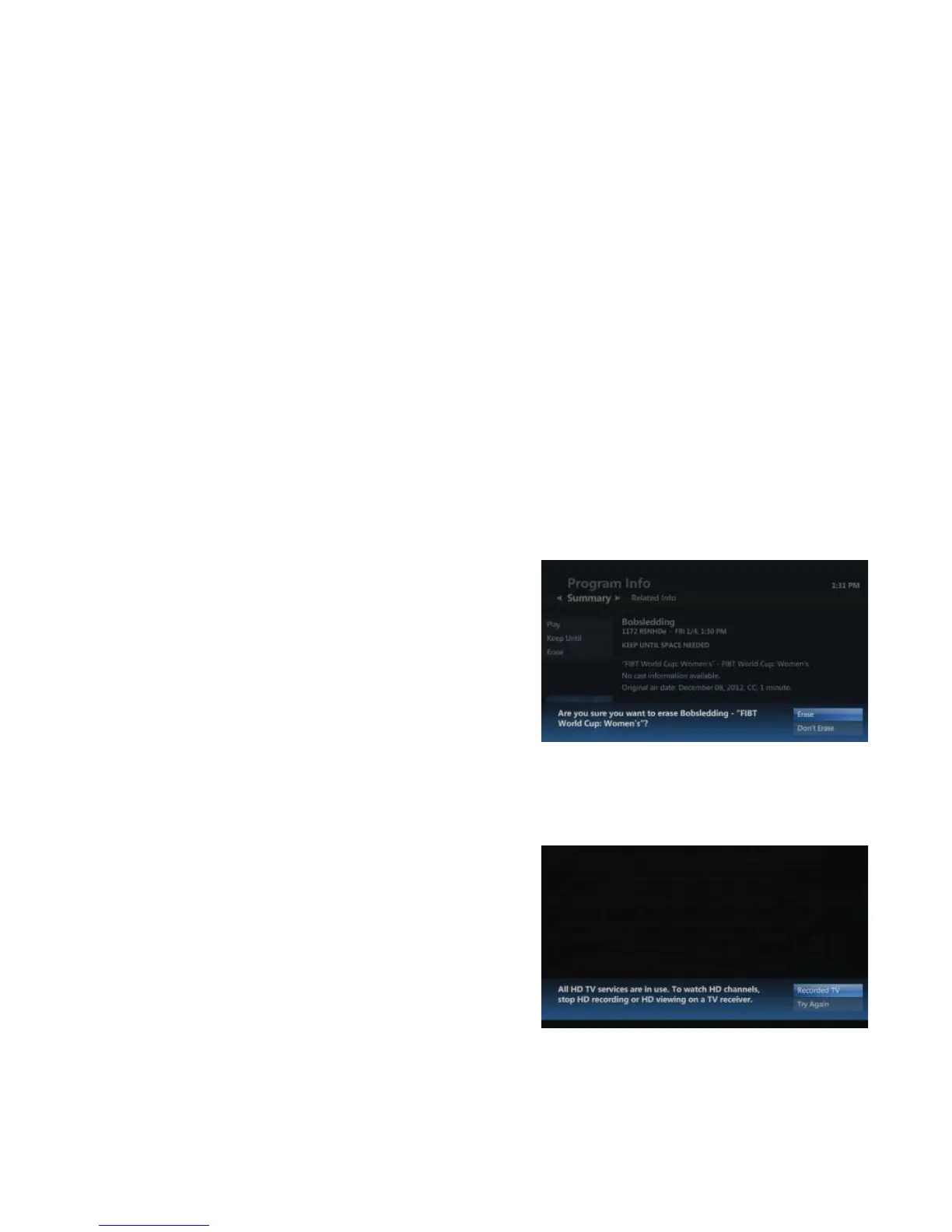
• Highlight the recorded program to be erased, and press OK. The
Program Info screen appears
• Highlight ERASE, and press OK. A confi rmation message appears
• Highlight ERASE again, and press OK. The message “Recording
Erased” appears and the program is permanently erased
• Select DON’T ERASE to keep the program
• The Recorded TV screen appears. Press EXIT to return to live TV
Confl icts
A “Confl ict Resolution” message will appear on your screen when you exceed the number of simultaneous actions
you TV service can perform.
• If more than four televisions are trying to access diff erent
channels, you will be given the following options. Highlight the
option you want, and press OK
• STAY ON CHANNEL – This option will keep the TV on the
current channel
• INTERRUPT A TV – This will turn off the stream that has been
running the longest. This option will not interrupt a PVR
recording or a VOD movie that is playing
• If the PVR is recording one or more streams and one or more
TVs are tuned to live TV, then you will be given the following options. Highlight the option you want, and press OK
• STAY ON CHANNEL – This option will keep the TV on the current channel
• RECORDED TV – This option will take you to the current recordings screen of the PVR, letting you stop a
recording to free up a stream for watching live TV. This option is only available at the PVR set-top box
• INTERRUPT A TV – This will turn off the stream that has been running the longest. This option will not interrupt
a PVR recording or a VOD movie that is playing



 To Next Page