4
TV Basics
Navigating the on-screen menus
Menus and screens
When in the MENU, GUIDE, MTS Video on Demand, or Recorded TV screens:
• Use the ARROW buttons and/or the CH | PG button to highlight items in the screen. The highlighted item shows
the selection
• Press OK to activate the selection
• Press BACK to return to the previous screen
• Press EXIT to return to TV viewing
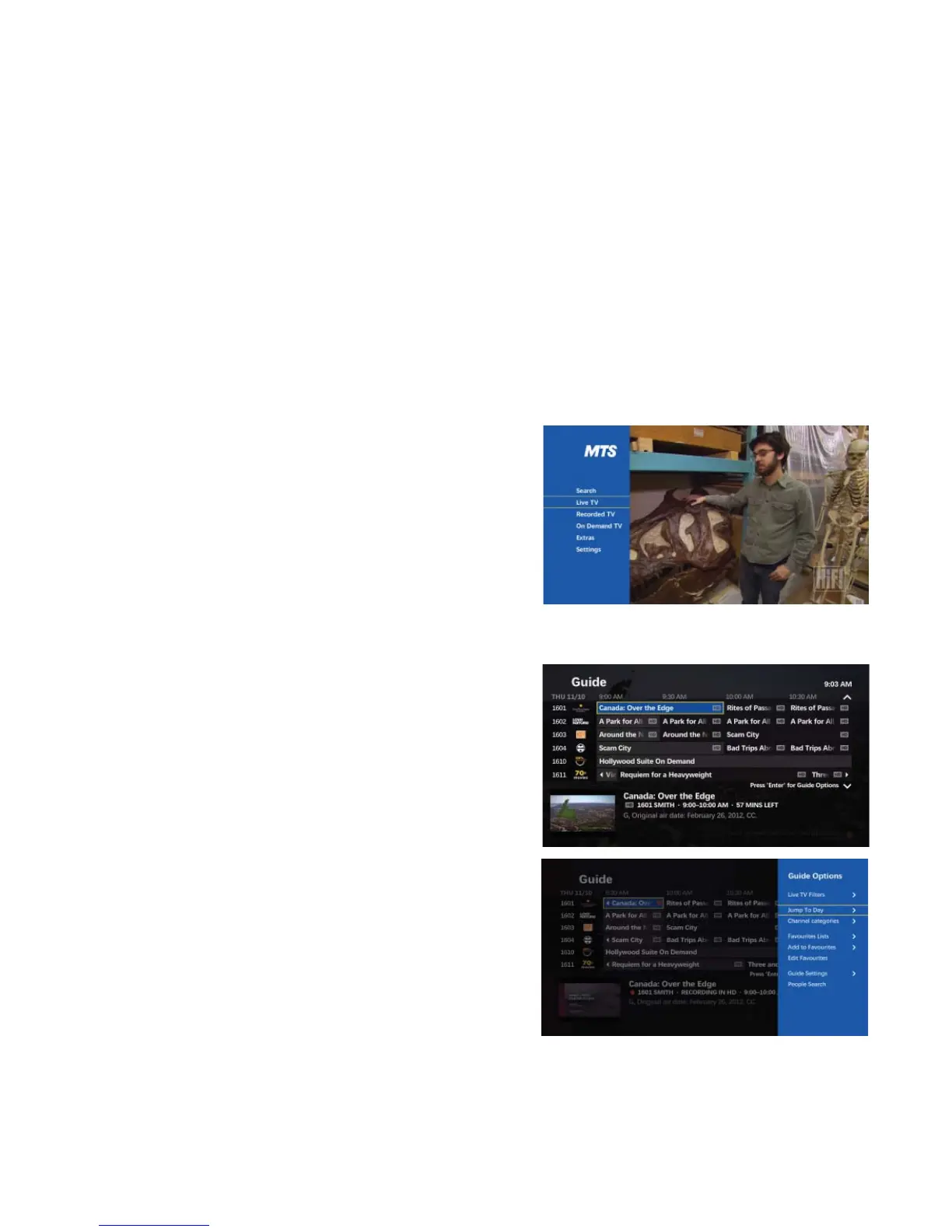
The Menu
The Menu screen provides access to the features:
• Press MENU, the Menu screen appears
• Press the UP/DOWN ARROWS to highlight a heading, such as
Live TV, on the vertical menu bar
• Press the UP/DOWN ARROWS to highlight a submenu, such as
Guide, press OK
• Press the LEF/RIGHT ARROWS to highlight an item and press
OK to select the item
• Press EXIT to return to TV viewing
The Program Guide
• Press GUIDE
• Press the UP/DOWN ARROWS or the CH | PG to scroll vertically
through the Guide. Press and hold the CH| PG button to go
through a whole page of the Guide at a time
• Press the RIGHT/LEFT ARROWS to scroll horizontally
through the Guide to see what is playing at a later time
• The REW or FF buttons will go ahead a day or back a day in the
Guide
• Highlight the program and press OK. If the program is currently
available, it will begin playing
• If the program is on at a later time, the Program Info screen
appears with options to choose from
• Press ENTER/OPTIONS button to jump ahead up to 14 days in
the Guide
• Press EXIT to return to TV viewing



 To Next Page