31
How to program your remote control
Getting started
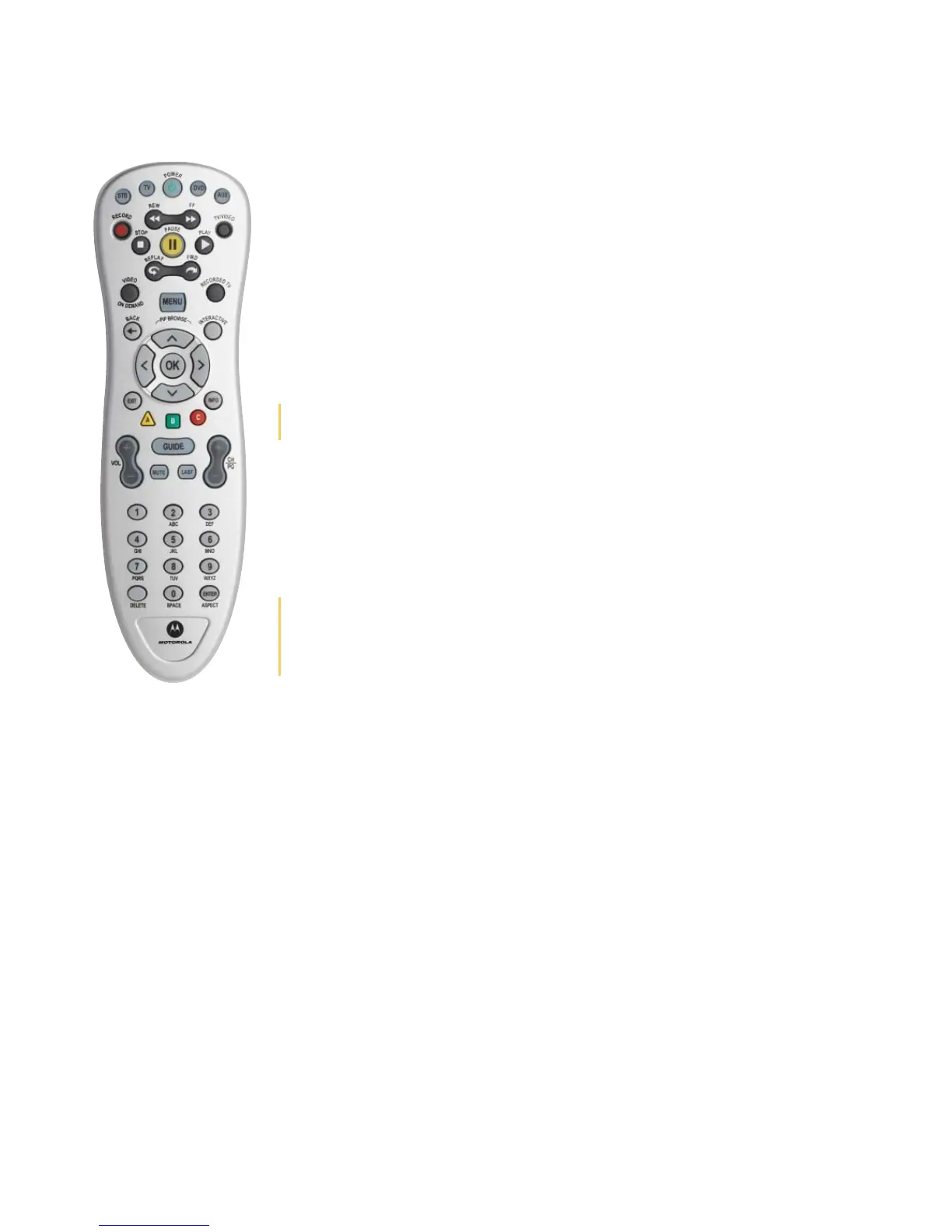
Install batteries in your remote control
• The remote control requires two AA-size alkaline batteries (1.5V) batteries
• On the back of the remote, push down on the tab and lift off the cover
• Match the batteries to the + and - marks inside the battery case, then insert two AA
alkaline batteries
• Press the battery cover back into place
• Test the remote control by pressing the STB/MTS key. The STB/MTS key should light
up if the batteries are properly inserted
Program your MTS Ultimate TV remote to control your TV,
DVD, Home Theatre receiver, or other devices
You can program your MTS TV Remote to control other devices using the TV, DVD, and
AUX mode keys.
Manually program the TV, DVD, or AUX mode keys using direct code entry
Black MXv4 (RF) Remote Only:
1. Power on the device you want to program. Locate the 4-digit set up code for the device you want to program
from the Manufacturer Code List
2. Press the appropriate mode key (TV, DVD, or AUX) on the remote control
3. Press and hold SETUP until the mode key blinks twice
4. Enter the fi rst code for your brand from the code list using the number pad on the remote control
5. Press the POWER key to test with your device. If the device turns does not turn off , repeat steps 3-5 using the
next code for your brand of device
6. Repeat the steps to program another device
Black MXv3 (RF) Silver and Charcoal Remotes Only:
1. Power on the device you want to program. Locate the 4-digit set up code for the device you want to program
from the Manufacturer Code List
2. Press and hold the appropriate mode key (TV, DVD, or AUX) on the remote control
3. Enter the fi rst code for your brand from the code list using the number pad on the remote
4. Press the POWER key to test with your device, if the device turns off , setup is complete
5. If the device does not turn off , repeat steps 3-5 using the next code for your brand of device
6. Repeat the steps to program another device
User Tip: For the MXv4 (RF) remote, the mode Key (TV, DVD or AUX) will blink 5 times
with each key press when batteries need replacement.
User Tip: The DVD and AUX mode keys can be setup with codes for any type
of equipment. The TV mode key can only be setup with TV codes. If you have a
combination unit, such as a TV/DVD unit, each component of the unit will normally be
programmed separately.


 To Next Page