23
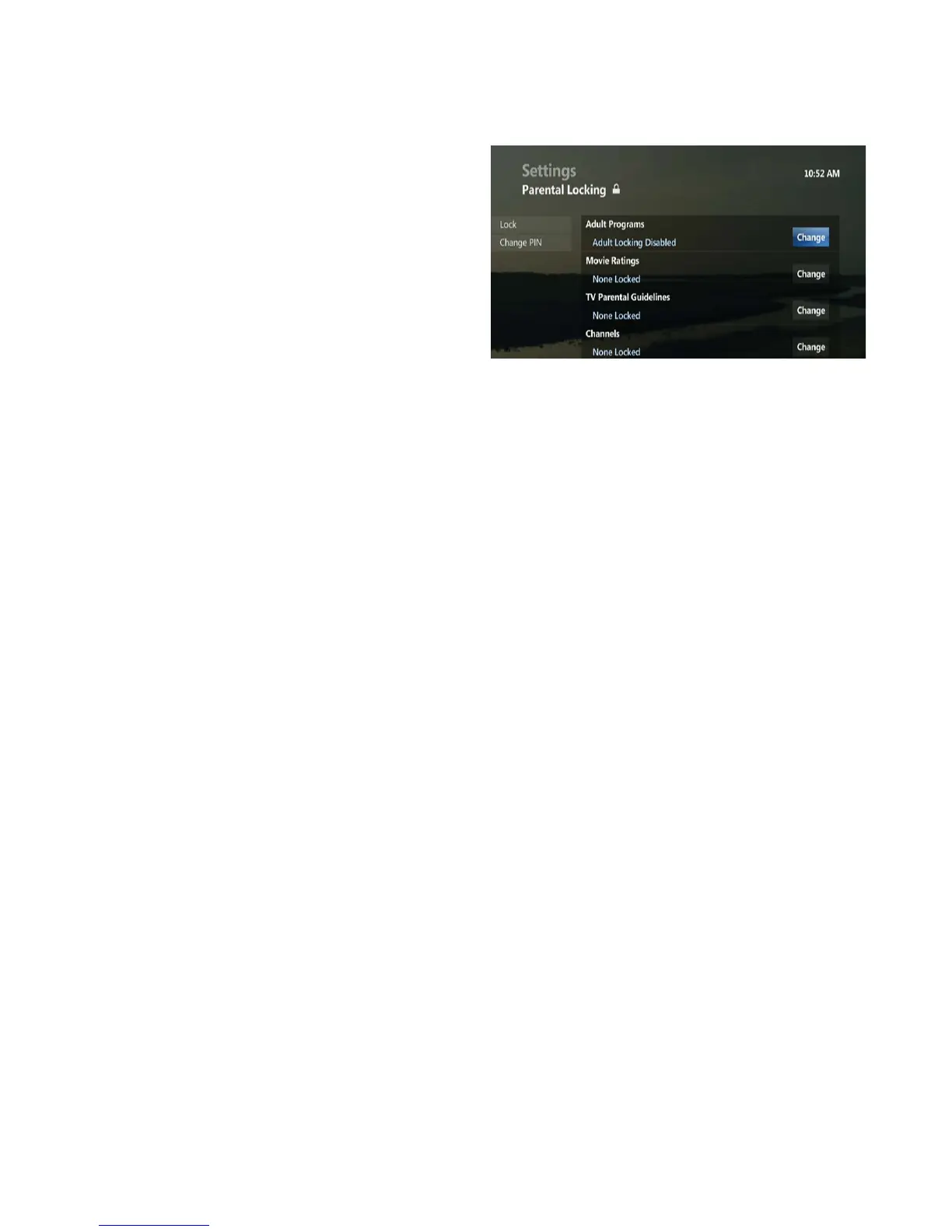
Getting ready to use parental locking
• Press MENU
• Use the DOWN ARROW to highlight SETTINGS
• Highlight PARENTAL CONTROLS, and press OK
• Highlight PARENTAL LOCKING, and press OK
• A default PIN has been pre-set by MTS to 1234 to
prevent access to Adult Content
• Use the NUMERIC KEYPAD to enter a four-digit PIN
• If PIN is entered incorrectly, press DELETE to erase
• If a PIN has already been set, enter the previously set
PIN
• To lock ratings for Adult Programs, Movie Ratings, TV
Parental Guidelines, Channels, Time Locking and Unrated Content use the ARROW button to highlight CHANGE
and press OK
Lock adult programs
• When locked, your 4-digit PIN will be required to view adult programs
• Highlight the box and press OK to add or remove a lock
• Highlight SAVE to keep changes, or DON’T SAVE to cancel changes
Lock movie rating or TV parental guidelines (Block programming based on ratings)
All rating levels are displayed.
• Use the UP/DOWN ARROWS to move through the list, press OK to lock or unlock a rating
Locked ratings display a lock in the box to the left of rating
• To reset locked ratings, highlight UNLOCK ALL, and press OK. All the lock icons are removed
• Highlight SAVE to keep changes, or DON’T SAVE to cancel changes
• To fi nish Parental Locking, highlight LOCK , and press OK
Lock channels
All channels are listed.
• Use the UP/DOWN ARROWS to move through the list, press OK to lock or unlock a channel
Locked channels display a lock in the box to the left of channel
From the menu on the left the following options are available:
• To reset locked channels, highlight UNLOCK ALL, and press OK. All the lock icons are removed
• To only show the locked channels, highlight VIEW LOCKED ONLY, and press OK. The VIEW LOCKED ONLY,
option becomes VIEW ALL CHANNELS
• Highlight SAVE to keep changes, or DON’T SAVE to cancel changes
Lock by time
Days of the week are listed.
• Use the UP/DOWN ARROWS to select a day to set time locking, highlight CHANGE, press OK
• Use the UP/DOWN ARROWS to select the block of time to lock, press OK to lock or unlock the half-hour block of
time. Locked period will display a lock in the box to the left of the time block
From the menu on the left the following options are available:
• Highlight SAVE to keep changes, or DON’T SAVE to cancel changes
• To lock the entire day, highlight LOCK ALL, and press OK. All blocks of time will display the lock icon. The LOCK
ALL option becomes UNLOCK ALL


 To Next Page