3
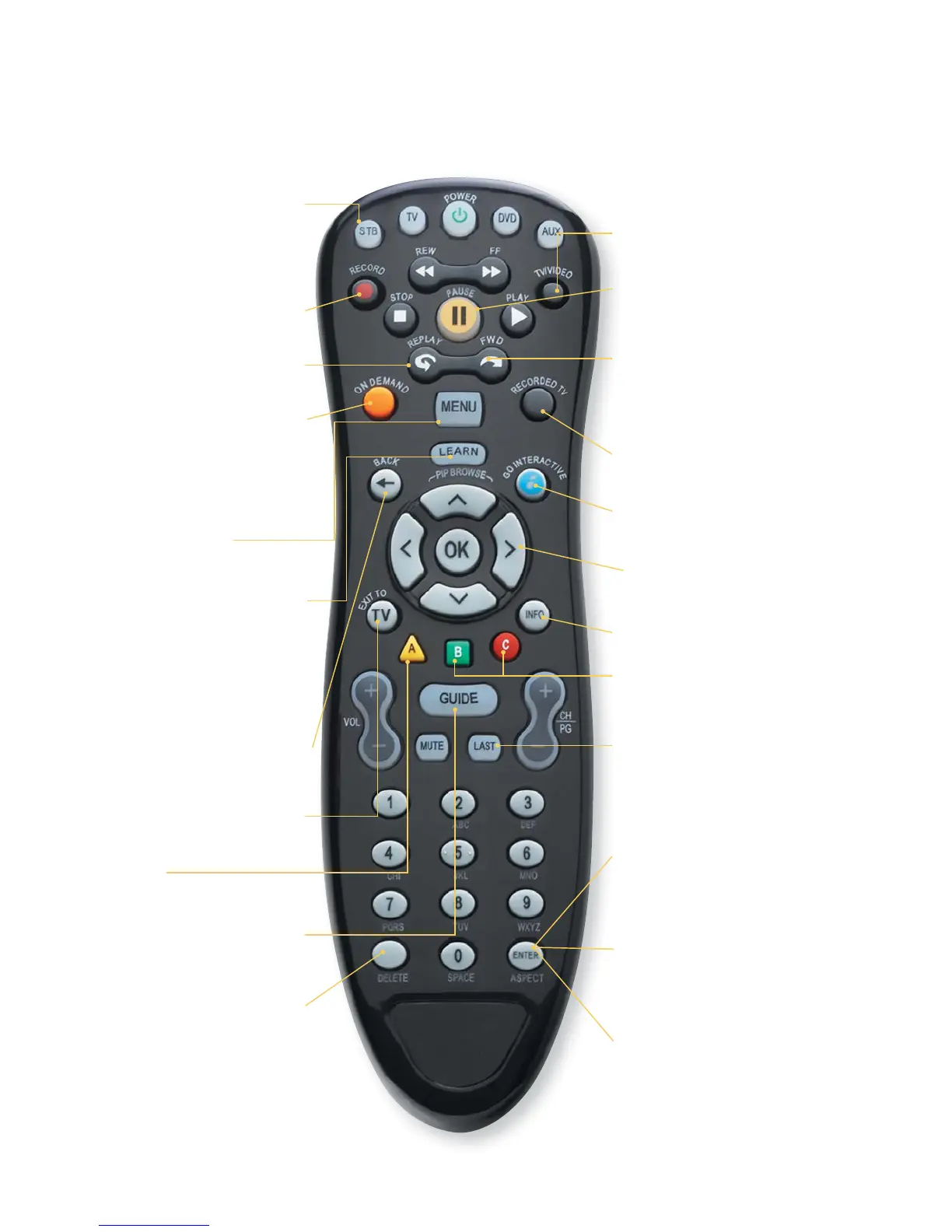
Getting to know your remote control
Set your TV to STB mode
or your MTS service will not
work. On some remotes this
button is labelled MTS.
Record TV* with just one click
Skip back in 7-second
increments
Edit letters or numbers on
the SEARCH screen
Go to Interactive Program
Guide
Exit from MENU screen to TV
When in Guide, return to last
screen or Main Menu
Go to Main Menu
Program MTS remote control
to TVs/DVDs or auxilliary
devices.
(Note: LEARN button
may be called SETUP button on
some remotes)
Go to Video On Demand
library
(Note: On DEMAND
button may be called VIDEO ON
DEMAND on some remotes)
Pause Live TV*
Change video input (Must be
in TV mode for TV service to
work)
Skip forward in 30-second
increments.
(Note: FWD button
may be called SKIP FORWARD on
some remotes).
Go to list of recorded TV
programs*
Navigate channels, menus and
screens using arrows
Go to PROGRAM INFO screen
Return to the previously
viewed TV channel or a list of
previously viewed channels
While watching TV, change
screen dimentions to fi t
wide-screen TV
While in Guide, jump channel
listings by tonight, tomorrow or
the next 14 days
While in Guide, easily add a
channel to your Favourites list
(Note: ENTER/ASPECT button
may be called OPTIONS on some
remotes)
Search
Customize using MyRemote
Launch MyMenu, your
customizable menu app


 To Next Page