9
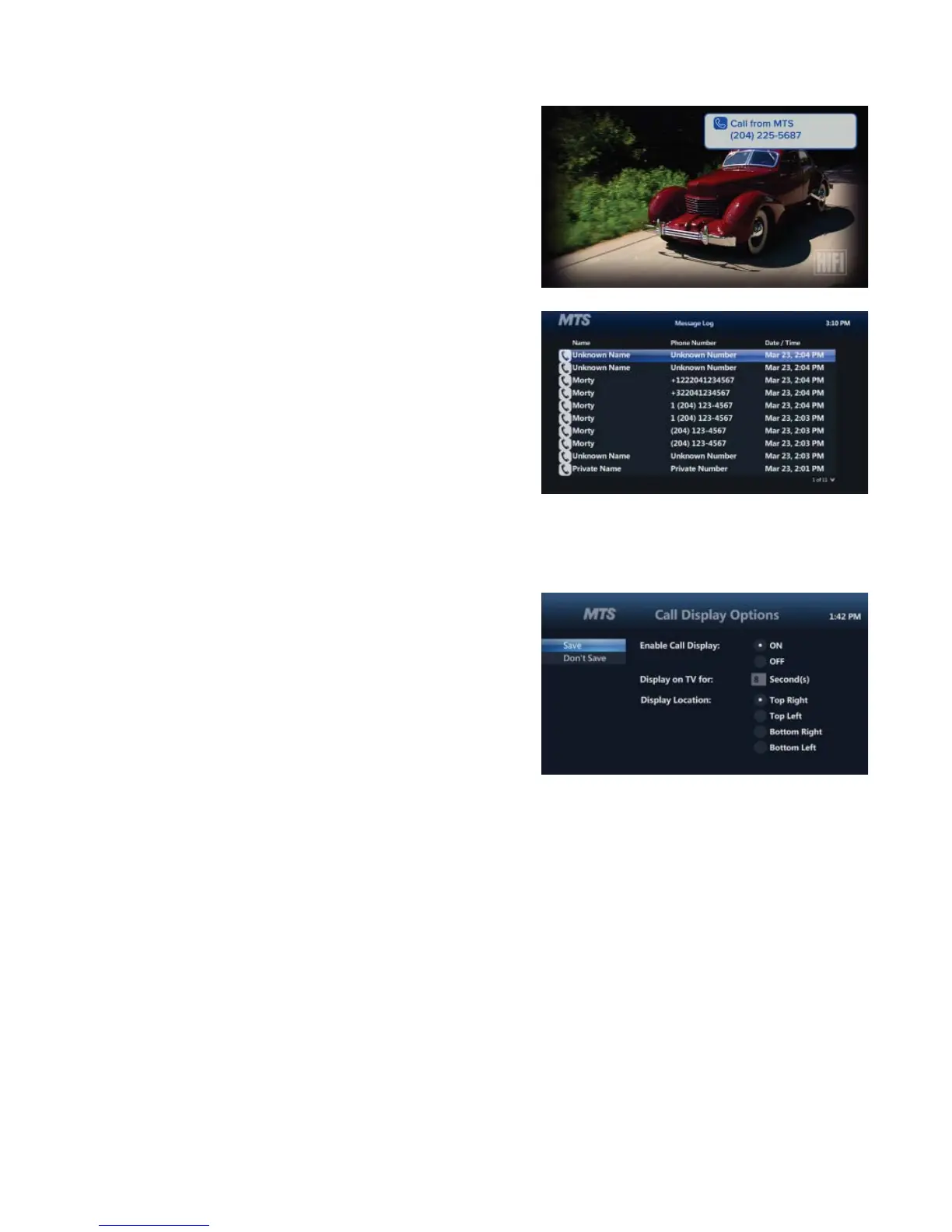
Call Display on TV
See who’s calling right on your TV screen with MTS Ultimate TV
®
Message Centre. TV Call Display is free when you subscribe to
MTS Call Display on your MTS home phone. This feature is not
available in Steinbach.
Accessing the last call received
• Press the MENU button on your MTS TV remote control
• Press the DOWN ARROW button to navigate to EXTRAS, press
OK
• Press the RIGHT ARROW button to navigate to CALL DISPLAY
LOG, press OK
• Your call log will be displayed. The last call received will display
fi rst in the list
• Press EXIT until you return to TV viewing
How to personalize your Call Display settings
• Press the MENU button on your MTS TV remote control
• Press the DOWN ARROW button to navigate to EXTRAS, press
OK
• Press the RIGHT ARROW button to navigate to the CALL
DISPLAY OPTIONS, press OK
Once in Call Display Settings, you can:
A. Disable TV Call Display
– To turn TV Call Display off , use the ARROW button to
navigate to enable TV CALL DISPLAY OFF and press
OK. TV Call Display will continue to display on other TVs
until disabled. Press LEFT ARROW to navigate to SAVE,
press OK
B. Change How Long TV Call Display shows On Your TV
Screen
– Use the ARROW button to access DISPLAY ON TV FOR option
– Using the number buttons on the remote, type in the number of seconds you’d like TV Call Display to appear
on the screen (between 1 and 99.
C. Change TV Call Display Location on Your TV Screen
– Press the DOWN ARROW button and navigate to DISPLAY LOCATION OPTIONS
– Choose the location on your TV that you would like the TV Call Display indicator to appear
– To select this location, press OK
Once you are done with the settings you can press the LEFT ARROW button to navigate to SAVE, press OK
How to delete calls from your Call Display log
• Press the MENU button on your MTS TV remote control
• Press the DOWN ARROW button to navigate to EXTRAS, press OK
• Press the RIGHT ARROW button to get to CALL DISPLAY LOG, press OK. Your call log will be displayed
• Press the DOWN ARROW button to select the Call Log you wish to delete, press OK
You will default to DELETE ITEM, press OK. If at any time you do NOT wish to delete that item, you may select
BACK from this window and press OK. You will be directed back to Call Log screen
• Press EXIT until you return to TV viewing


 To Next Page