Chapter 8 – Auto Dial-in Feature
Multi-Tech Systems, Inc. MultiConnect Serial-to-Serial Adapter User Guide (S000354A) 78
Scenario 3 – Auto Dial-in Session in RAW Mode
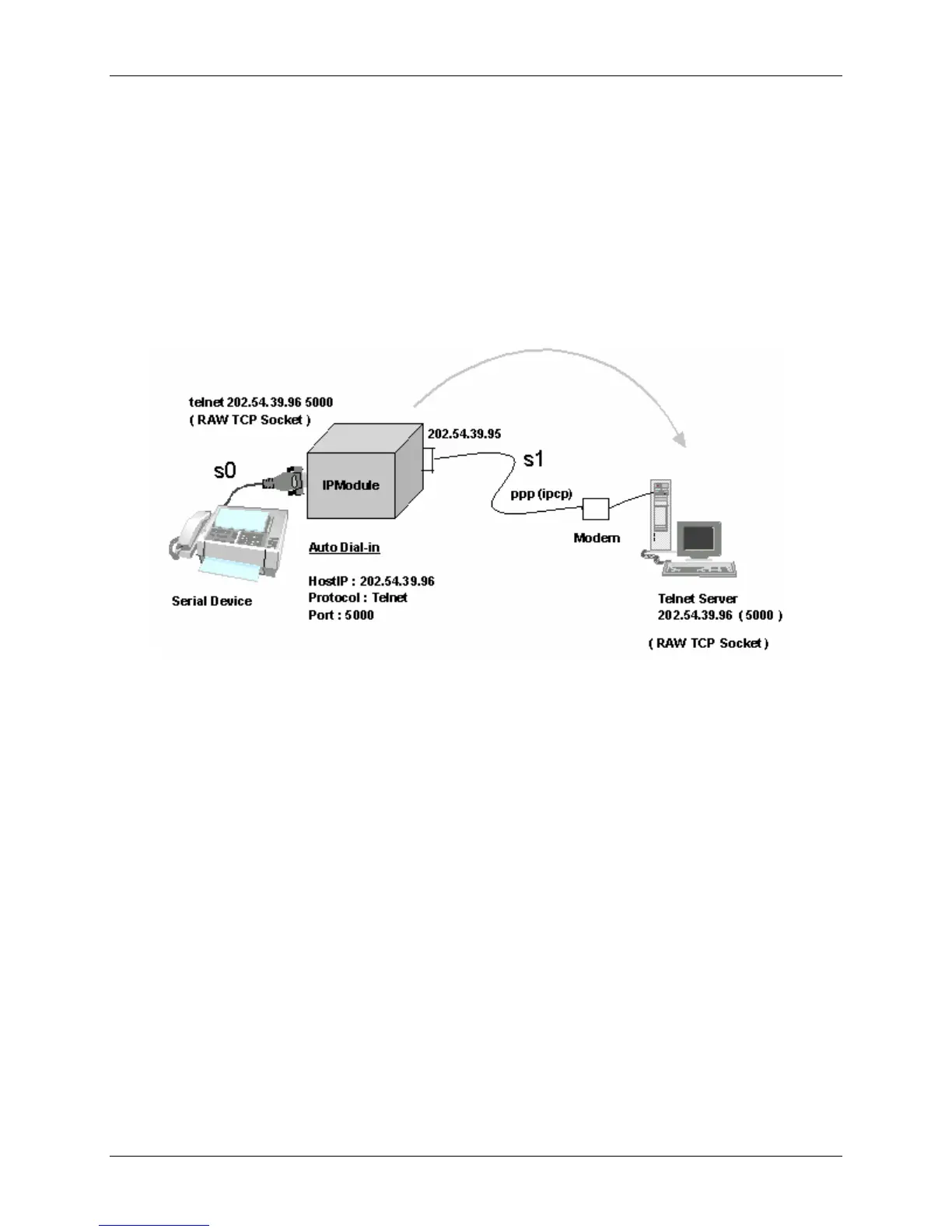
This scenario shows how to configure an auto dial-in session in RAW mode. The auto dial-in session is
opened by Telnet client (embedded in the MultiConnect IP) in RAW-mode to the configured server on a
configured port number. Once the PPP link is up with an IP address, the auto dial-in session can be
probed as in the Auto Dial-In scenario below.
Prerequisites
RAW mode (Global and each port) MUST BE ENABLED using the following command:
Enable/Disable the RAW mode globally for all Auto-Dial-in sessions:
# set ip telnet raw-mode <enable/disable>
Important – You cannot switch between the Command Prompt and a Dial-in session in RAW-
mode. Also, you cannot open more than one Dial-in session.
Auto Dial-in Feature in RAW Mode
MultiConnect IP Auto Dial-In in RAW Mode Setup Commands
# set ip telnet raw-mode enable
# set serial auto-telnet enable
# set serial s0 auto-dialin enable
# set serial s0 raw-dialin enable
# set serial s0 auto-dialin trig-mode dtr-char
# set serial s0 auto-dialin-ipaddress 202.54.39.96
# set serial s0 auto-dialin-port 5000
# set serial s0 auto-dialin-protocol telnet
# set serial s0 stop-bits 1
# set serial s0 baud-rate 115200
# set serial s0 data-bits 8
# set serial s0 parity none
# set serial s0 flow-control rts-cts
# set serial s1 stop-bits 1
# set serial s1 baud-rate 115200
# set serial s1 data-bits 8
# set serial s1 parity none
# set serial s1 flow-control rts-cts
# set serial s1 connect-type modem
# set serial s1 modem dial-number 123
# set serial s1 modem dialing-trig-mode none
(Refer to Chapter 6 - Prerequisite Configurations - Physical Link Established over the Modem Port)
# set ppp ppp0 ipcp-mode client-only
# set ppp ppp0 username "MultiConnect"
# set ppp ppp0 password "MultiConnect"
# save








 To Next Page