16
1
Connect Internet
The CAPXLV2 can connect to the Internet with a wired Ethernet connection or with Wi-Fi
®
(wireless). Make sure you are in
the Admin Mode before you connect to the Internet. If you are not in Admin Mode, press the 3 dots in the upper right corner
of the CAPXLV2 display and enter the Admin Code, enter the password (default is 888888), press the Network tab on the
CAPXLV2 display, and press the “Change Network Settings” button. Follow the instructions according to your application.
ACCOUNT SETUP NETWORK/MOUNTINGPOWER ACCESS CONTROLINTRODUCTION
INTRODUCTION
ACCOUNT SETUP NETWORK/MOUNTINGPOWER ACCESS CONTROL
INTRODUCTION ACCESS CONTROL
ACCOUNT SETUP NETWORK/MOUNTINGPOWER
INTRODUCTION
ACCOUNT SETUP NETWORK/MOUNTINGPOWER ACCESS CONTROL
INTRODUCTION ACCOUNT SETUP NETWORK/MOUNTINGPOWER ACCESS CONTROL
On the display, select each tab in Admin Mode to validate setup (network,
inputs, outputs, etc.). Once you have validated the setup, exit Admin Mode.
Validate Setup
2
OPTION 1 Wired Connection
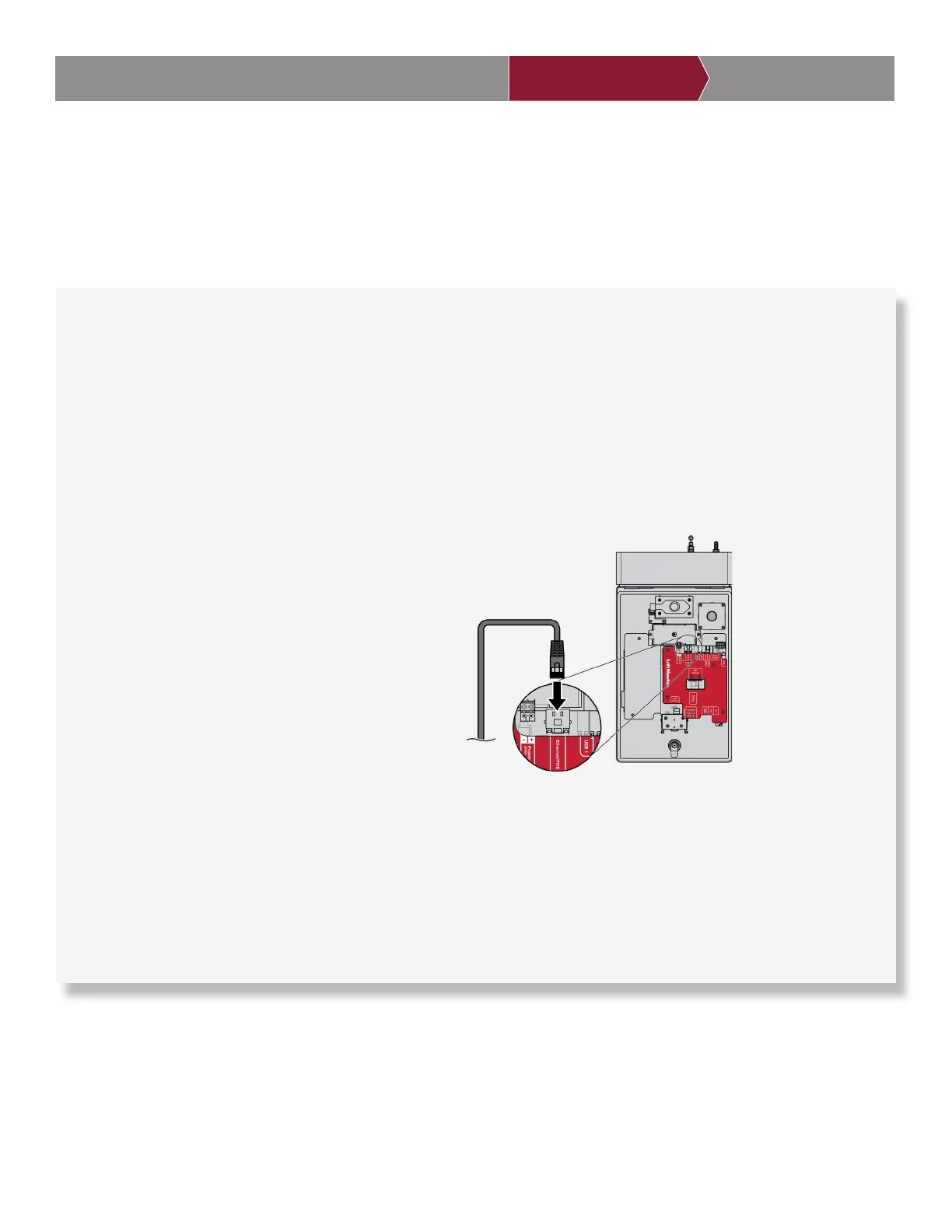
The Local Area Network (LAN) port is a 10/100 Ethernet interface with an RJ45 jack for connecting the CAPXLV2 to a hub, switch, or router
in order for it to gain connectivity to the Internet. Use a straight, (i.e., non-crossover) Cat5e, or Cat6 cable to connect to a local hub, switch or
router. This type of cable is referred to as an Ethernet cable in this manual.
1. Plug the input Ethernet cable into the main board.
2. Connect an Ethernet cable from the hub, switch, or router to the LAN port on the main board. When connected properly, the green and
amber LED on the Ethernet port of the main board will light/flicker (the main board is located on the back of the CAPXLV2 display). If the
green LED is not lit, check the connections on the CAPXLV2 and the Ethernet hub.
3. On the display, select Wired Network if dynamic configuration (DHCP) is desired or select Manual Setup for a static IP address.
OPTION 2 Connect through Wi-Fi
®
(Wireless)
1. On the display select Wi-Fi
®
Network.
2. Select the network the CAPXLV2 will use.
3. Enter the password for the network.
4. Select Login.
Additional compatibility considerations:
• When checking signal strength in CAPXLV2 admin mode, at least two bars are recommended.
• Use accessory WFBTEXT (WiFi
®
External Antenna Kit) and WFAEXT (15’ WiFi
®
Extension Kit) to move the CAPXLV2 antenna higher
up or to a location resulting in two or more bars.
• If using a Wi-Fi
®
signal strength tool or app, a continuous Wi-Fi
®
signal strength connection of at least -65 DBM (numbers closer
to zero are stronger strength) at the CAPXLV2 must be guaranteed to ensure an acceptable connection to the local network.
• Hidden network SSID’s are not supported. The network must be selectable from the CAPXLV2 display.
• Wi-Fi
®
networks requiring secondary authentication are not supported (E.g. Hotels and airport Wi-Fi
®
).


 To Next Page