18
ACCOUNT SETUP NETWORK/MOUNTINGPOWER ACCESS CONTROLINTRODUCTION
INTRODUCTION
ACCOUNT SETUP NETWORK/MOUNTINGPOWER ACCESS CONTROL
INTRODUCTION ACCESS CONTROL
ACCOUNT SETUP NETWORK/MOUNTINGPOWER
INTRODUCTION
ACCOUNT SETUP NETWORK/MOUNTINGPOWER ACCESS CONTROL
INTRODUCTION ACCOUNT SETUP NETWORK/MOUNTINGPOWER ACCESS CONTROL
Gate Access (Wireless)
The CAPXLV2 can communicate wirelessly to LiftMaster
®
UL325 gate operators to send open commands, monitor gate position, and
send email notifications if an error occurs in the operator (email notifications are configured in myQ
®
). Up to 8 gate operators can be
paired with the CAPXLV2 - one for each relay. If using dual gates, program the CAPXLV2 to the primary operator.
NOTE: Use of this feature requires the optional Passport antenna kit.
1 Enter Admin Mode
Press the 3 dots in the upper right corner of the CAPXLV2
display and enter the Admin Code
2 Select Outputs and Relay
Select the Outputs tab. Then select the desired relay on the left-
hand side (1 through 8).
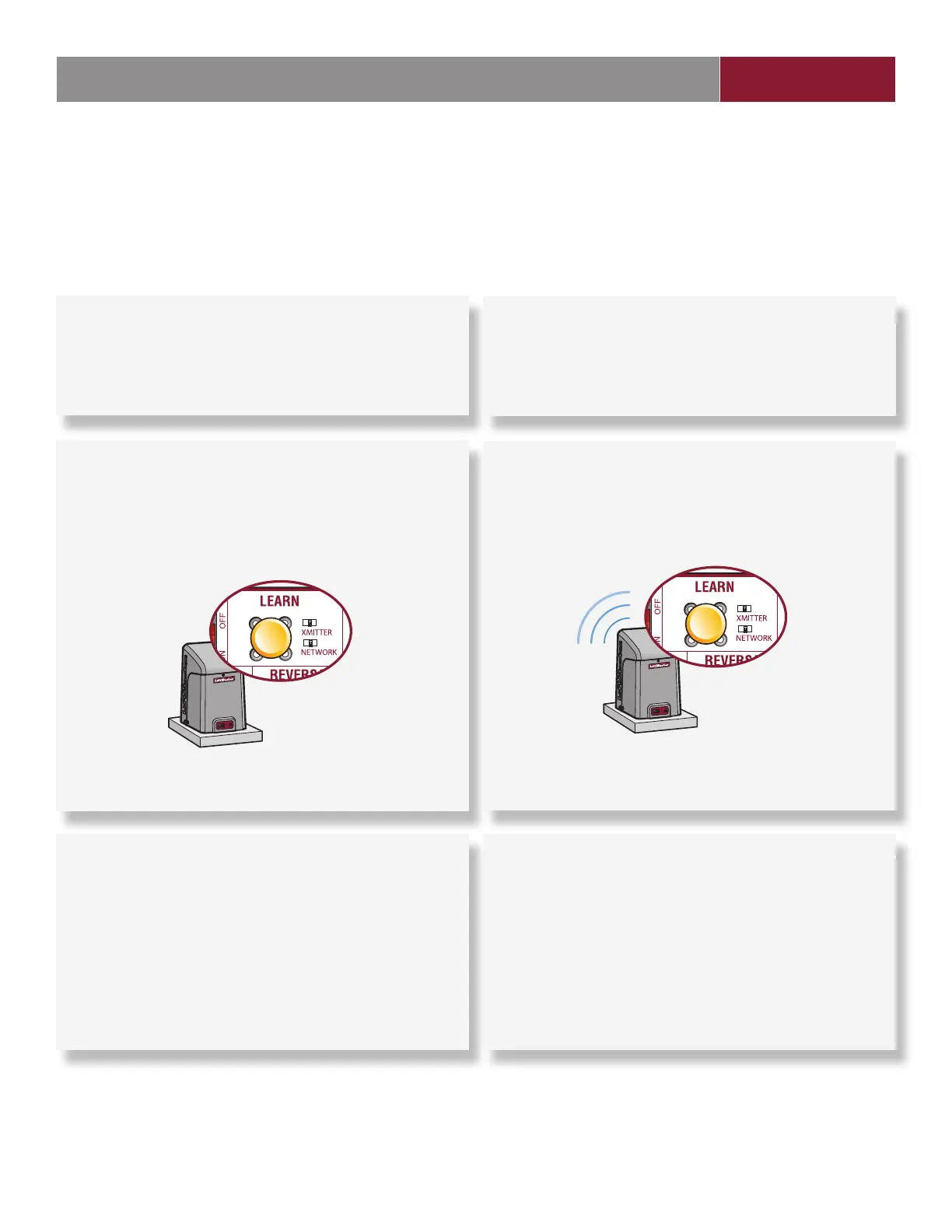
3 Press LEARN button on gate operator
Press and release the LEARN button on the primary operator.
The green XMITTER LED will light. NOTE: The operator will
time out of programming mode after 180 seconds.
4 Press LEARN button on gate operator again
Press and release the LEARN button again on the primary
operator. The yellow NETWORK LED will light.
5 Select LEARN on display
Select the LEARN button on the display and the Learn button
will go from blue to red. The gate operator will beep once,
CAPXLV2 learn button will change to “Unlearn”, and the
NETWORK LED on the gate operator will turn off, indicating
programming is successful.
NOTE: 4 beeps/blinks indicate you are not programming to
the primary operator. Reattempt programming from the other
operator.
6 Validate
Validate functionality by selecting Test Relay on the CAPXLV2
display.


 To Next Page