VX150 TO VX2 TROUBLESHOOTING MANUAL RESPONDING TO ALARMS
PAGE 3.1.6 VERSION 2.0 2023-04-20
Remote AUI Alarms Page Checks
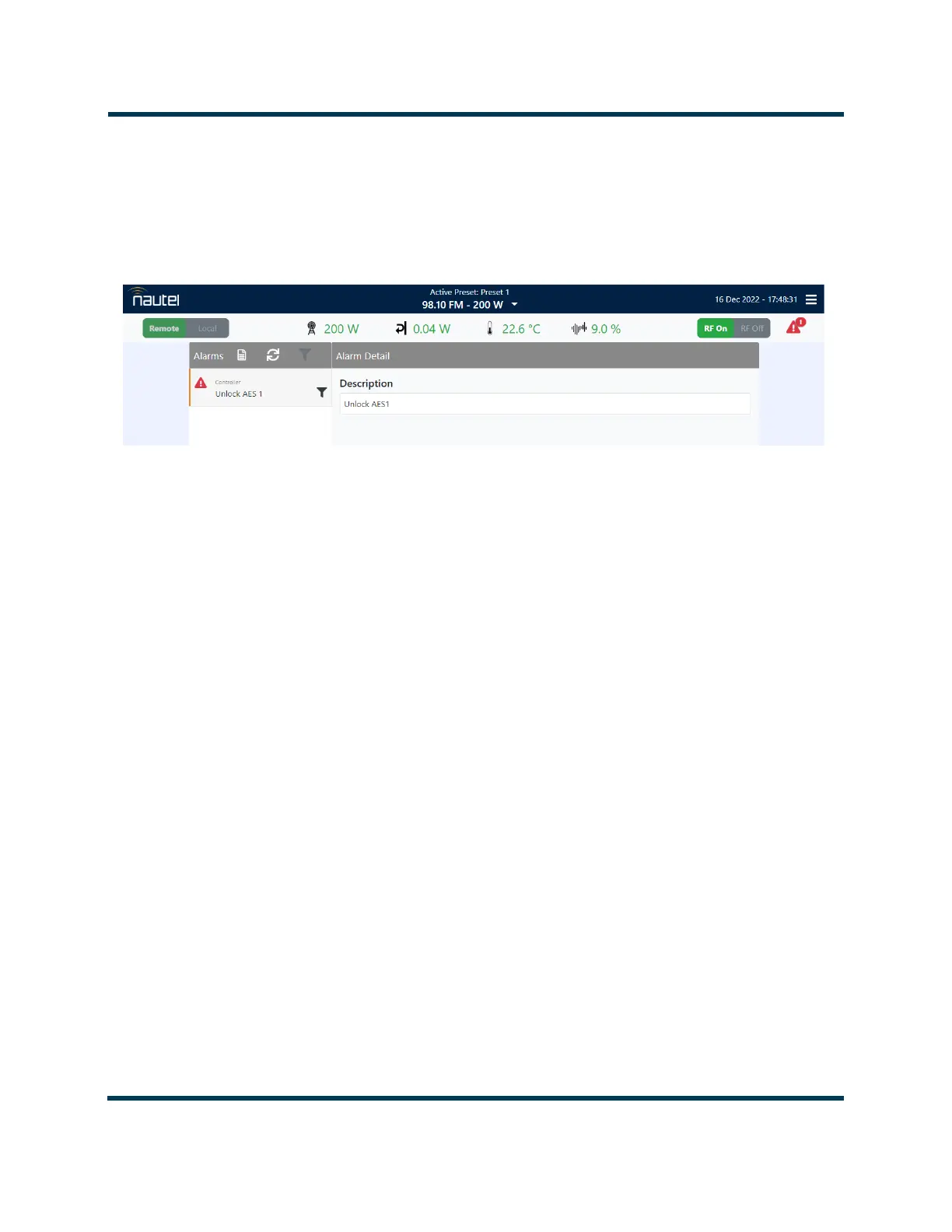
If an alarm exists and is being recognized by the transmitter, it is displayed on the Alarms page (see
Figure 3.1.3). The warning symbol in the upper, right section of the remote AUI dashboard (any page)
will be amber or red when an alarm is present.
Figure 3.1.3: AUI Alarms Page
1. Click the warning symbol (or select Menu -> Alarms) to go to the Alarms page (see Figure 3.1.3).
View the list of active faults. Alarms are listed by their name (Alarm Detail column).
2. Attempt to clear any latching alarms by pressing the Reset Latched Alarms icon at the top, left of
the Alarms screen If the alarm persists, it will not be cleared from the display.
3. Locate the alarm name in Table 3.1.1 on page 3.1.7 to determine the cause of the alarm and
perform any recommended procedures in the Troubleshooting column. This may also lead to
replacing a suspect PWB, power supply or fan, as detailed in PA Resistance Checks, on page 3.1.35.
NOTE: Table 3.1.1 on page 3.1.7
contains a column for most alarms that can occur, sorted
alphanumerically for each sub-system, including both the names displayed on the remote AUI and, if
different, the front panel display. The
Troubleshooting
column provides a brief description of the
alarm, troubleshooting tips and a cross-reference to more detailed troubleshooting, as applicable.
4. If troubleshooting and subsequent replacement of a suspect PWB or module causes the alarm to
disappear from the Alarms page, the alarm has been successfully cleared. If the fault condition
does not clear, contact Nautel.
NOTE:
Before undertaking any troubleshooting, record all remote AUI meter readings and note if any
other alarms are displayed on the Alarms page
.
Record all alarms. The most convenient way to do this
is by using the remote AUI’s Menu -> Reports page to download a report of the Alarm History (see
“Alarm History” in the Operations & Maintenance Manual). Another method is to use a web browser
over a LAN connection to save screen shots of critical status, meter and alarm pages. Go to the
Dashboard -> Meters page to view (and save) detailed information (see “Viewing Meters” in the
Operations & Maintenance Manual).


 To Next Page