NAVMAN TRACKER 5507/5607 Installation and Operation Manual
19
3-1-1 Navigating to a point
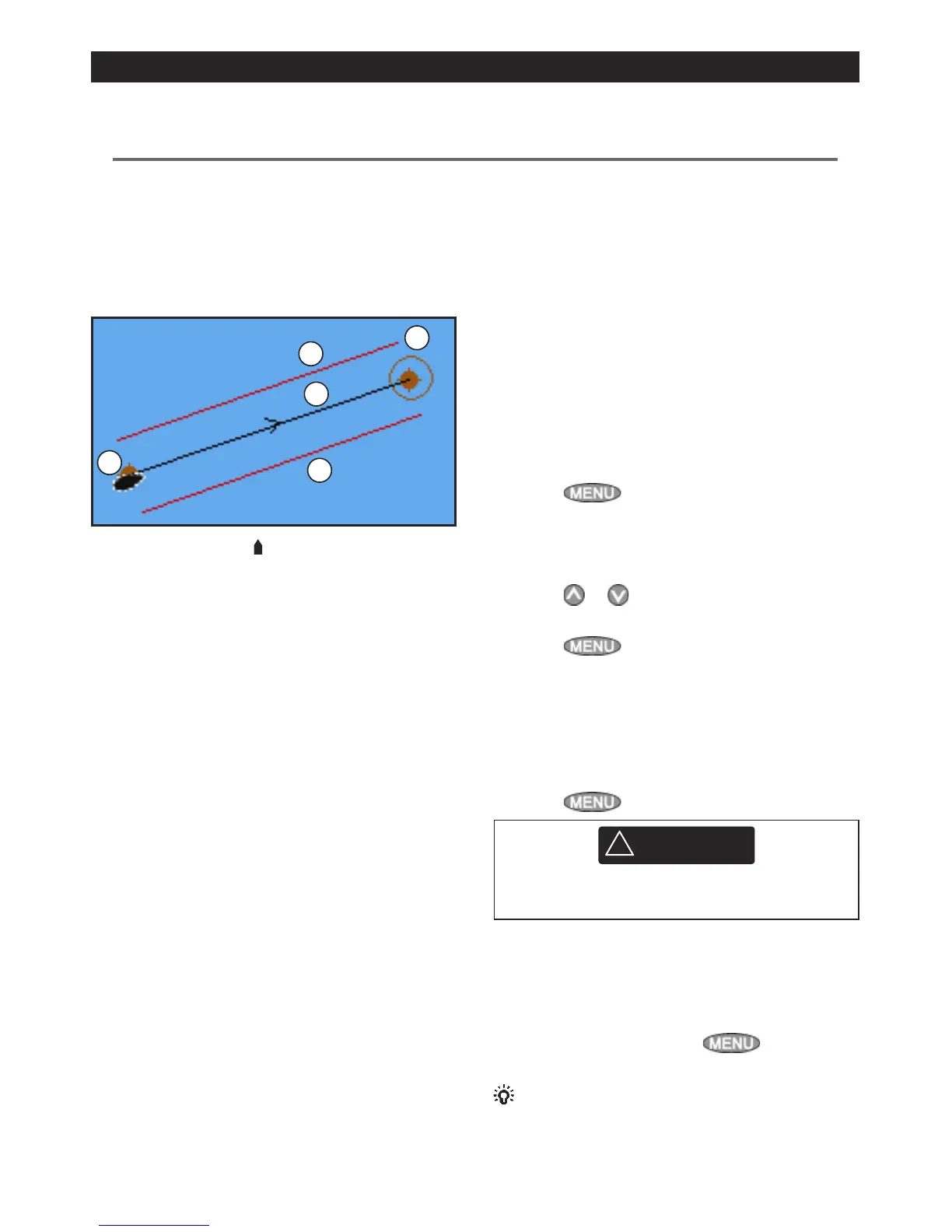
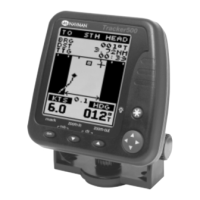
When the 5507/5607 is navigating to a point, the
chart and highway windows show navigation
data:
A
C
D
D
B
A The boat position
.
B The destination point marked with a circle.
C The boat’s plotted course to the destination.
D Two CDI lines, parallel to the boat’s plotted
course, which indicate the maximum
expected deviation from the plotted course.
For more information, see appendix C.
If the 5507/5607 is connected to an autopilot, the
5507/5607 will send data to the autopilot to steer
the boat to the destination. Start the autopilot
before starting to navigate to the point.
If the 5507/5607 has no autopilot, steer the boat
manually:
a use the boat position and destination on
the chart or highway windows
b or use navigation data window on the data
header (see section 2-8-3)
c or use COG and BRG on the compass (see
section 2-8-4).
Note:
1 If the XTE alarm is enabled, an alarm will
sound if the boat deviates too much from its
intended course (see section 15-8).
2 If the arrival radius alarm is enabled, then an
alarm will sound to show that the boat has
reached the destination (see section 15-8).
3-1-2 Going to a waypoint or to a point on
the chart
A waypoint is a position that you can set on the
5507/5607 chart, for example a fishing spot. (see
section 5).
Going to a waypoint from the chart window
1 Go to the chart window.
2 Move the cursor to the waypoint: either use
the cursor keys or use Find (see section 3-2-5).
3 Press
and select Goto.
Going to a waypoint from the waypoints
window
1 Go to the waypoints window.
2 Press
or to highlight the waypoint to
go to.
3 Press
and select Goto.
Going to a point on the chart
1 Switch to a chart window.
2 Move the cursor to the destination point:
either use the cursor keys or use Find (see
section 3-2-5).
3 Press
and select Goto cursor.
Make sure the course does not pass over land
or dangerous waters.
Navigating
The 5507/5607 navigates to the point as
described in section 3-1-1.
Cancelling navigating
Go to a Chart window, press
and select
Cancel goto.
Tip: Before starting, create waypoints at points
of interest. Create a waypoint at the start of the
trip for you to navigate back to (see section 5-2-1).
3 Navigation: Chart
3-1 Overview of navigating
The chart window shows the chart, the boat’s position course and navigation data.
The 5507/5607 has two ways of navigating, going straight to a point or following a route.



 To Next Page