NAVMAN TRACKER 5507/5607 Installation and Operation Manual
32
8 Gauges window
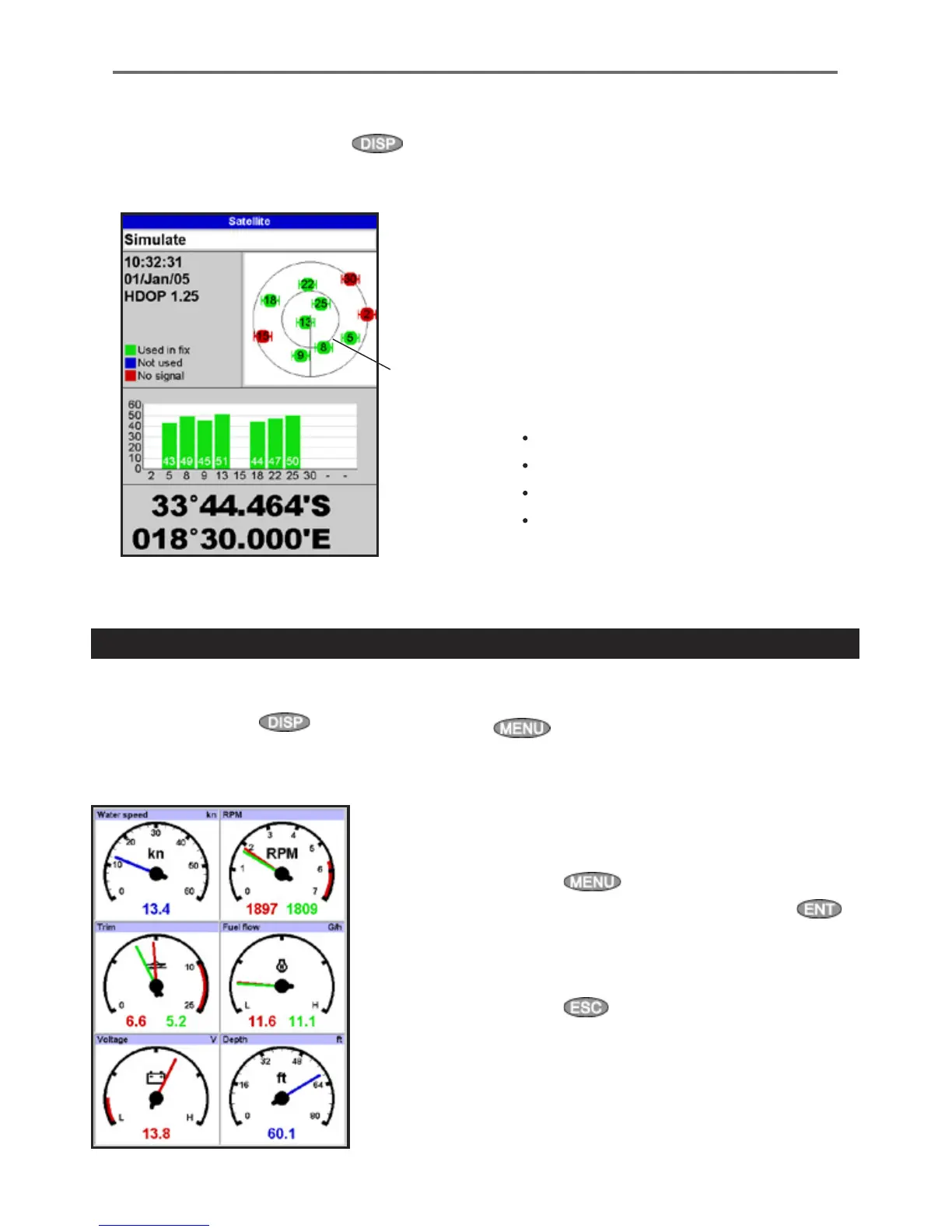
The satellite window has information about the
GPS satellites and GPS position.
To go to the satellite window, press
,
select
More, then select Satellite.
The satellite window shows:
A
C
D
B
E
G
F
7-1 Satellite window
A Status of GPS antenna, for example Acquiring,
GPS fix, No GPS. If the unit is in Simulate
mode it displays Simulate (see section 2-7)
B Time and date from GPS satellites. Time is
local time (UTC [GMT] plus local offset, see
section 15-12)
C HDOP: The error in the GPS position caused
by satellite geometry. A low value indicates a
more precise fix, a high value a less precise fix
D Signal strengths of up to twelve visible GPS
satellites. The higher the bar the stronger the
signal
E Boat position
F Positions of visible GPS satellites:
Outer circle is horizon
Inner circle is 45° elevation
Centre is directly above
North is at top of display
G If the boat is moving, COG is a line from
centre
The Gauges window shows boat data, such as
water speed, as analog gauges. To select the
Gauges window, press
, select More, then
select Gauges. Before using the Gauges window,
set Speed range, Max RPM and Max fuel flow (see
section 15-4).
Selecting a gauges layout
To select a layout from the Gauges window, press
, select Layout, then select a layout from
the list.
Changing a gauge layout
You can change the data displayed on each
gauge in a layout.
1 Select the layout to change (see above).
2 Press
and select Gauge setup.
3 Highlight the gauge to change. Press
and select the data to display in the gauge.
4 Repeat the above step to change other
gauges.
5 Press
.



 To Next Page