Configure System Information
49
Smart Managed Pro Switches MS510TX and MS510TXPP
If you do not know the IP address of the switch, see Access the Switch on page 12.
The login window opens.
4. Enter the switch’s password in the Password field.
The default password is password.
The System Information page displays.
5. Select System > Management > Green Ethernet >
Green Ethernet Details.
The Green Ethernet Details page displays.
6. Scroll down to the Remote Device Information section.
7. Form the Interface menu, select the interface.
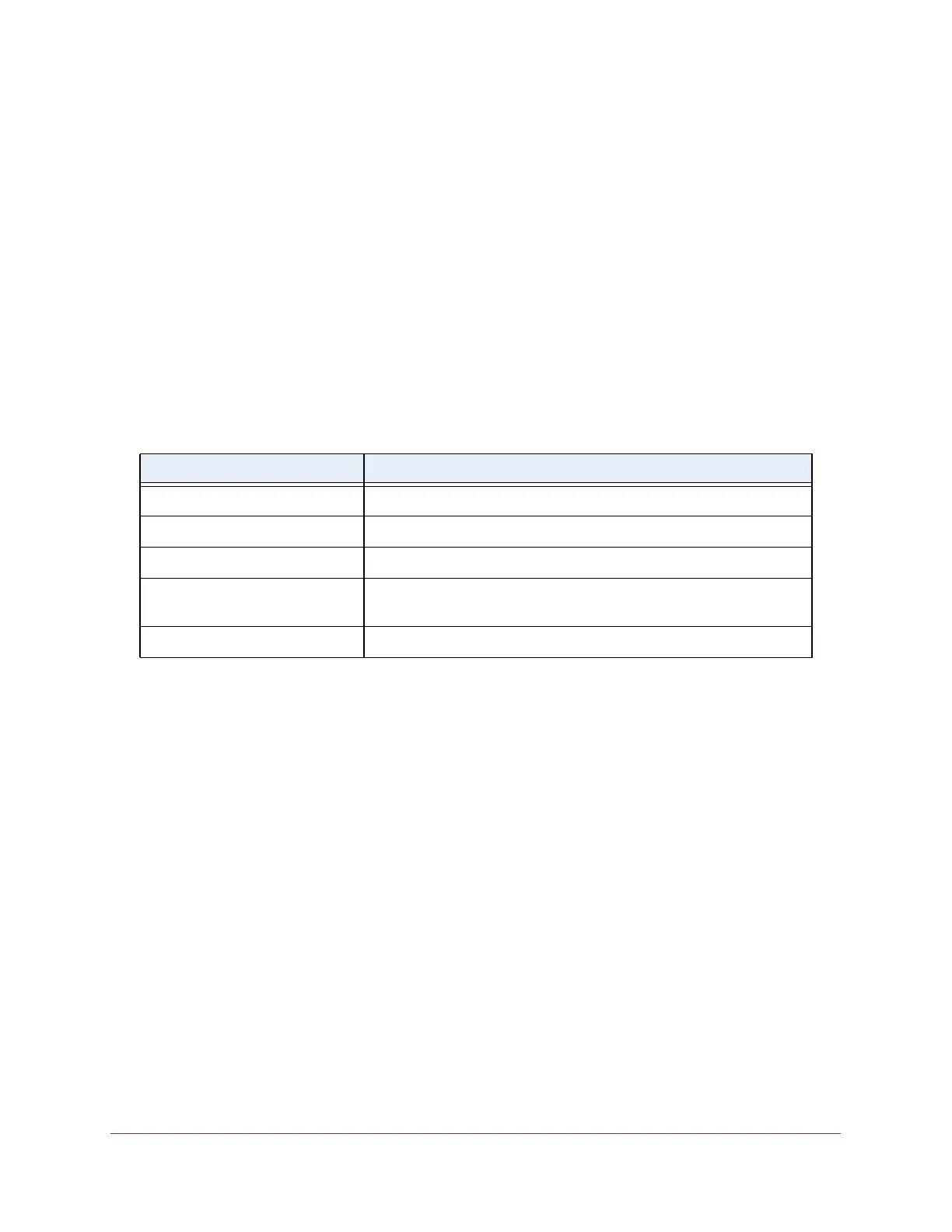
The following table describes the nonconfigurable fields.
View the Green Ethernet Statistics Summary
This page summarizes the green Ethernet settings currently in use.
To view the green Ethernet statistics:
1. Connect your computer to the same network as the switch.
You can use a WiFi or wired connection to connect your computer to the network, or
connect directly to a switch that is off-network using an Ethernet cable.
2. Launch a web browser.
3. In the address field of your web browser, enter the IP address of the switch.
If you do not know the IP address of the switch, see Access the Switch on page 12.
The login window opens.
4. Enter the switch’s password in the Password field.
The default password is password.
The System Information page displays.
5. Select System > Management > Green Ethernet > Green Ethernet Summary.
Table 13. Green Ethernet Remote Device Information
Field Description
Remote ID The remote client identifier assigned to the remote system.
Remote Tw_sys_tx (uSec) The value of Tw_sys that the remote system can support.
Remote Tw_sys_tx Echo (uSec) The value of Transmit Tw_sys echoed back by the remote system.
Remote Tw_sys_rx (uSec) The value of Tw_sys that the remote system requests from the local
system.
Remote Tw_sys_rx Echo (uSec) The value of Receive Tw_sys echoed back by the remote system.



 To Next Page