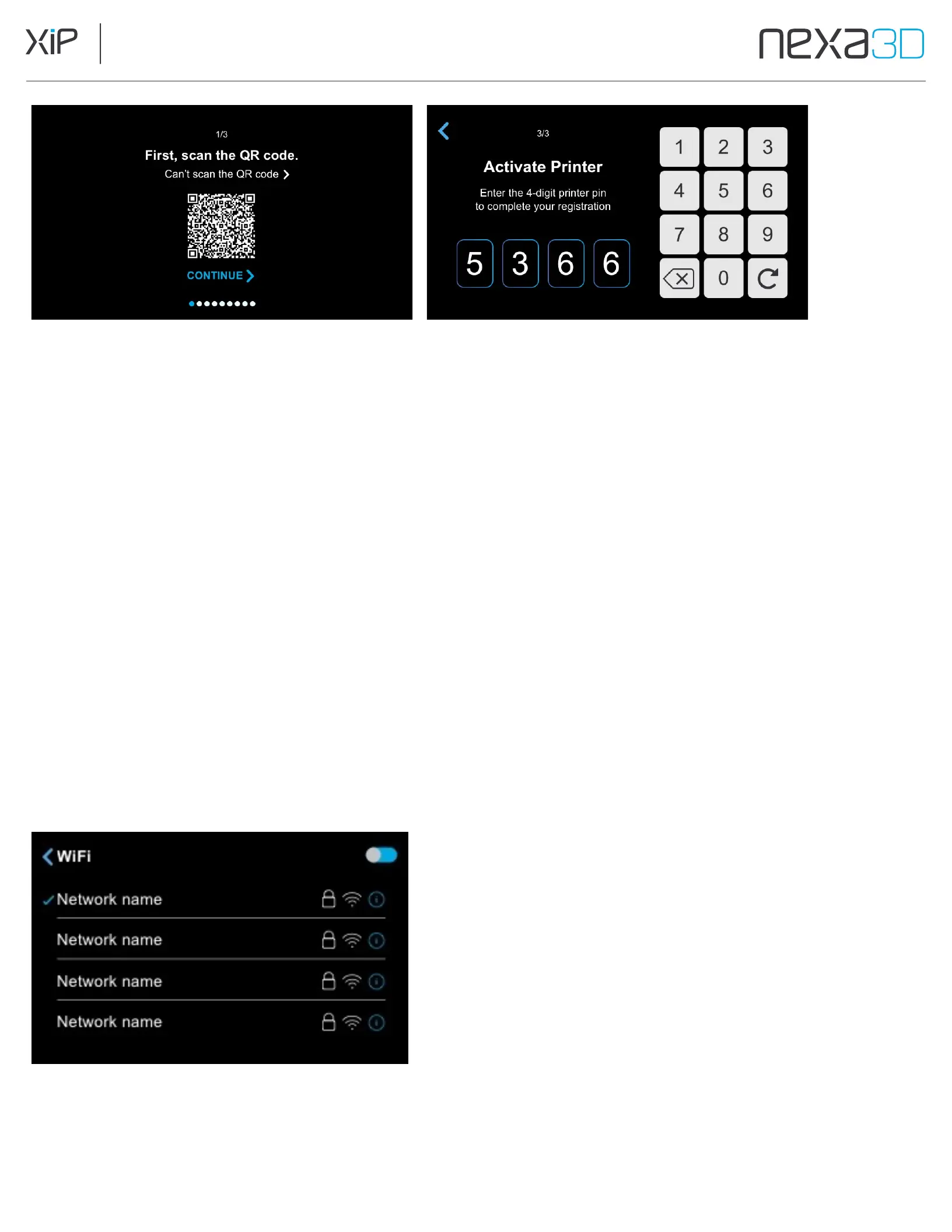
The registration form asks for several pieces of information:
•
Contact Info:
Needed to get in touch with you if there are any urgent
updates or recalls.
•
Location Info:
Needed to ship parts or replacements in the event of
warranty service.
•
Printer Serial Number:
Ties the registration to a specific unit. Found on the
product label in the lower back left side of the XiP.
•
Registration Code:
The unique registration code generated on the printer’s
touchscreen if unable to scan the QR code.
5.2 Connect
to
Wi-Fi
1.
Tap Continue to use XiP’s built-in Wi-Fi to connect to your network.
Otherwise, tap Skip if you will use a direct USB cable or Ethernet connection.
3.
Choose the name of the network you want to connect to, enter the network’s password and tap Join.
4.
Tap
Continue
after your connection is confirmed.



 To Next Page